Serverless Micro Services: Getting Started

Serverless systems are all the rage these days, and why not? They are, in my view, the next evolution on the microservice architecture that has been quite common over the last few years. But they offer several benefits such as they require no infrastructure deployment and, within most cloud environments, can easily integrate with and respond to the events happening within the cloud system.

The two leaders in this category, as I see it, are Amazon (Lambda) and Microsoft (Azure Functions). I thought it would be useful to walk through creating a simple Image Processing Microservice and discuss the various pieces of the implementation, from planning to completion.

Planning

One of the most critical pieces in software development is planning, and with Cloud this is even more vital as the sheer number of ways to accomplish something can quickly create a sense of paralysis. It is important that, for your chosen Cloud provider, you understand its offerings and have some idea how things can integrate and how difficult that integration may be versus other routes.

This planning is not only for the archiecture and flow of the coming application but also a means to facilitate discussion with your team. For example, understanding that serverless may not be the best choice for everything. Serverless functions can take a while to spin up if they are not used often. Further, most serverless providers cap the execution time of a given function. Understanding these and other shortcoming may lead you down the road of a more traditional microservice using Docker and infrastructure, going purely serverless, or a hybrid of the two.

For our Image Processing application, I have concocted a very simple diagram with the pieces I intend to use.

microservice1

In our example, the user will access our API through the API Manager feature in Azure. Using this allows us to consolidate our various Azure Function blocks behind a consistent API name and Url. Further this allows easy definition of rate limiting rules, as well as other elements that while important, will not be in our example.

In our application, the user will upload an image which we will store in blob storage and create a record in our MongoDB instance. The addition of the image to blob storage will trigger another Azure function that is watching for new adds. This function will take the new add and run the image through Azure Cognitive Services which will tell us more about the image. The additional bits of data are then added to the NoSQL document. records from Mongo are transmitted to our user as calls to the GetAll function are made.

Closing Thoughts

For this example, I have chosen to use an Azure Function which means that my method MUST complete in 5 minutes or less or Azure will kill it. Now, the only time that matters is if you are upload a large file or doing a very intensive operation. Though, for the later you would not want to tie that to a web operation anyway, you would favor a form of deferred processing; we actually do that here with our call to Cognitive Services.

In a typical application we often want to consider the type of access a service will require, as it plays into a lot of selection for other components. I chose to use a NoSQL database here because, under normal circumstances for this sort of application, I would expect a lot of usage here but, I dont necessarily care about consistency as much as availability; this is an essential conversation that needs to be had as you plan to build the service.

Finally, I love Azure functions here because they tie so neatly into the existing Azure services. While it would be trivial to write a polling process or, even leverage a Service Bus queue, using Azure functions which can be configured to respond to blob storage adds, means I have less to think about.

Ok, so we have planned our application. Let’s get started by building our Image Upload process in the next section.

Go to Part 2: Create Upload File


React, Redux, and Redux Observables

Today I will conclude this series as we dive into the final bit of our example and feature the setup of one of my favorite ways to structure my data access layer.

Part 3: Redux Observables

One of the great things about Redux is how well it organizes your state and how easy it can be to follow state changes. The uni-directional flow works well for this, but where it falls flat is when it comes to asynchronous operations, namely calls to get and manipulate data from a backend server.

This is not a new problem. Sagas, Thunks, and other approaches have been made to solve this problem. I cannot say that Redux Observables are the best, but certainly I have finding more and more uses for Reactive approaches in the code I am writing so, I welcome the ability to use RxJS in Redux.

The first step in this process is to update Redux to support this approach. See, Redux expects an actual object to be returned from a reducer which is fine for state changes, but not realistic for async operations. We need to change the middleware to support other types being returned; for this we need custom middleware, which we get from the redux-observable NPM package.

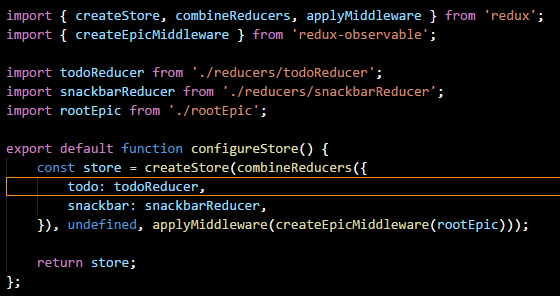
Most of the setup work for the custom middleware happens in the configureStore method which we created during the Redux portion of this series. Here is a shot of the updated configureStore method

observable1

It is not at all unusual for this method, as your application grows in size and complexity to gain complexity as well. In this case, we have brought in the applyMiddleware method from redux.

We use this new method to apply the result of createEpicMiddleware which comes from the redux-observable package. The parameter to this call is a listing of our “epics”.

An epic is a new concept that redux-observable introduces. For reference, here is a look at the Redux flow with these Epics included.

observable2

I like to think of epics as “Observable aware Reducers” mainly because they sit at the same level and have a similar flow. That being said, I do not look at epics as devices for updating state in most cases, instead I look at them as more specialized aspects of the system. Here is an example of the epic I use to get a list of Todo items from my sample application:

observable3

What is happening here is actually straightforward, however the methods of RxJS can make things a bbit hard to understand at first. Essentially, our call above which passed in rootEpic allowed Redux to pass emitted actions into our Epics. You recall that, in Redux, every action is passed to every reducer; which is why every reducer must have an exist case. Using combineReducers we can mash all of these reducers into one giant one. Similarly the call above with rootEpic is doing the same thing.

Unlike Reducers however, Epics do not need to have an exit case defined. They can safely ignore an action if it does not pertain to it. In this case, we use switchMap to ensure the any pre-existing occurrences of the operation are cancelled to make way for the new. Full docs: https://www.learnrxjs.io/operators/transformation/switchmap.html

The rule here is that we always return the core object of RxJS: Observable. Observabbles are, in many ways, similar to Promises. However, one major difference is that Observables can be thought of as being alive and always listening where Promises exist for their operation alone. This difference enables Observables to very easily carry out advanced scenarios without adding a lot of of extra work.

For the above, if fetchItems was called more than once, only one call would ever be in play. This is important because, the Observable returned once the call does complete sends off an action to a Reducer to add the fetched items into state. As a general rule, on our teams we do not use Epics to carry out changes to state, though it is possible we find that having this separation makes things a bit easier.

To call into an epic, you simply raise the action as you would normally via the dispatcher.

observable4

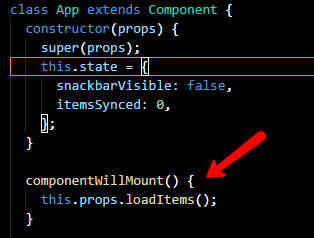
Here we call loadItems in componentWillMount (essentially when the App loads). This will raise the FETCH action that caused things to happen.

A more advanced scenario

Ok, so now you have the general idea, let’s look at something a bit more complex: forkJoin (https://www.learnrxjs.io/operators/combination/forkjoin.html).

In our example, we allow the user to create new Todo items and update existing ones. When the user is ready they can hit our sync button which saves all of the changed data to the server. This is an obvious scenario where “we want to do a bunch of discrete things and then, when they are all done, we want to do a finishing action”. This sort of thing before Promises was absolutely brutal.

Since we are using Obbservables we can do this without Promises but we will use a similar structure. For us, forkJoin is analogous to Promise.all.

observable5

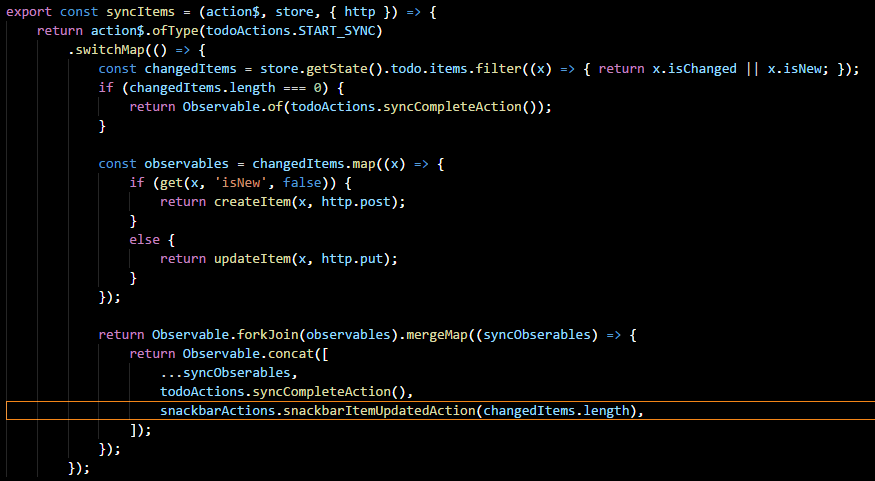
In this code we do some very basic filtering to find new and existing items which have changed. We want to call two separate endpoints for these two things. Another strategy would have been to send everything up and let the server figure it out; but that is less fun. And this is even easier to do in C#.

The important thing to understand is that our methods createItem and updateItem both return observables (they update the local state to reset dirty tracking flags and, for new items, hydrate the Id field to override the temp Id given).

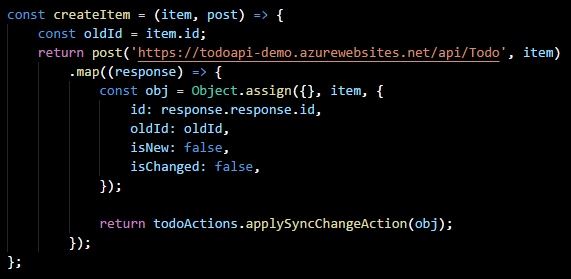
Here we use mergeMap (https://www.learnrxjs.io/operators/transformation/mergemap.html) to allow the inner Observables to complete and update their state as that action is not important to the action of indicating the sync is complete. For reference, here is the code for createItem.

observable6

You can see that we use map (https://www.learnrxjs.io/operators/transformation/map.html) here which is crucial so the observable that is returned can work with forkJoin, we dont want to wait for any internal completion at this level.

So what will happen is when post is called, it will return an Observable and that is immediately returned (along with all others). Internally, when the call does complete it will return our action result; map will then wrap this in an observable.

Ok, so this inner observable will be striped out of the outer by mergeMap (along with all others) and will be added to an array of Observables within another one using concat, in addition to two others (syncComplete and snackbarItemUpdate).

So that is crazy complicated. Try to remember that the parameter passed into mergeMap is the array of completed observables (completed in the sense that the web call finished) which contain state changes that need to be applied in addition to actions which hide a busy indicator and show a snackbar.

This is all compressed into a single observable (via concat) and returned to the middleware. The middleware will then dispatch each internal (which it expects to resolve to an object) action. This will then be checked by other epics and your set of reducers. In our case, the actions will perform state changes before finally signalling to dismiss the busy indicator and show our snackbar.

I realize that my explanation there was probably very hard to follow, also I am no RxJS expert. However, it does enable some very cool scenarios out of the box, and I like it because I believe there many advantages offered over Promises.

Let’s bring it home

So that concludes the series. I am actually giving a presentation based on this material, most recently at Codemash in Sandusky. I really do believe that Observables offers some solid advantages over what I have seen of Thunks and Sagas bbut, as always, evaluate your needs first and foremost.

Here is the code for the full app used throughout this demo: https://gitlab.com/xximjasonxx/todo-app

Examine the various remote branches to see starting points that you can use to see how well you understand the setup for the various parts.

Cheers.

Codemash

With great humility I accepted the invitation to speak at Codemash for a second year in a row. Last year I spoke on Xamarin.Forms, this year I debuted my new talk based on the experience of a project I have been leading for 7 months at West Monroe; a talk on ReactJS, Redux, and Redux-Observables. The talk is a culmination of the lessons learned while using this stack to develop the product for our client.

This Codemash, however, was very different from all other experiences due mainly to my extended stay at the hotel (I am usually only there for the GA conference) and my fight with severe food poisoning on Wednesday. The later caused my session to be delayed until 830am on the final day of the conference. Thankfully things went well, but throwing up seven times on Wednesday was not at all fun.

But in the end things worked out, I even managed to catch an earlier flight back to Chicago to beat a snowstorm that was coming in. Throughout this trip I was reminded just how awesome it is to fly with Southwest as I had to make many changes to my trip and each time, super easy and no fees. I also discovered the Kalahari, and probably other similar hotels, are not well setup for person’s with upset stomachs – was very difficult to find bland foods on their menu. But their staff was amazing and even had the onsite EMT check me out to make sure I didnt need any additional treatment; I didnt.

As for the talk I got quite a few people which, given the reschedule, actually surprised me. It was a good audience, great questions. But I still feel the talk attempts to cover too much despite my best efforts to scale it down; it might well become a two part talk.

For now, I am resting and enjoying my 35th birthday and heading back to work with no travel on the calendar until March (MVP Summit). Time to find a new apartment in Chicago and start preparing for Ethan’s arrival in July.

React, Redux, and Redux Observables

I think this might be the first time that I have said I was going to create a multi-part series and actually went one to create more than one part. Glad to be getting the new years started well.

Part 2: Redux

State management is hard, in any application, for any reason. Applications today are very complex and have many intricate features that often need to be cross cutting (that is affect area within their scope of responsibility, as well as outside). In JavaScript, this task has long been the bane of developers for as long as I can remember. In recent years, smart people have attempted to find a better way to do this. I think they have stumbled onto something with Flux and now Redux.

So, Flux was the first attempt at patterning a meaningful way for applications, particular SPAs build on React, to tackle this problem. The most notable aspect of the Flux pattern was the “unidirectional flow” of data that emphasized determinism. The concept, simply put, was that if I raise an action, the effect of that action should be determined and not based on the current state of the system, i.e lacking in temporal coupling (http://blog.ploeh.dk/2011/05/24/DesignSmellTemporalCoupling/)

Flux has since fallen out of favor due to risks with keeping state change business logic in the store itself. Redux has supplanted it because it allows for tighter control and better separation of concerns. That is why, predominantly, we see Redux being used for Flux for new applications. YMMV

Returning to the example at the end of Part 1, we see the use of component state in FormComponent. This is not bad, nor does it represent a code smell. However, ideally if other parts of our application are going to need access to this, keeping it inside the component will not suffice. This is where Redux comes in, as it allows a global store of state and tight management of that store; a necessary feature as more applications are turning towards a sync model rather than a direct save.

Before we dive in, here is the overall flow of a Redux application. We will discuss each piece and how to set things up.

redux

Again, you can see the flow of information is uni-directional. The Container concept is a “connected” React component, we will discuss that in a bit.

The Setup

So, this part can be a bit tricky and I am going to assume you already have a React application, maybe even the one from Part 1. Your first step, as usual, is to install the appropriate NPM packages

yarn add redux react-redux

The first thing to understand is the store. The Store is a special construct that you will want to be widely available throughout your application. The store contains all of your applications data. To facilitate this the react-redux provides the Provider element, here is how you use it:

The element works by create a context level variable for the store. Without diving too much into what Context is, its suffice to say that our store will be accessible should we need it. The real magic here is what goes on in the configureStore method.

In general, I recommend create a separate method for this as, depending on the size and scope of your application, store setup can be quite involved, as we will see in Part 3 when we begin to add custom middleware. But for now, this will seem like overkill, though I do like the separation.
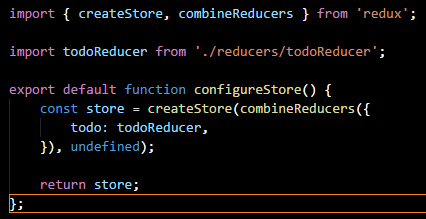
 

redux3

For the store, we are simply giving it a single Reducer which will handle state changes. Now, as a side note I am using the combineReducers method here from redux. Honestly, if you have only one reducer, using this method is overkill, but its important to be aware that it exists.

Reducers are an integral part of Redux because they are charged with replacing state based on events. When an event is raised via an Action ALL reducers are given the action. By default, if the Reducer does not care about this, it simply returns the unchanged state it was given. If it does care then, it replaces the part of state. Here is an example:
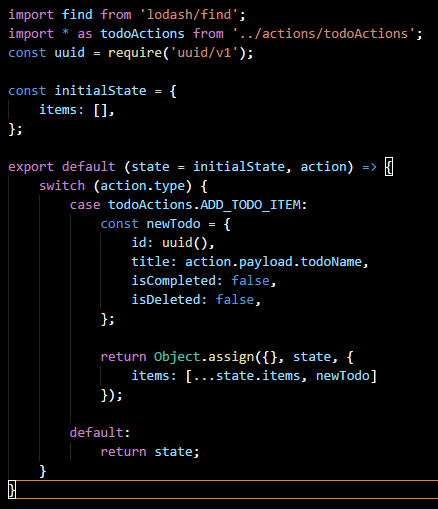
redux4

First, note the initialState constant. If you remember in our configureStore method we passed undefined in a the second parameter to createStore, this was the state to be given, initially, to the reducers. I dont personally like giving it there. By passing undefined I can do the above where the initial state for each reducer is defined in the same file.

You see, state = initialState will set state to initialState if undefined is passed for state. In this case, we are stating that the todoReducer only cares about an array called items. So, it is reasonable to expect that, throughout our reducer, the only part of state we will see modified is items; that is generally the smell test for a reducer.

Now, earlier I mentioned that Redux will fire ALL reducers when an action is raised. That is why we do not want to change state, only replace  it (note the use of Object.assign above). When a reducer is given an action that it cares about, its changes need to be as minimal as possible. In the above, we are adding an item so, our new state is simply the existing items array plus the addition of the new item.

If an action was passed to this reducer that it did not care about it, it would simply hit the default section of the switch and return the state it was given.

So, you see how a reducer plays out, let’s talk about actions.

In Redux, actions play the crucial role of informing Redux that the user wishes to change something. For their part, actions are probably the simplest thing in Redux to understand. Here is an example of three actions:
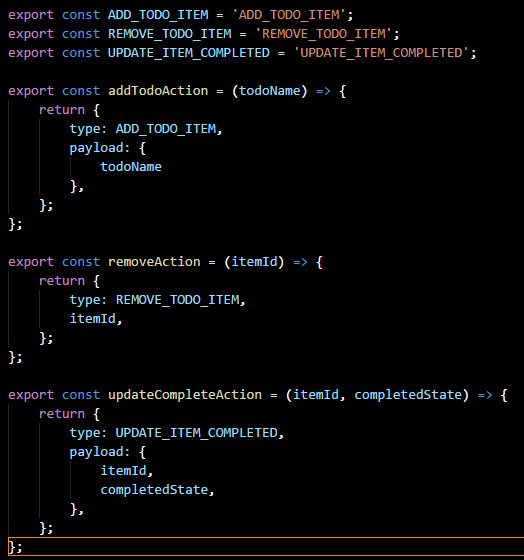
redux5

An action for Redux (and Flux) has only one requirement: it must have a property called type. Additional recommendations include a property payload if more than one piece of data is to be transmitted with the action.

By wrapping these results in functions, the code for dispatching is much cleaner and easier to read. You do not have to have action methods as shown above, but it is the recommended approach.

Ok, so at this point we have gone through most of the core pieces of Redux, now lets fit the pieces together.

Earlier I mentioned the Container concept, or a connected React component. Let’s understand what this means.

When we use the <Provider> tag we are able to pass a reference to our store around in context. A connected component accesses this variable and exposes it. In React, this is done via the connect method.
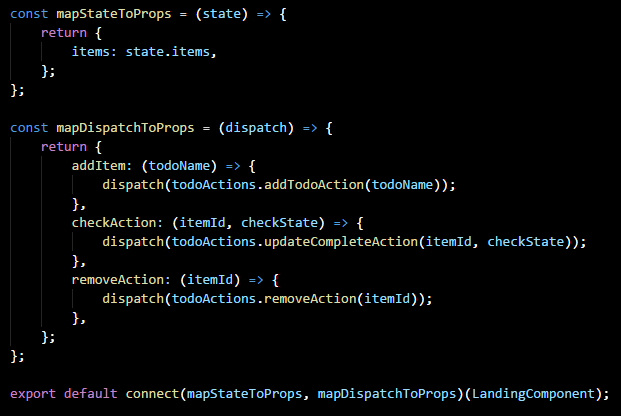
redux6

Notice the usage of LandingComponent in the above code, this export call effectively creates a the Landing Container. The container wraps the components and provides props to the component which allow access to the store and the Redux dispatcher.

Let’s walk through this code:
connect takes two parameters, both of which are callbacks. mapStateToProps provides us a reference to our state, via the store. Using this variable we can MAP data in state to our component. In the above code, LandingComponent will receive a prop called items which will contain the contents of state.items. Note here, however, that, if you use combineReducers you will need an additional qualifier after state since the various states will be partitioned.

mapDispatchToProps allows us to provide a set of functions as props to our component (LandiongComponent in this case) which we can invoke to dispatch actions. In this case, LandingComponent will receive a prop of type func, which, when invoked, will dispatch the removeAction.

The dispatch of removeAction will cause a reducer to change the state. Once that change is made, mapStateToProps will be called again and the Component will be given new props reflecting the state change. This will trigger a re-render. That render will affect the virtual-dom which will ensure that all state changes are properly and efficiently applied; see Part 1.

What connect() actually returns is another function which takes one parameter: the component to apply the props to, in this case LandingComponent. If we look at LandingComponent we can see that it does not look any different than any other React component, but the props are supplied from the Redux store.
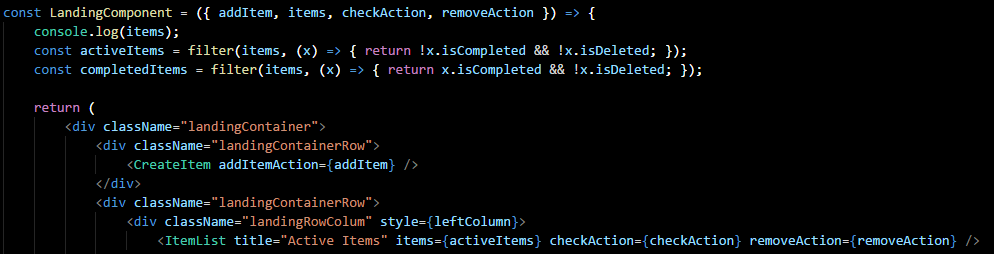
redux7

A word of advice on the use of connect: be careful. It can be very easy to misuse and have connections everywhere; our teams strive to avoid this and thus only apply connect at the top most level. Your applications needs may vary, I have yet to find a hard and fast rule for this.

One other piece of advice when it comes to reducers. If you ever find yourself with a “selected*” type property in your state: stop. You are likely doing it wrong. The things being kept in state should be more permanent, not temporary. So if the user can cancel out of an action use component to hold it while its being edited; only use the store once you want to persist it.

On the topic of persistence, you will notice that Redux does not actually persist anything beyond the lifetime of your session. This is intentional. Redux is about state management, not state persistence. There are multiple ways to store state and Redux certainly makes it easier. In our next part, I intend to look at Redux Observables and how they can be used to make your data layer more flexible and resilient.

React, Redux, and Redux Observables

The intention is that this will the first part in a series covering how to build end to end Single Page Applications (SPAs) using React. Since React is view only, other tools must be brought in. I will also be giving a talk based on this series throughout 2018, notably at CodeMash in a couple weeks to start. Without further ado, let’s dive in:

Part 1: React

React is a View framework created for highly interactive web applications by Facebook; in fact it is the main view engine for both Facebook and Instagram websites. The problem when creating highly interactive websites with JavaScript is we stress the DOM rendering engine heavily. Each time we perform any sort of manipulation, the DOM gets repainted. Modern browsers have learned to do this in smarter ways but the problem stil exists that as you have more happen, you start to see degraded performance,

To combat this, we started seeing the emergence of the “Virtual DOM” (https://www.npmjs.com/package/virtual-dom). The idea here is, we operate against this Virtual DOM which then calculates the delta’s from the DOM’s previous state and the target state and makes the changes in one fell swoop. The result is a cleaner separation between state tracking of the DOM and your application code.

React (and other SPAs) now build this is as part of their rendering pipeline, so you can take advantage of this with little effort. But before we dive too deeply into this, let’s get the basics of React covered.

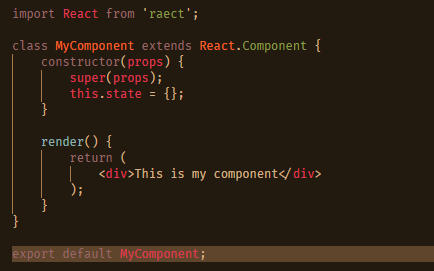
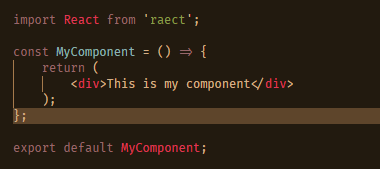
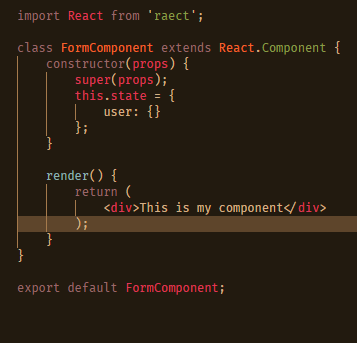
React applications are composed of “components” which define view and interactive functionality. Currently there are two popular ways to create these components, each has its own place. (apologies as code samples need to be in images for JSX, WordPress apparently does not like the syntax)

The Class Component
react1

The Stateless Functional Component
react2

Now both of these will visually show the same thing however, there use cases are very different. But before we can talk about that we need to explore the idea of “state” in React applications.

In React applications, data (or state) can be passed around in two forms: state and props. I realize the terminology here can be a bit confusing. Its enough to understand that state and props are low level monikers for the notion of state. In particular, props represent readonly data that is passed into our component via attributes. state is read/write data that is held within our components proper. However, as the name implies Stateless Functional Components do no support the read/write state mentioned above, there are for presenting purely data the readonly.

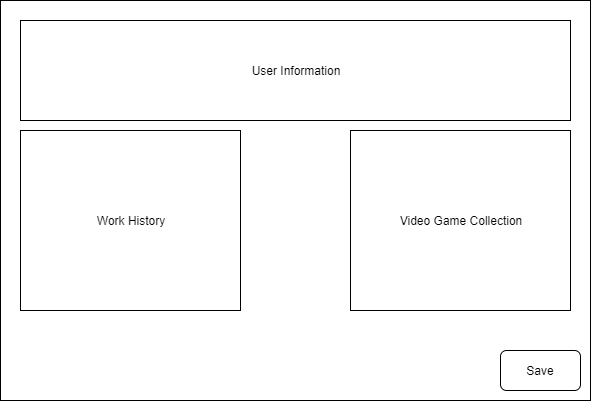
To think about this another way. Let’s say you were designing a form to add something. You might create something like this to represent the entire form:
react3

In React, each of these would be a component, so we would, at the start have four components: The main component which holds our save button and hosts the other three, let’s call this FormComponent. The others are easy:

  • UserInfoComponent
  • WorkHistoryComponent
  • VideoGameCollectionComponent

Note: the suffice Component is not mandatory, its a convention that I have adopted that is useful when you start adding more complex things on top of React such as Redux, more on that in Part 2.

The tricky part is combining state and props correctly; its a fine line and can easily create clunky code if done incorrectly.  Here is how I like to think of it:

I use state when I want to save something in a temporary store. For example, if I am creating a new record, I would want to the data persisted while the user is on the form but, should I hit ‘Back’ or ‘Cancel’ I would want it to go away. In our example, state will exist in multiple places, but the be all end all state that we care about will live in FormComponent since it is this component which holds all of the others.

Props is data that is passed into components. It can be derived from state or it can become state; this makes sense as state is only ever internal to the control. Where this does get a bit weird is when we are communicating back. For example, assuming our “user” record we are creating this in FormComponent as such:
react4

Ultimately, this is the state variable that will get updated as data changes. But lets say, for this example, that a field UserInfoComponent called username existed and each time the react5user changed this value we wanted to update this user in state, how would we do that?

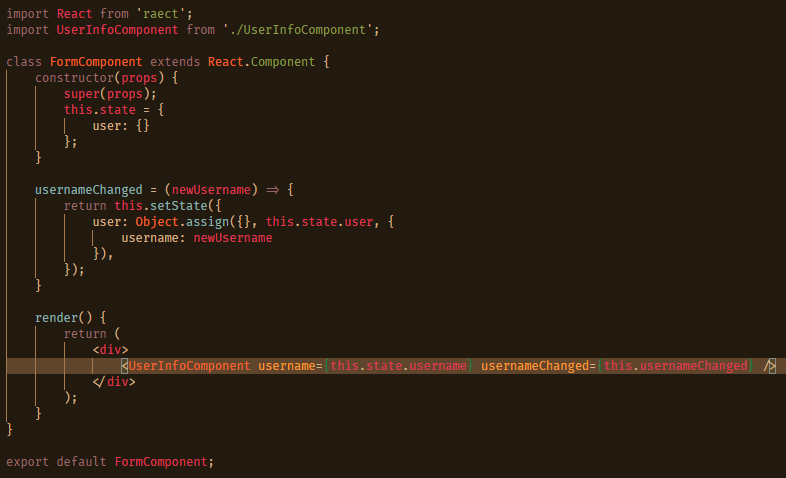
This is where things get a bit tricky. Two rules here:

1) A component should NEVER, but NEVER read state from another component. Doing this will cause you great pain and suffering in the long haul. Just dont do it.

2) Never, but never, mutate state. You will find this throughout the Redux pattern as well, but within the world of statement we always want to replace state, never mutate it in place. The reason is, by replacing we greatly decrease the chances of race conditions and side effects.

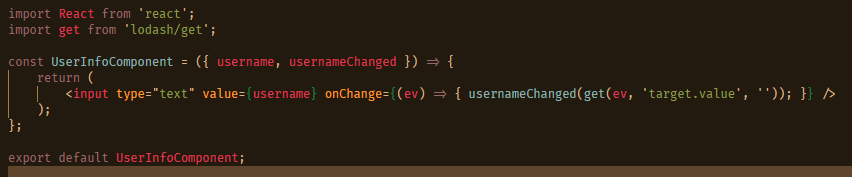
Okay, so with that out of the way, let’s tackle this. First, I am going to show the source for my UserInfoComponent:
react5

First thing I will point out is the top. In JavaScript if you have an object you a special syntax whereby you can have variables which are named the same as properties of a given object (I do this for username and usernameChanged). I realize that sounds complicated, but perhaps this will help. Here is what the object looks like without this:
react6

Notice in this example we are referencing the props parameter (Functional Stateless Components) are effectively functions, which is why they dont support state. In this case, the use of props vs { prop1, prop2, … } is irrelevant because the incoming parameter are so simple, but for more complex cases its a lifesaver.

Ok, enough of that, let’s talk about what is happening here. Our UserInfoComponent now supports two props:

  • username: The current value of username
  • usernameChanged: The function to call to update the username in the hosted components state. Remember, our UserInfoComponent does not have state, so we cant store what the user types within it.

Okay, so that is cool, let’s return to our FormComponent and see what is actually happening:
react7

Okay, that changed a lot. So, the first thing to point out is we have imported our UserInfoComponent from above. We can see that we are passing local elements in for the username and usernameChanged props; note these names do not have to match, can be anything you want. The definition of these attributes hydrates our props object.

So when the user presses a key in our textfield, locally it will call onChange. That onChange method will extract the updated value our textfield and pass it to the func which was given through the usernameChanged prop. When this is called it will execute the usernameChanged method in the above code sample.

Now, this method is topic in and of itself. Remember, we said you CANNOT mutate state, you should always replace it. To facilitate that, you will find yourself using Object.assign a lot (docs for Object.assign). What this does is it takes a target (first parameter, in our case an empty object) and combines it with a second (usually an existing object, in our case the current user in state) and a third (the changes that should be made to parameter two as the final result is created). The outcome is a brand new object which we can use to replace the existing object.

After we have that object we call the special setState method which recreates the state based on our state changes (again, we are REPLACING state, not modifying it. That distinction is vitally important). Once setState is finished, the component will re-render itself with the new state values.

Understanding this cycle is VERY important to the React programmer as it underpins EVERYTHING. Failure to understand it can result in hard to manage state and flow. Facebook designed React to be cyclical in its nature, which makes state management easier. With strict rules to negate potential misunderstanding.

Getting Started

So, now you have a basic grasp of React and how it works to deliver highly functional and performant views. But as is the case with modern frameworks and tools, it can take a lot ot get going. Luckly, Facebook has created the create-react-app package which offers a command line interface to getting started, details here: https://github.com/facebookincubator/create-react-app

One side point about this, the tool is awesome as it bundles everything from server setup, file watching, Babel and Webpack into a single executable that anyone can run. However, it is not awesome for the same reasons. Luckily you can “eject” if you want to take a more heavy handed approach to configuration. Its documented to explain the risks associated.

Next Steps

In the above we got you going with an application but, its pretty useless as you can only collect data into the state of FormComponent. What do you do after? That is where we move to the next topic: Redux, specifically React-Redux

StarCraft Unit API

It has been a long time since I last created a post here. It is not a question of desire, more of time. In the past two months, I served as Best Man at my youngest brother’s wedding on September 30 and then, two weeks later, I married my girlfriend Woo of four years. We only just got back from the honeymoon. I must say, I was thankful my many years in consulting taught me how to organize and plan; I ended up doing the lionshare of the wedding planning and, I will say, using Agile and Scrum to plan it made it a snap.

These events did force me to forgo speaking for the last 6 months of the year, mercifully in a way as West Monroe has kept me impressively busy. But now, with all of this behind me I can finally turn my attention back to speaking and community involvement. To that end, I will be returning to Codemash in January to speak on React, Redux, and Redux Observables (our team has been using this extensively in our current project).

To that end, I have been wanting to create a new source of data for my future talks and so I decided on cataloging the various StarCraft units. My hope is, in addition to serving as a data source, I might be able to use it also practice Machine Learning to calculate new build orders.

Anyway, to build this API I decided to take a new tactic and leverage Azure Functions with HTTP Triggers and the “new” Azure CosmosDB (the successor to DocumentDb). I thought I would walk through things here:

Creating the CosmosDb

Setting up the backend database was very easy. I simply searched in the Azure portal for Cosmos and followed the steps for setup. I wont get into throughput settings or anything like that as I dont see this being used that heavily.

Create the Azure Function to Create

This ended up being the hardest part, mainly because my Azure CLI tools were out of date and it caused a weird bug when running locally – the request would always come through as a GET – which sucks if you are expecting POST and looking for BODY content. Once I upgraded the problem went away. Just an FYI.

So, Visual Studio tooling has come a LONG way in this aspect, its super easy now to create these Azure functions locally, test them, and seamlessly deploy them. I recommend creating the solution after the project as a whole and using the the “projects” to partition off the various pieces of your API.

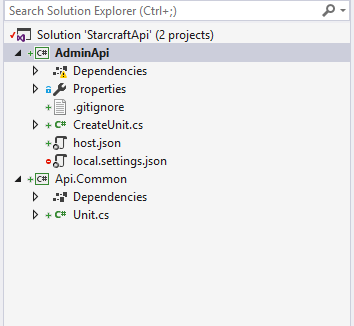
In my case, I went with StarcraftApi for my solution name and created AdminApi which will hold admin functions ( in this example we will create a unit ). You can also create class library projects to share logic between the various APIs – hint you will want to make sure these class libraries using the same .NET Standard setting as the Azure function project (AdminApi).

SolutionExplorer

I try to isolate a single Azure function for each file here so, CreateUnit for this example. The goal here is to take take the contents of the incoming BODY and insert the Json into my CosmosDb. You will remember that Cosmos is a NoSQL database so there is not defined schema you need to follow.

Ok, so if you actually look at one of these functions there is a lot to take in, especially in the method signature portion.

signature

  • FunctionName – this is for Azure and discovery – it gives the “name” for this function, since Run isnt very descriptive
  • HttpTrigger – indicates how the requested is given to the function. In this case, via a Http POST request matching the route api/Unit (case insensitive)
    • Admin here indicates that the _master key must be passed to this function to authenticate usage

Once you have these in place you can upload the code to Azure and it can be executed. You can also run it locally though, be aware, the local server does NOT seem to check for Admin creds; I think that is intentional.

Inserting Data

When you create your CosmosDb you will be given a connection string. Cosmos fronts a variety of different NoSQL Database technologies, for my example I am using Mongo, so I will have a Mongo connection string and use the Mongo .NET libraries to connect (MongoDB.Driver v2.3.0 – v2.4.x seems to have a known bug where it wont connect properly).

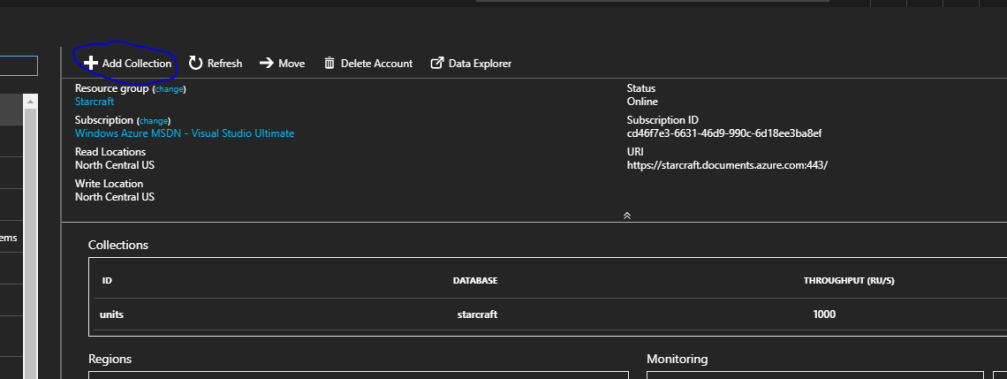
So, the weird thing here is, even though we have a CosmosDB we do not actually have a database. I mean, easy to create you can click +Add Collection and it will prompt you for the database at which point you can do “Create New”.

cosmos

Collections are where the data will actually live and collections live in databases. Like I said, not hard just very weird when you think about it. But it is a similar paradigm from SQL Azure, where you had to create the server first and then database; just the naming is weird here.

Full sample that I used is here: https://stackoverflow.com/questions/29327856/how-to-insert-data-into-a-mongodb-collection-using-the-c-sharp-2-0-driver

Happy Coding. Hit me in the comments if you have any questions.

Building an Event Driven Arch with AWS

Recently, I completed the execution of the New Hire Bootcamp for West Monroe with a focus on Cloud. The presentation contained elements from both Azure and AWS but my focus was primarily on AWS. The principal goal was to expose our incoming new hire class to the technologies that they will be using as they are assigned to project at West Monroe – most of them are straight out of college.

Cloud is a difficult platform as most people will attest, its main value is making the complex scenarios (like elastic scaling and event driven architectures) easier to implement and maintain; mainly by leveraging pre-built components which are designed to scale and take advantage of the existing infrastructure more so than a custom built component. Our goal within this bootcamp was, over the course of 4hrs to have them implement an event driven event processing system. It went well and I thought many of the explanations and examples can have a wider appeal.

Part 1: The Lambda

Lambda functions represent Amazon’s approach to “serverless” architectures. “serverless” is, in my view, the next evolution in hosting when we fully break away from the concept of a “server” and related plumbing and view Cloud as merely hosting code and handling all of the scaling for us. While I do not personally think we are to the point where we should abandon nginx, IIS, or Apache I do believe Lambda (and the paradigm it is a part of) opens up immense possibilities when considered in a wider cloud infrastructure.

The biggest one here is supporting event driven architectures. Where previously, you would have to write a good amount of code to support something like a CQRS implementation or queue polling now you can simply write a function to listen for an event raised within your cloud infrastructure. In the bootcamp we created a function that fired when an object was created in a specific bucket in S3.

In doing this, we are able to have our Lambda make calls to Rekognition, which is Amazon’s Machine Vision offering. We can then store the results in our DynamoDb table which holds the metadata for the image when it was initially uploaded.

The code for calling Rekognition is easy and looks like this:

const rekognition: AWS.Rekognition = new AWS.Rekognition({
    region: "us-east-1"
});

function detectLabels(bucketName: string, keyName: string): Promise<any> {
    return new Promise<any>((resolve, reject) => {
        const params = {
            Image: {
                S3Object: {
                    Bucket: bucketName,
                    Name: keyName
                }
            },
            MaxLabels: 123,
            MinConfidence: 70
        };

        rekognition.detectLabels(params, (err, data) => {
            if (err) {
                reject(err);
            }
            else {
                resolve(data);
            }
        });
    });
}

function findFaces(bucketName: string, keyName: string): Promise<any> {
    return new Promise<any>((resolve, reject) => {
        const params = {
            Image: {
                S3Object: {
                    Bucket: bucketName,
                    Name: keyName
                }
            }
        };

        rekognition.detectFaces(params, (err, data) => {
            if (err) {
                reject(err);
            }
            else {
                resolve(data);
            }
        });
    });
}

One of the major prerequisites here is the installation, locally, of the AWS CLI and the running of aws configure which allows you to add the access key information associated with your logon – it also keeps sensitive key information out of your code; use an AWS role for your Lambda to give the Lambda access to the needed resources (Dynamo and Rekognition in this case).

Once we make the call we need to update Dynamo. Because Dynamo is a document based database, we can support free style JSON and add and remove columns as needed. Here we will look up the item to see if it exists and then run an update. The update code looks like this:

const params = {
   TableName: "wmp-nhbc-bootcamp-images",
   Key: { "keyName": keyName },
   UpdateExpression: "set labels=:l, faces=:f",
   ExpressionAttributeValues: {
        ":l": resultData[LABELS_RESULT_INDEX],
        ":f": resultData[FACES_RESULT_INDEX]
   },
   ReturnValues: "NONE"
};

const client: AWS.DynamoDB.DocumentClient = new AWS.DynamoDB.DocumentClient({
    region: "us-east-1"
});
client.update(params, (err, data) => {
if (err) {
     reject(err);
}
else {
     resolve(true);
}

We are simply finding the result and updating the fields; those fields get created if they do not already exist.

What makes this so powerful is that AWS will scale the Lambda as much as needed to keep up with demand. Pricing is very cheap where the first million requests are free, with each subsequent batch of million costing $0.20 per million.

Part 2: The Beanstalk

Elastic Beanstalk is Amazon container service for deployments; not to be confused with their container repository. I say container because it allows you to upload code to a container and have it scale the cluster for you.

For this, there is no code to show but its important, as before, that your servers be deployed with a role that can access the servers they need. In this case, as this is the API it needs to access both Dynamo (to write the metadata) and S3 (to store the image). Probably the most complex part was increasing the max message size for the servers (to support the file upload). This had to be done through .ebextensions which allow you to run code as part of the container code to configure the servers. Here is what we wrote:

---
files:
  "/etc/nginx/conf.d/proxy.conf":
    mode: "000755"
    owner: root
    group: root
    content: |
      client_max_body_size 20M;

Honestly, the hardest part of this was getting gulp-zip to include the hidden folders within the archive. This ended up being the gulp task for this:

const gulp = require('gulp');
const shell = require('shelljs');
const copy = require('gulp-copy');
const archiver = require('gulp-archiver');

gulp.task('prepare', function() {
    shell.exec('rm -rf package');
});

gulp.task('archive-build', function() {
    shell.exec('tsc --outDir package --sourceMap false --module "commonjs" --target "es6"');
});

gulp.task('file-copy', function() {
    return gulp.src([
        './package.json',
        '.ebextensions/**/*.*'
    ], { dot: true })
    .pipe(copy('./package'));
});

gulp.task('create-archive-folder', [ 'prepare', 'archive-build', 'file-copy' ]);

gulp.task('archive', [ 'create-archive-folder' ], function() {
    return gulp.src('./package/**/*.*', { dot: true })
    .pipe(archiver('server.zip'))
    .pipe(gulp.dest('./'));
});

Note the dot: true, it is required to get the process to pick up the hidden files and folders. We are using TypeScript here as the transpiler. With this in place we could move on to the front end written using Angular 2.

Part 3: Finding Faces

Really, the app is fairly simple and supports the ability to upload images, view a list of the images, and drill into a specific one. One cool thing I did add was some code to draw boxes around the faces found by the detectFaces call in Rekognition. To do this, I ended up having to draw the image to a element and then draw boxes using the available commands. This logic looks like this:

@ViewChild('imageOverlay') overlay;

buildFaceBoxes(faces: any[]): void {
  let canvas = this.overlay.nativeElement;
  let context = canvas.getContext('2d');
  let source = new Image();

  source.onload = (ev) => {
  this.adjustCanvasDims(source.naturalWidth, source.naturalHeight);
    context.drawImage(source, 0, 0, source.naturalWidth, source.naturalHeight);

    const imageWidth: number = source.naturalWidth;
    const imageHeight: number = source.naturalHeight;

    for (let x: number = 0; x<faces.length; x++) {
      const face = faces[x];
      const leftX = imageWidth * face.BoundingBox.Left;
      const topY = imageHeight * face.BoundingBox.Top;
      const rightX = (imageWidth * face.BoundingBox.Left)
        + (imageWidth * face.BoundingBox.Width);
      const bottomY = (imageHeight * face.BoundingBox.Top)
        + (imageHeight * face.BoundingBox.Height);

      this.buildFaceBox(context, leftX, topY, rightX, bottomY);
    }
  };

  source.src = this.getS3Path();
}

buildFaceBox(context: CanvasRenderingContext2D, leftX: number,
  topY: number, rightX: number, bottomY: number): void {

  context.beginPath();
  context.strokeStyle = 'blue';
  context.lineWidth = 5;
  context.moveTo(leftX, topY);

  // draw box top
  context.lineTo(rightX, topY);
  context.stroke();

  // draw box right
  context.moveTo(rightX, topY)
  context.lineTo(rightX, bottomY);
  context.stroke();

  // draw box bottom
  context.moveTo(rightX, bottomY);
  context.lineTo(leftX, bottomY);
  context.stroke();

  // draw box left
  context.moveTo(leftX, bottomY);
  context.lineTo(leftX, topY);
  context.stroke();
}

Once you get it, its pretty easy. And it even works for multiple faces.

So, I am pleased that our attendees got through this as well as they did, this is not easy. It was a great learning experience for both myself and them.

My next goal is to recreate this application using Azure.

Cloud Bootcamp at West Monroe

One of the great things I love about working at West Monroe is the spirit of mentorship and camaraderie that are central to our culture. While there are numerous examples, perhaps my up and coming favorite is our New Hire onboarding process. While we have, for many years, made it a priority to put new hires through our Consulting 101 class so they gain an understanding of the world of consulting, we took it to a whole new level last year when, as opposed to hiring an outside firm, we asked internal leaders to develop curriculum to onboard new hires in the various technologies and methodologies that are in use at West Monroe.


Last year, the inaugural year,  I helped lead the mobile portion of this training. Our main focus was iOS with Xamarin as this is where we see most of our client work. The result was impressive, two of those in the class were able to quickly roll on to a crucial Xamarin project and ultimately contributed to a rousing success (one is now leading his own project while the Senior is traveling in China, while the other has become our leading expert on Android).

As I have moved away from mobile to focus on my roots of web and backend development I was asked to put together a new curriculum this year, one focused on cloud computing. This is due to the immense success of the previous year which has seen the time for this training increase to 10 full working days – Cloud will have its own 4hr block.

This desire to mentor and cultivate our young developers into the future leaders is part of what makes working at West Monroe so rewarding. Now starting my 4th year at the firm I have taken great pride in seeing so many of the young consultants I have worked with and mentor now taking leading roles on their projects and continuing to improve.

Toolbar Navigation in Xamarin Forms

It always amazes me when things that, as a framework developer, I would consider obvious are overlooked completely. Part of the promise of Forms is the ability to create a single definition and get a native feel as it gets applied to different platforms. Part of achieving this native feel is following the idiomatic standards of the platform. Today we are going to talk about one area of Forms that drives me nuts: ToolbarItems.

On iOS it is a COMMON use case that you have a ‘Cancel’ button to the left of the page title and some primary action to the right. For whatever reason, even though we are almost to 3.0 for Forms, the team has STILL not adopted this standard. Instead, we get a very cludgy and ugly system where the system puts ALL buttons to the right and, for overflow, creates a hideous toolbar beneath the title that I have never seen in a single iOS app.

Last night, while working through an app I am making I had to fight with this shortcoming and I think it makes sense to detail the approach I came to, based heavily on https://timeyoutake.it/2016/01/02/creating-a-left-toolbaritem-in-xamarin-forms/

Define the Toolbar Items

<ContentPage.ToolbarItems>
   <ToolbarItem Text="Save" Priority="0" Command="{Binding SaveCommand}" />
   <ToolbarItem Text="Cancel" Priority="1" Command="{Binding CancelCommand}" />
</ContentPage.ToolbarItems>

Here we are setting up. Priority denotes the order items are displayed on the right side. In our case, we need to use this so we can denote Order. Now, yes, I know there is an actual Order property on ToolbarItem and it would be great to use it. Sadly, we cant. Due to the design of ToolbarItem, Order overrides Priority thus, you end up with only a single menu item in the top and thus the approach we are going to use wont work. For now, assume 0 means Right, and 1 means Left – leave off Order. You cannot use it with the approach I am going to show.

The Custom Page

Forms being Forms, we are going to need a CustomRenderer to handle this special functionality. For this case I like to create a custom type to target with the renderer however, you dont have to do it; its a personal preference that I take.

<?xml version="1.0" encoding="UTF-8"?>
<controls:SubContentPage xmlns="http://xamarin.com/schemas/2014/forms"     xmlns:x="http://schemas.microsoft.com/winfx/2009/xaml"     xmlns:controls="clr-namespace:GiftList.Controls"     x:Class="GiftList.Pages.ManageListItemPage"     BackgroundColor="{StaticResource BlueBackground}"     Title="{Binding PageTitle, Mode=OneWay}">
    <AbsoluteLayout HorizontalOptions="Fill" VerticalOptions="Fill">
    </AbsoluteLayout>

    <ContentPage.ToolbarItems>
        <ToolbarItem Text="Save" Priority="0" />
	<ToolbarItem Text="Cancel" Priority="1" />
    </ContentPage.ToolbarItems>
</controls:SubContentPage>

This is more or less a marker, nothing truly special is going on, I honestly could use the actual PageRenderer and it could be done the same.

Now the magic – the custom renderer (iOS only)

Since this idiom only exists on iOS we only need to write the custom renderer for iOS, Android can continue to use the default. This is a bit complex, so we will take it in chunks. Important: this is all happening in ViewWillAppear, do not use OnElementChanged – it will not work as you expect, you have to take this action AFTER Forms has rendered your view.

var navigationItem = NavigationController.TopViewController.NavigationItem;
var leftSide = new List<UIBarButtonItem>();
var rightSide = new List<UIBarButtonItem>();
var element = (ContentPage)Element;

This is all base assignment with a lot of coming from the link posted above. As you can see I am explicitly casting the associated Element to ContentPage, highlighting that I did not have to create the custom type.

The general goal here is to look at the items after the fact and reorganize them into Left and Right sides. Here is the code that does that, for loop is recommended due to the strange indexing that Xamarin does under the hood with ToolbarItems.

for (int i = 0; i < element.ToolbarItems.Count; i++)
{
    var offset = element.ToolbarItems.Count - 1;
    var item = element.ToolbarItems[offset - i];
    if (item.Priority == 1)
    {
        UIBarButtonItem barItem = navigationItem.RightBarButtonItems[i];
	barItem.Style = UIBarButtonItemStyle.Plain;
	leftSide.Add(barItem);
    }
    else
    {
        UIBarButtonItem barItem = navigationItem.RightBarButtonItems[i];
	barItem.Style = UIBarButtonItemStyle.Done;
	rightSide.Add(barItem);
    }
}

navigationItem.SetLeftBarButtonItems(leftSide.ToArray(), false);
navigationItem.SetRightBarButtonItems(rightSide.ToArray(), false);

Put simply, if the ToolbarItem has a Priority of 1 we assume it to be secondary and thus we place it to the left of the title using the native SetLeftBarButtonItems call. Notice that these calls allow us to place multiple buttons on each side – please dont do this, Apple wants the top bar kept clean to prevent clutter and confusion. If you have more options you can use an actual Toolbar within Apple.

So that’s it. That should work and you should get items on the Left and Right sides of the Title in iOS. Be careful modifying this thing for Android – I recommend heavy use of the <OnPlatform> tag.

Rant

Why this is not part of the main platform is beyond me. The general reasoning is that Android doesnt have the concept of a left icon. Putting aside the fact that it does, surely the Forms team has the capability to tailor this on a per platform basis. Maybe in 3.0. It just frustrates me to no end because this is something that platform should do, and there is little excuse, at this point, why it does not.

Getting Started with Flow and VSCode

Normally when I do JavaScript development I leverage TypeScript, its been my goto for a few years now. But for a new project at work we are deciding to forgo Typescript and leverage pure JavaScript. As we are going to focus on using ES6 this is not a problem as much of the Typescript syntax is now available in ES6 (thanks to Babel we can transpile to ES5). But one thing that is not available is typing which sucks cause, having a type checker can really help developers avoid errors.

After much discussion we decided this is a great opportunity to play with Flow, which is a static type checker for JavaScript. The rest of this article will focus on getting flow running and VSCode validating your JS with type safety.

Let’s add Babel & Flow

Babel makes everything so nice, allows me to use the ES6 syntax in Node (v7.x has most of it but there are a few things). For Flow, it is recommended you install the following packages as dev dependencies:

babel-cli babel-preset-flow flow-remove-types

The last one can be confusing since their install docs do not call it out explicitly. In addition, you will want to add:

babel-preset-env flow-bin

Probably the trickiest thing for me was wrapping my head around flow-bin since it was not immediately clear. It basically allows you to have Flow locally in the project, which is the recommended approach over a global install.

Now, we need to update the package.json so that we can build using babel which will remove our type annotations. The command is simply:

babel src/ -d dist/

I am assuming here that all source files are in a directory called src and the transpiled final version will go into dist.

The final thing is to create the .babelrc file with the follow contents:

{
    "presets": ["flow", "env"]
}

These presets will strip out type annotations (since they are not valid JavaScript) and transpile our ES6 code into ES5 which is recognized by Node.

Integrating Flow

The absolute first thing you need to do is run the initialization script to create the default config file (.flowconfig) recognized by Flow.

yarn run flow init

You can leave this file be for the most part, wont be modifying it here.

Here is the code I wrote with flow:

/* @flow */

export default class Calc {
    static add(num1: number, num2: number): number {
        return num1 + num2;
    };

    static sub(num1: number, num2: number): number {
        return num1 - num2;
    };

    static mult(num1: number, num2: number): number {
        return num1 * num2;
    };

    static div(num1: number, num2: number): number {
        return num1 / num2;
    };
}

Its very simple and effectively creates a library of mathematical functions. Next, use this script as your index.js, I have included a couple type errors for flow to catch.

/* @flow */

import calc from './lib/calc';

console.log(calc.add("5", 6));
console.log(calc.sub(5, 6));
console.log(calc.mult(30, "20"));
console.log(calc.div(40, 20));

To run the follow command use yarn (or npm):

yarn run flow

You will need to invoke yarn (or npm) since, I assume, you used flow-bin package which means your Flow is packaged inside your project.

Against the code above, flow should pick out the two cases where a string was passed and the error is similar to what you would receive in a language like C# if you made the same error.

Add Some Scripts

The thing, as I said, about Flow code is its not JavaScript and so if you run it straight it will fail every time. The Flow preset from Babel stripes out the type annotations when building to leave valid JavaScript. Since this is the case, we should define an NPM script that we can run each time. Open package.json and add the following line to your scripts section.

“build”: “flow && babel src/ -d dist”

This command does two things:

1) it tells Flow to check the files with the @flow annotation for errors – if it finds any the process will fail.

2) it runs the code through Babel to both strip out type annotations (for all files under src/) and transpiles to ES5.

To execute this simply do

yarn build

or

npm run build

If you then examine the files under dist/ you will see a stark difference from the code you wrote; this is the power of Babel.

Let’s Configure VSCode

Ok, so at this point we can run everything from the command line, we get type checking and its all good, right? Well no. VSCode is probably going nuts because its still trying to parse the code in your .js files like its pure Javascript. We need to make it aware of Flow. Turns out, that is pretty easy.

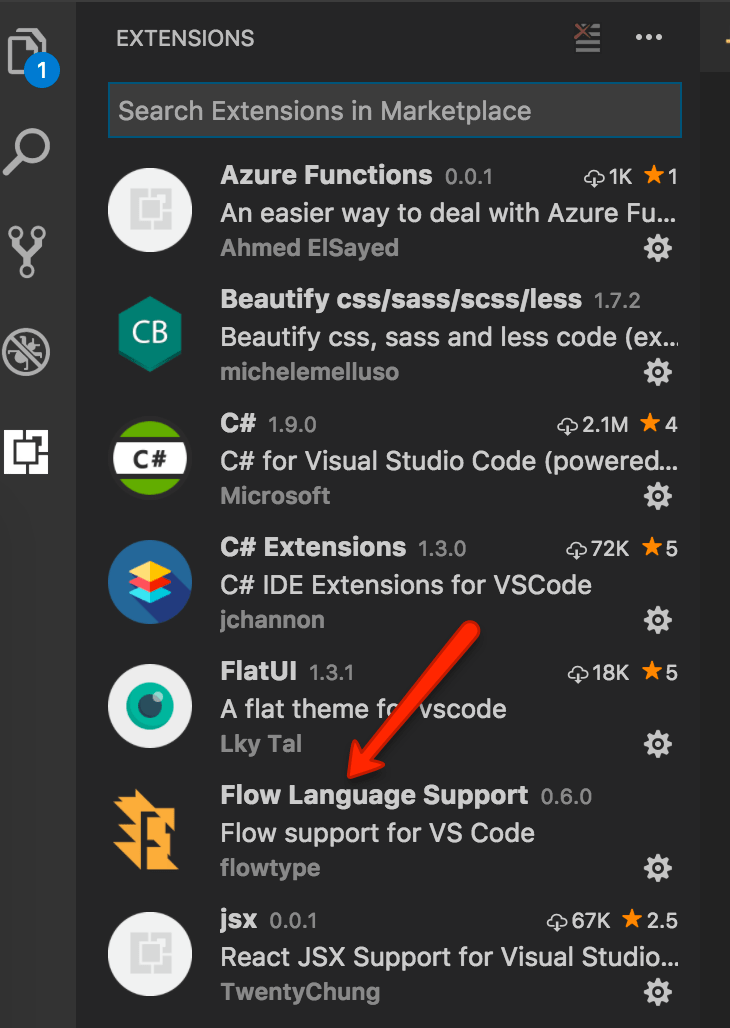
Click the “Extensions” icon on the left hand navigation column and search for ‘Flow’. One of the items that will come up is Flow Language Support (below).

screen1

After installing you will notice the errors are still present. But why? Well, its because VSCode (correctly) assumes you are still working with pure JavaScript, we need to disable this. But because Flow is not a global part of our environment (and shouldnt be) we dont want to change settings for the editor, we want to do it for our workspace.

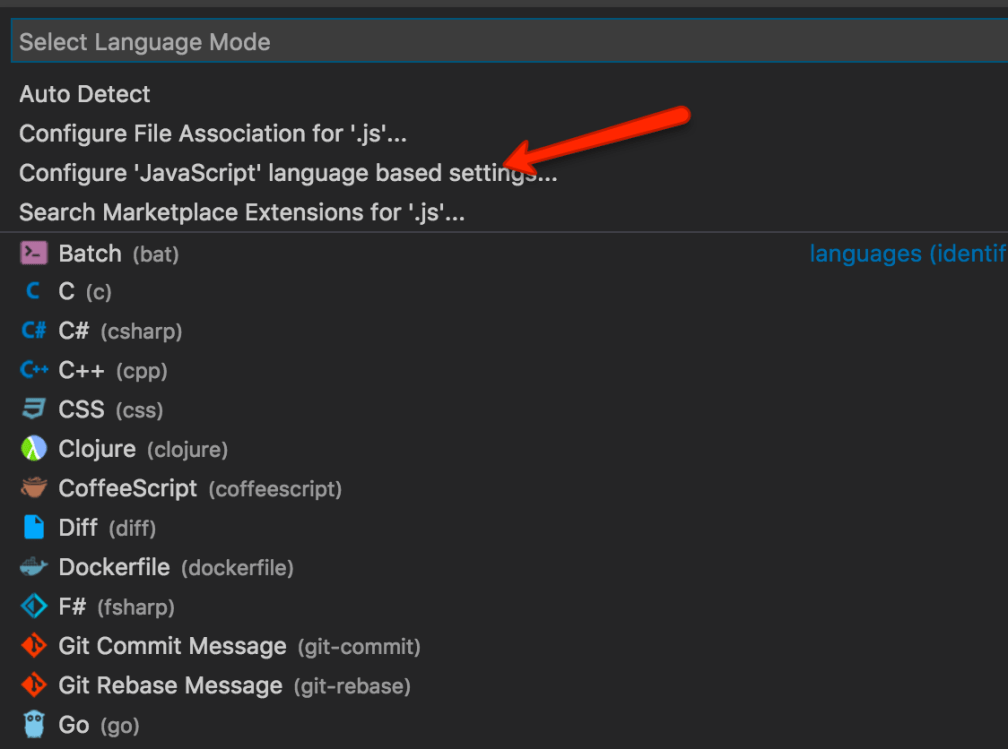
To do this, you need a settings.json file. Best way to create that is to indicate you want to override the default language settings.  First, click your current language from the lower right portion of the application status bar (below).

screen1.5

This will bring up a menu where you need to select to configure the language based settings for JavaScript (might also want to do this for JSX if you are using React and any other derivative JavaScript extensions).

screen2

This bring you into the settings.json file editor (it is a special file after all). From the right hand side of the top bar select ‘Workspace Settings‘.

screen3

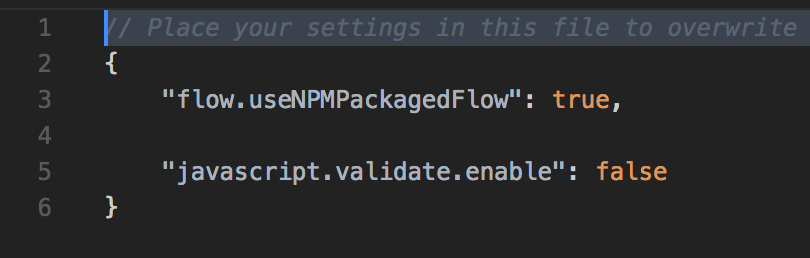
You are now in your local settings.json file. Here is the absolute minimum that I recommend to support Flow.

screen4

flow.useNPMPackagedFlow just tells the extension to look in node_modules for the flow binary.

Basically, we are disable the internal JavaScript validator in favor of the Flow one. I do have a sidebar on this below since I believe you need to be aware of what this means. But regardless, after doing this, Visual Studio should cease seeing Flow type annotations as JavaScript errors. Congrats. That is it.

My Sidebar

I generally recommend that developers exclude .vscode from source control. However, there is an obvious problem in this case – without the settings.json file code will appear broken in VSCode for developers that dont have the right settings.

This goes one step further when everyone is using different editors (in our case we expect VSCode, Sublime, and WebStorm to be in play). Its not a huge deal really, you just need to make sure you communicate the usage of this library; I would really hate writing the type annotations just to get red squiggles all over my code, even though its valid.

So the point here is communicate and make sure that everyone can use Flow effectively. Its a great tool, but not something a single developer can use without the rest of the team, I feel, at least not easily or naturally.