Chicago Code Camp 2016

For the second year in a row the committee running the Chicago Code Camp has invited me to speak at the event.  Chicago Code Camp is an awesome event and I credit it with being a big reason I looked to work and live in Chicago. This year I will be presenting my Xamarin.Forms End to End Development talk. As opposed to other Xamarin.Forms talks this one attempts to show Forms under real world scenarios.

Along with exploring Forms and Xamarin’s roots, we will dive into full coding examples where I show how to build an application from scratch. Beyond that I show off an MVVM style approach using FreshMVVM and explain how MVVM can help us build apps which are more testable by using ‘mocking’.

The conclusion of the talk focuses on Xamarin.Forms usage with the Xamarin UI Testing tool which enables scripted interactions to take place in an automated fashion; locally and in the cloud.  Hoping to see a lot of people there on April 30th.  Registration is already open for this event: http://www.eventbrite.com/e/chicago-code-camp-2016-registration-20983871324 This will be the second year at Illinois Institute of Technology.

Introducing Saitama

In the previous post I talked about the decision to explore a framework that would continue to allow our West Monroe teams to use the features we like from MVVMCross, namely dependency injection.  However, as a team we have come to realize that MVVMCross has limits with more complicated and UX intensive applications that cannot be overcome without significant effort.  Over the past week, I have been working on a framework that would satisfy our needs as a team.  It now has a name: Saitama.

Goals

I am a big believer in IoC and its role in modern software development.  I have had the chance to use it with many different frameworks throughout the course of my career.  My current favorite is AutoFac but previous to that I enjoyed using Ninject.  I am sure other developers have their favorites as well so I wanted to make the framework IoC framework agnostic, use whatever you like.

Obviously there are some popular frameworks so I tried to implement those as best as I could, but I left it open if someone has a favorite framework they want to use.  You can even extend to other platforms, although, right now, I am only supporting Android and iOS.

The Core

At the core of the framework (Saitama.Core) are two items: the abstract class InjectionContainerResolverBase and the interface IInjectionContainer.  Each serves a specific purpose and facilitates injection within the application by registering specific Injectable Base Types with the chosen IoC framework.

The process of IoC is extremely simple.  Register a bunch of dependencies, usually marked with interfaces and then, when creating a “base” type look for properties (or constructor arguments) matching those types and provide instances held within the container for those arguments/properties. Thus, when a developer is operating in their dervied class(es) they can be assured that dependencies are fulfilled.

Identifying these “base types” is the job of the resolver and while the core process is platform agnostic, the conventions used to “find” the base types differ platform to platform, this is why derivations should use one of the “platform” base classes (Saitama.Core.Platforms).

Once these registrations are made, the resolver returns an instance implementing IInjectionContainer which is used for injection throughout the rest of the app.

Bootstrapping

While this all sounds good, it is useless unless we have a means to kick off this registration process.  For that we look to the specific bootstrap class on each supported platform (UIApplicationDelegate on Apple and Application on Android).  Because we know the OS will call into methods on these classes before anything else, they are ideal places to start.  For now, we will focus on the iOS side.

The absolute first point at which the user can take control of their app in iOS is with WillFinishLaunching, our base class SaitamaApplicationDelegate (in Saitama.Apple) overrides this method and takes a few actions:

  1. It asks the derivation for its instance of InjectionContainerResolverBase. The responsibility here is for the developer to return a container (or some intermediary which can create a container) that has all dependencies registered with the exception of the base types
  2. The Resolver registers all base types by scanning a provided assembly (entry on iOS, executing on Android) for types matching a certain convention (the convention can be overridden). For each type found, the resolver will register it against the container
  3. The IInjectionContainer is extracted from the resolver and stored in an internal static property (more on this later). This contains the knowledge of how the fulfill dependencies on base types
  4. The injection container fulfills all dependencies on the bootstrap class. This allows the developer to begin working with the dependencies as soon as possible

It is at this point that our application starts up and we define our first view.  For iOS, I have created an abstract class to serve as the base for all ViewController types (Saitama.Apple).  This inheritance is crucial for Saitama.  Without it, the framework will not know how to resolve dependencies on base types, such as View Controller.  Here is an example of a View Controller for the Test App.

    public partial class HomeViewController : SaitamaViewController
    {
        public INumberService NumberService { get; private set; }

        public HomeViewController() : base("HomeViewController", null)
        {
        }

        public override void ViewDidLoad()
        {
            base.ViewDidLoad();

            // Perform any additional setup after loading the view, typically from a nib.
            var alertView = new UIAlertView("Generated Number", string.Format("Your number is: {0}", NumberService.GetNumber()),
                                null, "Ok", null);
            alertView.Show();
        }
    }

.csharpcode, .csharpcode pre
{
font-size: small;
color: black;
font-family: consolas, “Courier New”, courier, monospace;
background-color: #ffffff;
/*white-space: pre;*/
}
.csharpcode pre { margin: 0em; }
.csharpcode .rem { color: #008000; }
.csharpcode .kwrd { color: #0000ff; }
.csharpcode .str { color: #006080; }
.csharpcode .op { color: #0000c0; }
.csharpcode .preproc { color: #cc6633; }
.csharpcode .asp { background-color: #ffff00; }
.csharpcode .html { color: #800000; }
.csharpcode .attr { color: #ff0000; }
.csharpcode .alt
{
background-color: #f4f4f4;
width: 100%;
margin: 0em;
}
.csharpcode .lnum { color: #606060; }

As you can see, this code is no different than what you would normally write.  In this case, I am using a Xib based approach, but the storyboard approach is also covered.

Prebuilt Containers

As it normally is, the hardest part is usually creating the IoC container to use for injection, at least that was always my experience with ASP .NET MVC.  To that end, I intend to supply container modules for both Android and iOS implemented using AutoFac and Ninject for both.  My hope is that it will be enough to show others how they might write their own.

Future Plans

The current codebase is still being built, with heavy focus on Android, confident that I will get through it soon.  Next steps after that will be to clean up the source code and GitHub repo.  Then, I will package it with Nuget and send it out into the world.

The Code

https://github.com/xximjasonxx/Saitama

Please let me know if you have any feedback.  I am always interested in how I can make this better.

Integrating IoC with Xamarin.iOS

At West Monroe we use Xamarin almost exclusively for our mobile application development.  There are a variety of reasons for this but a few of the notable ones are:

  • Code Uniformity – Other teams within the West Monroe technology practice utilize C# for software development. That Xamarin also employs C# for its platform makes the transition to and from the mobile team easier. Newcomers must still work to understand the specific platform, but they can rely on the fact that the language being used will be familiar to them
  • Code Sharing – This is a big advantage to any project using Xamarin. If a client wishes to build a native application using standard tools they must at least run two teams using different tools and languages.  Each team will need to create the same feature using a different language.  Xamarin alleviates this risk by enabling code uniformity and code sharing between platforms. Indeed, a major selling point for our clients is the flexibility to know that if they want an Android version the effort will be less than the effort to create the iOS version.

These reasons, as well as others have led our team to great success with many of the projects that have come our way. In addition, we consistently leverage MVVMCross (https://github.com/MvvmCross/MvvmCross) for our development as MVVM is a solid pattern and works well with Xamarin since you will have different views for each platform supported.

Recently, however, the teams have begun to notice problems with implementing MVVM on larger projects where the UX is of a considerably higher effort than apps in the past.  We are beginning to see a ceiling with what MVVM can do when forced upon a platform (iOS and Android) which are not built for the pattern.  Due to this we have begun exploring options for what to do in those cases where MVVM and MVVMCross simply do not make sense.

One of the things we really like about MVVMCross is the dependency resolution aspect which happens within view models. Having our services and their dependencies handled this way cleans up the code dramatically.  The following is my initial attempt at building AutoFac into a Xamarin.iOS project.

The AppDelegate

In every iOS application the AppDelegate class is the starting point, responsible for handling global lifecycle events, launching is no exception.  This makes it the best place to start our dependency mapping registration.  For this, I created the AutoFacUIApplicationDelegate class which takes care of the critical parts of registration; it inherits from UIApplicationDelegate which is what the AppDelegate normally inherits from.

Just to make it easy and eliminate the potential for conflict I have chosen to build the registration process at the “Will Finish Launching” point in the process.  Here is the code for the method:

        public override bool WillFinishLaunching(UIApplication application, NSDictionary launchOptions)
        {
            // create our container builder
            var builder = new ContainerBuilder();

            // access the assembly and register ALL classes which implement our custom base class
            var types = GetType().Assembly.DefinedTypes;
            foreach (var theType in types)
            {
                if (theType.BaseType == typeof(AutoFacUIController))
                    builder.RegisterType(theType).PropertiesAutowired();
            }

            // ask the user to register their dependencies
            RegisterDependencies(builder);

            // establish our static container
            _autoFacContainer = builder.Build();

            // return true
            return true;
        }

.csharpcode, .csharpcode pre
{
font-size: small;
color: black;
font-family: consolas, “Courier New”, courier, monospace;
background-color: #ffffff;
/*white-space: pre;*/
}
.csharpcode pre { margin: 0em; }
.csharpcode .rem { color: #008000; }
.csharpcode .kwrd { color: #0000ff; }
.csharpcode .str { color: #006080; }
.csharpcode .op { color: #0000c0; }
.csharpcode .preproc { color: #cc6633; }
.csharpcode .asp { background-color: #ffff00; }
.csharpcode .html { color: #800000; }
.csharpcode .attr { color: #ff0000; }
.csharpcode .alt
{
background-color: #f4f4f4;
width: 100%;
margin: 0em;
}
.csharpcode .lnum { color: #606060; }

The code here is still pretty rough, but it communicates the general idea.  The first goal is to register the types of all View Controllers which are going to use Dependency Injection, that is those that inherit from AutoFacUIController. By doing this, we can ensure that when injection occurs the ViewController type is registered with the IoC container.

Once this is complete, we pass the IContainerBuilder reference to RegisterDependencies which is a user method allowing for the definition of their dependencies.  Once this complete we build and assign the container to a static variable to enable it to be used elsewhere in the application.  Here is a look at the RegisterDependencies in my test app:

        protected override void RegisterDependencies(Autofac.ContainerBuilder builder)
        {
            builder.RegisterType<WorkplaceNameService>().As<INameService>();
        }

.csharpcode, .csharpcode pre
{
font-size: small;
color: black;
font-family: consolas, “Courier New”, courier, monospace;
background-color: #ffffff;
/*white-space: pre;*/
}
.csharpcode pre { margin: 0em; }
.csharpcode .rem { color: #008000; }
.csharpcode .kwrd { color: #0000ff; }
.csharpcode .str { color: #006080; }
.csharpcode .op { color: #0000c0; }
.csharpcode .preproc { color: #cc6633; }
.csharpcode .asp { background-color: #ffff00; }
.csharpcode .html { color: #800000; }
.csharpcode .attr { color: #ff0000; }
.csharpcode .alt
{
background-color: #f4f4f4;
width: 100%;
margin: 0em;
}
.csharpcode .lnum { color: #606060; }

This is a rather contrived example but this is where you could leverage AutoFac and register your types and modules as needed.

Our next goal is to be able to inject these dependencies into our view controllers.  The pattern we are going for is similar to what we see used in ASP .NET MVC and since iOS is built on an MVC approach (more MVP in my opinion) the pattern fits quite well.  We want to define properties on the View Controller that represent our dependencies.  We then want AutoFac to fulfill those properties as the page is loading up.

The first piece to understand here is the lifecycle of ViewController when they are displayed in iOS. Based on my analysis there are two lifecycle events that I can hook into for this process: LoadView (storyboards) and AwakeFromNib (Xib based development).  For the purpose of this test, we will ONLY focus on LoadView since we should all be using Storyboards for the majority of our UI development in iOS, Xamarin or otherwise.

The second thing to understand is how this will need to work.  We want to grab our static IoC container reference and the use it to fulfill our dependencies.  Here is the base LoadView method.

    public class AutoFacUIController : UIViewController
    {
        private IContainer _container;

        public AutoFacUIController(IntPtr ptr) : base(ptr)
        {
            _container = AutoFacUIApplicationDelegate.GetAutoFacContainer();
        }

        public AutoFacUIController()
        {
            
        }

        public override void LoadView()
        {
            // resolve all properties
            _container.InjectProperties(this);

            base.LoadView();
        }
    }

.csharpcode, .csharpcode pre
{
font-size: small;
color: black;
font-family: consolas, “Courier New”, courier, monospace;
background-color: #ffffff;
/*white-space: pre;*/
}
.csharpcode pre { margin: 0em; }
.csharpcode .rem { color: #008000; }
.csharpcode .kwrd { color: #0000ff; }
.csharpcode .str { color: #006080; }
.csharpcode .op { color: #0000c0; }
.csharpcode .preproc { color: #cc6633; }
.csharpcode .asp { background-color: #ffff00; }
.csharpcode .html { color: #800000; }
.csharpcode .attr { color: #ff0000; }
.csharpcode .alt
{
background-color: #f4f4f4;
width: 100%;
margin: 0em;
}
.csharpcode .lnum { color: #606060; }

The InjectProperties method call reflects on the current instance and finds properties whose declared type match a type registered with the IoC container.  The result is, as long as a class inherits from this class it will, when ViewDidLoad fires have all of its relevant dependency properties fulfilled.

Beyond

Obviously this is incredibly rough and relies on quite a bit of ceremony and it completely tied to AutoFac. Ideally, there is more automation and the IoC container is a personal choice rather than a forced one. Nevertheless it’s a good start and I hope to incorporate it into an API library that we can use at West Monroe for more complex projects where the MVVM gains are outweighed by the losses.

For now, I want to continue testing this approach under different situations.  If you are interested I have posted by code to GitHub and it will update as I move through this research process.

https://github.com/xximjasonxx/iOS_AutoFac

Xamarin and El Capitan

So recently I upgraded my development Mac from Yosemite to El Capitan and all of Xamarin projects stopped compiling a produced a NuGet related message with code 127. After some research I found out that this was directly related to the upgrade as a result Apple strips away third party binaries in /usr which is where Xamarin stores its mono link, this results in Xamarin Studio being unable to build.

Reading through various blogs on this the solution was to create a link back to the mono binary located in /Library/Frameworks/Mono.framework/Commands/mono in /usr/bin. If you do this on El Capitan you will likely receive an “Operation Not Permitted” message even if you use an sudo.

The reason for this is Apple, in El Capitan, has revoked the root user and runs El Capitan in “rootless” mode which disallow any user, event with sudo rights to modify certain directories, including /usr

Most of what I read indicating the need to log into the Mac in recovery mode and use the System Configuration utility to disable the “rootless”. However, try as I might, I could not find this utility in the recovery screen. In the end, this forum must pertaining to Xamarin.Mac (https://forums.xamarin.com/discussion/45683/xamarin-mac-10-11-fix-preview) held the fix for me.

Once you boot into the recovery code access the terminal (under Utilities) and issue the following command: csrutil disable – this will disable the “rootless” mode. Boot back into normal Mac and you should be able to perform the linking action from earlier which resulted in the Operation Not Permitted message.

Once you recreate the missing mono command restart Xamarin Studio and things should be working. Not sure when a fix from Xamarin is coming since I get why Apple went to “rootless” mode and I don’t like circumventing it. From what I have found this was known since early September and still not fixed after a month.

Xamarin Forms: Optional Rendering

One of the most interesting aspects of Xamarin Forms is the ability to hook into the custom rendering engine and redefine how a control will appear on the screen.  As renderers are defined at the platform level, you have the ability to selectively choose what a control will render or even do.  I decided to make use of this feature in Score Predict because of a loading difference between Windows Phone with Android and iPhone.

Note: It is well understood at this point that making special considerations for Windows Phone is not advisable given its relevance within the global smartphone community.

ACR Dialogs

Within just about any app you are going to want to display dialogs to alert the user, gather information from the user, or ask the user to wait for an operation to complete.  Because we are working in a totally platform agnostic way in Forms we need a library which we can use to display a dialog without caring how it gets display.  This is the purpose behind the ACR User Dialogs library.

Problem

The ACR User Dialogs plugin provides some very nice dialogs for loading which I wanted to use on Windows Phone, iOS, and Android.  On Android and iOS this worked without issue.  However, on Windows Phone I ran into a problem because WP will always load the next view in a Panorama so the user may “swipe” to it.  This created a problem which caused ACR to become confused and then made for a confusing experience.  I decided to fix this by removing the ACR loading dialog from Windows Phone, but I wanted to leave it on for Android and iOS. However, I wanted to do this without changing my view models, they should not care about the views implementation.

High Level Solution

Xamarin forms offers a “rendering” concept, whereby we can control what the visual output of a control is.  To that end, we want to create a custom control that shows/hides itself based on a property from the View Model and shows a message when it is visible.  The effect this control has will be different depending on the platform.  Thus, we will need to define a “renderer” for each platform we are supporting.

The goal will be that when the control is visible on WP it fill the entire view with a progress indicator.  A message is display directly beneath the progress indicator.  On Android and iOS we will invoke the ACR User Dialogs, the control will have NO visual component.

Understanding Xaml Rendering

Xaml renders elements on a Z axis in the order in which they appear.  Elements which are defined later are on top of elements which appear earlier.  We can use this to easily have our content loader view “fill” the entire screen.  Here is a sample of the control defined on a Xaml page.  It is ALWAYS the last control defined.

<controls:ContentLoader Message="{Binding LoaderMessage}" HorizontalOptions="Fill" 
     VerticalOptions="Fill" Grid.RowSpan="7" IsVisible="{Binding IsBusy}" />

.csharpcode, .csharpcode pre
{
font-size: small;
color: black;
font-family: consolas, “Courier New”, courier, monospace;
background-color: #ffffff;
/*white-space: pre;*/
}
.csharpcode pre { margin: 0em; }
.csharpcode .rem { color: #008000; }
.csharpcode .kwrd { color: #0000ff; }
.csharpcode .str { color: #006080; }
.csharpcode .op { color: #0000c0; }
.csharpcode .preproc { color: #cc6633; }
.csharpcode .asp { background-color: #ffff00; }
.csharpcode .html { color: #800000; }
.csharpcode .attr { color: #ff0000; }
.csharpcode .alt
{
background-color: #f4f4f4;
width: 100%;
margin: 0em;
}
.csharpcode .lnum { color: #606060; }

This is nothing more than a simple class which inherits from ContentView, which is your generic run of the mill view that can be used for anything.  Here is out basic implementation

    public class ContentLoader : ContentView
    {

    }

.csharpcode, .csharpcode pre
{
font-size: small;
color: black;
font-family: consolas, “Courier New”, courier, monospace;
background-color: #ffffff;
/*white-space: pre;*/
}
.csharpcode pre { margin: 0em; }
.csharpcode .rem { color: #008000; }
.csharpcode .kwrd { color: #0000ff; }
.csharpcode .str { color: #006080; }
.csharpcode .op { color: #0000c0; }
.csharpcode .preproc { color: #cc6633; }
.csharpcode .asp { background-color: #ffff00; }
.csharpcode .html { color: #800000; }
.csharpcode .attr { color: #ff0000; }
.csharpcode .alt
{
background-color: #f4f4f4;
width: 100%;
margin: 0em;
}
.csharpcode .lnum { color: #606060; }

Loading the View

Xaml is built with reusability in mind, so we will be loading what our view looks like externally.  We are going to define this using Forms Xaml.  The reason for this is, when we drop this view on a page, it will invoke the native renderers associated with that platform; less work for us to do.  Here is the view Xaml

<?xml version="1.0" encoding="utf-8" ?>
<ContentView xmlns="http://xamarin.com/schemas/2014/forms"
             xmlns:x="http://schemas.microsoft.com/winfx/2009/xaml"
             x:Class="ScorePredict.Core.Controls.ContentLoaderView">

  <StackLayout HorizontalOptions="Fill" VerticalOptions="Fill"
          BackgroundColor="{StaticResource BackgroundColor}"
          Orientation="Vertical">
          <ActivityIndicator HorizontalOptions="Fill" VerticalOptions="Center" IsRunning="True" />
          <Label x:Name="messageLabel" TextColor="White" HorizontalOptions="CenterAndExpand"
               VerticalOptions="Center" />
     </StackLayout>
  
</ContentView>

.csharpcode, .csharpcode pre
{
font-size: small;
color: black;
font-family: consolas, “Courier New”, courier, monospace;
background-color: #ffffff;
/*white-space: pre;*/
}
.csharpcode pre { margin: 0em; }
.csharpcode .rem { color: #008000; }
.csharpcode .kwrd { color: #0000ff; }
.csharpcode .str { color: #006080; }
.csharpcode .op { color: #0000c0; }
.csharpcode .preproc { color: #cc6633; }
.csharpcode .asp { background-color: #ffff00; }
.csharpcode .html { color: #800000; }
.csharpcode .attr { color: #ff0000; }
.csharpcode .alt
{
background-color: #f4f4f4;
width: 100%;
margin: 0em;
}
.csharpcode .lnum { color: #606060; }

As you can see, its similar to something you might define in Forms Xaml normally.  Using this code will invoke the native renderers for StackLayout, ActivityIndicator, and Label.

We will get to the part where this View is actually loaded via the renderer a bit later.

Enable the Binding

Our next task is to add the custom bindable property for Message, which will enable us to populate the Label as well as display a message when the loading dialogs are visible in iOS and Android.  To do this we add the requisite code to enable the property binding and the subsequent holder property.

I explained this in a previous post which focus on Data Binding with Forms Xaml.  This is the updated (and final version) of ContentLoader.

    public class ContentLoader : ContentView
    {
        public static BindableProperty MessageProperty =
            BindableProperty.Create<ContentLoader, string>(x => x.Message, null);

        public string Message
        {
            get { return GetValue(MessageProperty) as string; }
            set { SetValue(MessageProperty, value); }
        }
    }

.csharpcode, .csharpcode pre
{
font-size: small;
color: black;
font-family: consolas, “Courier New”, courier, monospace;
background-color: #ffffff;
/*white-space: pre;*/
}
.csharpcode pre { margin: 0em; }
.csharpcode .rem { color: #008000; }
.csharpcode .kwrd { color: #0000ff; }
.csharpcode .str { color: #006080; }
.csharpcode .op { color: #0000c0; }
.csharpcode .preproc { color: #cc6633; }
.csharpcode .asp { background-color: #ffff00; }
.csharpcode .html { color: #800000; }
.csharpcode .attr { color: #ff0000; }
.csharpcode .alt
{
background-color: #f4f4f4;
width: 100%;
margin: 0em;
}
.csharpcode .lnum { color: #606060; }

As you can see, we are only defining the property here so that we can bind to it on our various Xaml pages (shown above).

The reason Message is defined as a bindable property is that it enables me to change the value depending on WHY the screen is busy (ie Load vs Refresh).  In order to support this we must take

Rendering the Custom Loader

So this is where the real fun begins.  We have to remember, that we will want to render this three different ways (two really).  Let’s start with Windows Phone, the only platform that this control will have a visual appearance.

The first thing is to understand how rendering on Xamarin.Forms works.  At a high level, the Element is rendered initially using OnElementChanged.  This method seems to create the initial control and is followed by subsequent invocations of OnElementPropertyChanged which is caused whenever a property on the control changes.

Windows Phone

Because Windows Phone will feature a visual component to the ContentLoader control we must use OnElementChanged to load our custom view when the control is initially created; when OldElement is null.  The following code performs this operation.

        protected override void OnElementChanged(ElementChangedEventArgs<View> e)
        {
            base.OnElementChanged(e);

            if (e.OldElement == null)
            {
                var view = (ContentLoader) e.NewElement;
                view.LoadFromXaml(typeof (ContentLoaderView));
            }
        }

.csharpcode, .csharpcode pre
{
font-size: small;
color: black;
font-family: consolas, “Courier New”, courier, monospace;
background-color: #ffffff;
/*white-space: pre;*/
}
.csharpcode pre { margin: 0em; }
.csharpcode .rem { color: #008000; }
.csharpcode .kwrd { color: #0000ff; }
.csharpcode .str { color: #006080; }
.csharpcode .op { color: #0000c0; }
.csharpcode .preproc { color: #cc6633; }
.csharpcode .asp { background-color: #ffff00; }
.csharpcode .html { color: #800000; }
.csharpcode .attr { color: #ff0000; }
.csharpcode .alt
{
background-color: #f4f4f4;
width: 100%;
margin: 0em;
}
.csharpcode .lnum { color: #606060; }

Calls to the base method are imperative here, do not leave it out.  Using this, when the control is visible, you will get a blank area with only a Progress Indicator, nothing else, no message.

Our next step is to have that message not only display, but change as the value of the Message property changes on the control.  To handle this, we must implement our logic in OnElementPropertyChanged.  The following accomplishes our goal:

        protected override void OnElementPropertyChanged(object sender, PropertyChangedEventArgs e)
        {
            var contentLoader = sender as ContentLoader;
            if (sender != null && e.PropertyName == "Message")
            {
                var view = contentLoader.Content;
                if (view != null && view.FindByName<Label>("messageLabel") != null
                    && !string.IsNullOrEmpty(contentLoader.Message))
                {
                    view.FindByName<Label>("messageLabel").Text = contentLoader.Message;
                }
            }
        }

.csharpcode, .csharpcode pre
{
font-size: small;
color: black;
font-family: consolas, “Courier New”, courier, monospace;
background-color: #ffffff;
/*white-space: pre;*/
}
.csharpcode pre { margin: 0em; }
.csharpcode .rem { color: #008000; }
.csharpcode .kwrd { color: #0000ff; }
.csharpcode .str { color: #006080; }
.csharpcode .op { color: #0000c0; }
.csharpcode .preproc { color: #cc6633; }
.csharpcode .asp { background-color: #ffff00; }
.csharpcode .html { color: #800000; }
.csharpcode .attr { color: #ff0000; }
.csharpcode .alt
{
background-color: #f4f4f4;
width: 100%;
margin: 0em;
}
.csharpcode .lnum { color: #606060; }

The code is very straightforward.  After ensuring that we have the right control and that the target control is available, we set the value.  You will remember messageLabel  was defined in our custom view Xaml.

So what will happen here is the visibility of the control is bound to the IsBusy property on our View Models and is already defined appropriately by ContentView.  We have added logic so that the value stored in our bindable Message property on ContentLoader is visible when the view is visible.

Android and iOS

With Android and iOS I did not want a visual component to be rendered, but instead when the IsVisible flag is changed to true I want to show a dialog via ACR.  However, how we do this is going to be similar to Windows Phone in that the emphasis of our code will use OnElementPropertyChanged.

        protected override void OnElementPropertyChanged(object sender, PropertyChangedEventArgs e)
        {
            base.OnElementPropertyChanged(sender, e);

            var loader = (ContentLoader)sender;
            if (e.PropertyName == "Message")
                _loaderMessage = loader.Message;

            if (e.PropertyName == "IsVisible" && !string.IsNullOrEmpty(_loaderMessage))
            {
                if (loader.IsVisible)
                {
                    _dialogService = new UserDialogService();
                    _dialogService.ShowLoading(_loaderMessage);
                }
                else
                {
                    _dialogService.HideLoading();
                }
            }
        }

.csharpcode, .csharpcode pre
{
font-size: small;
color: black;
font-family: consolas, “Courier New”, courier, monospace;
background-color: #ffffff;
/*white-space: pre;*/
}
.csharpcode pre { margin: 0em; }
.csharpcode .rem { color: #008000; }
.csharpcode .kwrd { color: #0000ff; }
.csharpcode .str { color: #006080; }
.csharpcode .op { color: #0000c0; }
.csharpcode .preproc { color: #cc6633; }
.csharpcode .asp { background-color: #ffff00; }
.csharpcode .html { color: #800000; }
.csharpcode .attr { color: #ff0000; }
.csharpcode .alt
{
background-color: #f4f4f4;
width: 100%;
margin: 0em;
}
.csharpcode .lnum { color: #606060; }

In this bit (iOS version) we are focusing on two specific property changes: Message and IsVisible.  Remember what we said earlier, this method gets fired whenever the value of a property on the element changes.  Both IsVisible and Message (custom) are bindable properties whose value will change based on the view model.

When Message changes we update a local private variable.  The value of this variable is checked when IsVisible changes.  Now, we talked about how Acr provides nice cross platform dialogs.  Using the Cross Platform features is great when you are working in a shared environment.  In this case, however, we are in a platform specific rendering, so we can safetly new up the native implementation of UserDialogService.

Much the same code can be found for Android as well

        protected override void OnElementPropertyChanged(object sender, PropertyChangedEventArgs e)
        {
            var loader = (ContentLoader) sender;
            if (e.PropertyName == "Message")
                _loaderMessage = loader.Message;

            if (e.PropertyName == "IsVisible" && !string.IsNullOrEmpty(_loaderMessage))
            {
                if (loader.IsVisible)
                {
                    _dialogService = new UserDialogService();
                    _dialogService.ShowLoading(_loaderMessage);
                }
                else
                {
                    _dialogService.HideLoading();
                }
            }
        }

.csharpcode, .csharpcode pre
{
font-size: small;
color: black;
font-family: consolas, “Courier New”, courier, monospace;
background-color: #ffffff;
/*white-space: pre;*/
}
.csharpcode pre { margin: 0em; }
.csharpcode .rem { color: #008000; }
.csharpcode .kwrd { color: #0000ff; }
.csharpcode .str { color: #006080; }
.csharpcode .op { color: #0000c0; }
.csharpcode .preproc { color: #cc6633; }
.csharpcode .asp { background-color: #ffff00; }
.csharpcode .html { color: #800000; }
.csharpcode .attr { color: #ff0000; }
.csharpcode .alt
{
background-color: #f4f4f4;
width: 100%;
margin: 0em;
}
.csharpcode .lnum { color: #606060; }

Result

The result of this approach is that, when Windows Phone runs, we get a visual progress indicator that does not carry the problems of multiple dialogs being presented at once (loading two tabs).  But we have enough control with Forms to render out a blank view that contains logic to show our dialogs.
Data Binding Custom Controls in Forms

Xamarin.Forms is a new way to build mobile applications.  Using the ideas of generalization and translation, it allows developers to build a single UI definition which is then translated into native controls for a platform by the rendering engine.  Effectively this enables you to build as many as 4 UIs (Windows, Windows Phone, iOS, and Android) at the same time, greatly improving the productivity of development teams.  On top of that, Xamarin has ensured that the data binding support from Microsoft Xaml is alive and well in Forms Xaml, which makes Forms ideal for supporting the MVVM pattern.  However, there are certain shortcoming that may require additional work on the part of the developer, usually to add support for these bindings to support Mvvm ViewModels.  This is where Custom Controls come in.

The Purpose of a Custom Control

When I say Custom Control, I am talking about a class which either represents a control or extends an existing one.  In Forms, these controls serve two purposes: custom property holding and/or custom rendering markings.  I will discuss the later in a future blog entry, today we are going to talk about why supporting these custom properties, specifically bindable properties make sense in Forms.

When doing Mvvm its not at all uncommon to have to add custom properties to controls, often times these controls are not designed with Mvvm in mind as in the case with two controls in Forms: the Picker and the ListView.

When addressing a shortcoming such as this, the first step is always to identify how you would like your ViewModel to interact with he bindings of the control (its also helpful to have a clear understanding of the Mvvm pattern).  The default ListView in Forms does have a bindable ItemsSource property which I can bind IEnumerable types to, however, it is lacking a bindable property that enables an action to be invoked when an item is selected; there is an event, but its considered best practice to steer clear of events in view models when doing MVVM.  So our goal is to add this property which our ViewModel can bind an ICommand instance to.

    public class MvvmListView : ListView
    {
        public static BindableProperty ItemSelectedCommandProperty =
            BindableProperty.Create<MvvmListView, ICommand>(
               x => x.ItemSelectedCommand, null);

        public ICommand ItemSelectedCommand
        {
            get { return (ICommand)GetValue(ItemSelectedCommandProperty); }
            set { SetValue(ItemSelectedCommandProperty, value); }
        }
    }

Forms properties a special type called BindableProperty, if you are coming from WPF/Silverlight, this is analgous to the DependencyProperty concept there.  In essence, we are indicating that the ItemSelectedCommand property is bindable; notice the convention for a bindable property is the name of the target property suffixed with ‘Property’.  The create calls informs the Xaml parser that this property exists on MvvmPicker and is of type ICommand.

With this in place, we can write something like this:

<c:MvvmListView HorizontalOptions="Fill" VerticalOptions="Fill"
     HasUnevenRows="false" ItemsSource="{Binding Routes}"
   ItemSelectedCommand="{Binding SelectRouteCommand}">
</c:MvvmListView>

Fair warning, Xamarin Studio is not very good at parsing custom controls, so you may or may not get intellisense here.  Here is a snippet of the property this is bound to in my view model:

public ICommand SelectRouteCommand { get { return new Command<Route>(SelectRoute); } }

This is a very common convention for MVVM and it works nicely.  However, there is still a problem here.  While we have bound the command to the view model, there is nothing that allows the command to be invoked and thus call our SelectRoute method on the view model.  To invoke this we need to tie into the event of the underlying ListView.  So we add the following code to our control:

    public class MvvmListView : ListView
    {
        public static BindableProperty ItemSelectedCommandProperty =
            BindableProperty.Create<MvvmListView, ICommand>(
               x => x.ItemSelectedCommand, null);

        public MvvmListView()
        {
            ItemSelected += OnItemSelected;
        }

        private void OnItemSelected(object sender, SelectedItemChangedEventArgs e)
        {
            var item = e.SelectedItem;
            if (item != null && ItemSelectedCommand != null
               && ItemSelectedCommand.CanExecute(item))
            {
                ItemSelectedCommand.Execute(e.SelectedItem);
            }

            SelectedItem = null;
        }

        public ICommand ItemSelectedCommand
        {
            get { return (ICommand)GetValue(ItemSelectedCommandProperty); }
            set { SetValue(ItemSelectedCommandProperty, value); }
        }
    }

So, when the control is created we immediately create an event handler internally to listen for item selection.  When it happens our event handler is invoked which checks if we have a command which can be executed.  If we have such, we execute it passing the selected item to the underlying command handler (SelectRoute).  And since our underlying command is of type Command<T> the parameter will be cast to T for us before it reaches SelectRoute.  So as a result we can write this in our view model.

        async void SelectRoute(Route route)
        {
            await NavigationService.NavigateToAsync<DetailPageViewModel>(
                new Dictionary<string, string> { { "RouteNumber", route.RouteNumber } });
        }

It is amazing how simple things get when you have MVVM working properly.  Now, lets look at a more complicated example.

When you have to do some extra stuff when things change

The ListView control is an example of a control which requires only minor tweaking to support MVVM Bindings.  There is no such good fortune with the Picker control.  The Picker control essentially is a touch friend dropdown control, enabling the user to make a single selection from a list of items.  As with the ListView we have to first consider our goals in supporting MVVM with this control.

  • We would like to be able to bind a list of data from the view model
  • We would like to be able to take some action in our ViewModel when a selection is made
  • We would like the text value of the current selection to show up in the control when not focused

The first goal sounds an awful lot like the ListView.  Check the control we know there is an Items property.  If we try to bind it we notice that it doesnt work, and in fact the documentation indicates the property is not bindable.  So it means we must create our own.  So we start off creating a BindableProperty field and corresponding value field:

    public class MvvmPicker : Picker
    {
        public static BindableProperty ItemsSourceProperty =
            BindableProperty.Create<MvvmPicker, IEnumerable>(
               x => x.ItemsSource, default(IEnumerable), BindingMode.OneWay,
                null, OnItemsSourceChanged);

        static void OnItemsSourceChanged(BindableObject bindable,
             IEnumerable oldvalue, IEnumerable newvalue)
        {
            var picker = bindable as MvvmPicker;
            picker.Items.Clear();
            if (newvalue != null)
            {
                //now it works like "subscribe once" but you can improve
                foreach (var item in newvalue)
                {
                    picker.Items.Add(item.ToString());
                }
            }
        }

        public IEnumerable ItemsSource
        {
            get { return (IEnumerable)GetValue(ItemsSourceProperty); }
            set { SetValue(ItemsSourceProperty, value); }
        }
    }

This is a bit more complicated, mainly because of what we are actually doing.  Like before we created a BindableProperty, however, this time we named it ItemsSource.  We indicated that this property supports ONLY OneWay binding, meaning data is allowed to come from the view model, changes are not transmitted to the view model.  Finally, and most importantly, we indicate that when the binding does change a specific method should be invoked: OnItemsSourceChanged.  This is very important.

Regardless, of what new properties we create within our custom control, the Picker will still look at its Items collection for data.  So, when we receive a new list of items we have to clear and then add each item to Items one at a time.  You will find this pattern quite often in MVVM, especially when controls do not support binding.  Remember, you are not adding new functionality so much as adding new ways for existing functionality to be invoked.  With this, we are able to bind a list of items to the Picker.  Notice that the display which appears in the Picker UI is the string representation of the object (call to ToString()).

With that in place, we know have to add a means to invoke a command when a selection is made.

    public class MvvmPicker : Picker
    {
        public static BindableProperty ItemsSourceProperty =
            BindableProperty.Create<MvvmPicker, IEnumerable>(
               x => x.ItemsSource, default(IEnumerable), BindingMode.OneWay,
               null, OnItemsSourceChanged);

        public static BindableProperty SelectedItemProperty =
            BindableProperty.Create<MvvmPicker, object>(
               x => x.SelectedItem, default(object), BindingMode.TwoWay,
               null, OnSelectedItemChanged);

        public MvvmPicker()
        {
            SelectedIndexChanged += OnSelectedIndexChanged;
        }

        static void OnItemsSourceChanged(BindableObject bindable,
              IEnumerable oldvalue, IEnumerable newvalue)
        {
            var picker = bindable as MvvmPicker;
            picker.Items.Clear();
            if (newvalue != null)
            {
                //now it works like "subscribe once" but you can improve
                foreach (var item in newvalue)
                {
                    picker.Items.Add(item.ToString());
                }
            }
        }

        static void OnSelectedItemChanged(BindableObject bindable, object oldValue, object newValue)
        {
            var picker = bindable as MvvmPicker;
            if (newValue != null)
            {
                picker.SelectedIndex = picker.Items.IndexOf(newValue.ToString());
            }
        }

        void OnSelectedIndexChanged(object sender, EventArgs ev)
        {
            if (SelectedIndex < 0 || SelectedIndex > Items.Count - 1)
            {
                SelectedItem = null;
            }
            else
            {
                SelectedItem = Items[SelectedIndex];
            }
        }

        public IEnumerable ItemsSource
        {
            get { return (IEnumerable)GetValue(ItemsSourceProperty); }
            set { SetValue(ItemsSourceProperty, value); }
        }

        public object SelectedItem
        {
            get { return GetValue(SelectedItemProperty); }
            set { SetValue(SelectedItemProperty, value); }
        }
    }

This is a technique that I am very fond of.  You might have been expecting to see an ICommand to handle this case, guess again.  This goes back to the idea of understanding your interaction model.  Why have two things when one will suffice.  As with the ListView we are leveraging an an event to perform an action, however, in this case we are using what is already there to communicate the change.  Because we indicate that SelectedItem is two way bound, when can have our view model react to this field changing instead of a command.

I do want to point out that this is purely circumstantial, we could have easily made a command work here.  It really depends on what sort of interaction you are going for.  In my case, since the values were always going to be strings I can easily tell when they change.  If you are dealing with more complex objects then passing the selection back via a parameter might make sense.  There is also the matter of updating the control itself, which can only be done by setting the Picker’s SelectedIndex property, we do that when we respond to the SelectedIndex changing, which in turn causes the OnSelectedItemChanged method to be invoked.

Understanding what property changing means

The entire basis for MVVM rests with the INotifyPropertyChanged interface which is provided by .NET.  Its only stipulation is support for the ProprtyChanged event.  Any MVVM framwork or helper library you work with will leverage this, its essential to MVVM.  In my examples, I have pushed this to a base class and created a method RaisePropertyChanged to fire it.

        protected void RaisePropertyChanged(string propertyName)
        {
            if (PropertyChanged != null)
                PropertyChanged(this, new PropertyChangedEventArgs(propertyName));
        }

When this is fired for a bound property the get of that property is invoked.  This can be very helpful for causing the entire ViewModel to change by setting a single property.  For example, when the user loads my view model, all directions for the selected route are loaded, however, only the stops for the selected direction are shown.  If the user selects a different direction the list changes.  Here is the code that does that.

// the activate method retrives the data
// and sets various bound properties
public override async void Activate(IDictionary<string, string> parameters = null)
{
   var routeNumber = parameters["RouteNumber"];
   try
   {
      _routeInfo = await _routeService.GetRouteInfoAsync(routeNumber);
      
      // bound properties
      FormattedRouteNumber = string.Format("Route {0}", _routeInfo.RouteNumber);
      RouteDirections = _routeInfo.Directions.Select(x => x.Direction).ToList();
      SelectedDirection = RouteDirections.ElementAt(0);
   }
   catch
   {
      DialogService.ShowAlert(string.Format("Failed to get info for Route {0}", routeNumber));
   }
}

// when we set SelectedDirection we also change our Stops list
private string _selectedDirection;
public string SelectedDirection
{
   get { return _selectedDirection; }
   set
   {
      if (_selectedDirection != value)
      {
         _selectedDirection = value;
         RaisePropertyChanged("SelectedDirection");
         
         // this causes the get of Stops to get called
         RaisePropertyChanged("Stops");
      }
   }
}

// the readonly Stops property has no setter
public IList<RouteStop> Stops
{
   get
   {
      if (_routeInfo == null || _routeInfo.RouteStops == null)
         return new List<RouteStop>();
       
      return _routeInfo.RouteStops[SelectedDirection];
   }
}

Again, things get very easy when you do MVVM right.  Within this snippet, as the comments explain, the SelectedDirection property dictates the value of the Stops property.  Thus when the SelectedDirection property changes the Stops property will also change.  Its all very clean

I will be presenting more on this topic as part of my MVVM Froms intro talk at CodeStock next week in Knoxville.  If you cant make it, leave a comment below if you have any questions.  Happy Coding.

CodeStock 2015

Next week I will be making my return to Knoxville, TN to speak at CodeStock for the 2nd time in 4 years.  The last time I went I focused on Android, this time my focus will be Xamarin.  I will be giving my “You aren’t using Xamarin? You really should be” Xamarin Intro talk on Saturday.  Previous to that, on Friday, I will be participating in Mobile Strategy Panel with Ed Charbeneau and Michael Crump and giving my Intro to Xamarin.Forms talk.

For the panel, I will be doing my best to represent the Xamarin side of mobile development while Ed represents Mobile Web + Hybrid and Michael focuses on Native.  It should be a great discussion, please be sure to attend.

Getting Started with Azure Notification Hubs

One of the things that has always been missing from Azure Mobile Services was the ability to support selective mass notifications out of the box.  You could do it, but involved a great deal of extra coding.  It made the idea of using Mobile Service for a large scale system less than attractive versus solutions like Parse.  Thankfully we know have Azure Notification Hubs to solve this problem.

What is it?

Using a third party service for Push Notifications and client tracking is nothing new, its a very common need when supporting mobile applications.  Interfacing with Google, Windows, Windows Phone, or Apple push notification systems can be a very error prone and tedious process (especially as Windows Store apps support upwards of 40 notification templates).  This is where Notification Hubs comes in.  You allow the client to register with it and it handles the notification through a REST based API.  Here is a quick example:

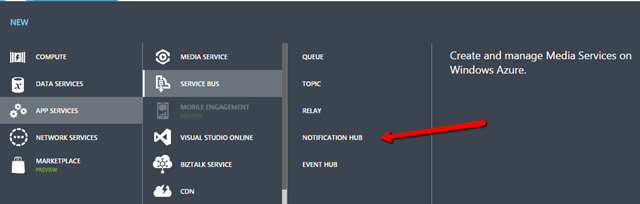
Go out to the Azure Portal and create a new Notification hub (side note: creation of a mobile service will also create a notification hub).  The Notification Hub option can be found under App Services –> Service Bus –> Notification Hub

image

Once the Notification Hub is created take note of the following pieces of information: DefaultListenSharedAccessSignature and DefaultFullSharedAccessSignature under Connection Information.  We will be using these values within the Windows Store application.

Crack open Visual Studio and create a new Windows Store app.  Make sure you associate the app with an app instance in our Windows Developer account (https://appdev.microsoft.com/StorePortals/en-us/Home/Index).  You can do this entire process from the wizard in Visual Studio (right click the project file and select ‘Associate…;’’).  Next, open the Package.appmanifest file and ensure that notification (Toast for this example) are turned on.

In order to receive notifications we only need to have the app installed, so no UI is necessary.

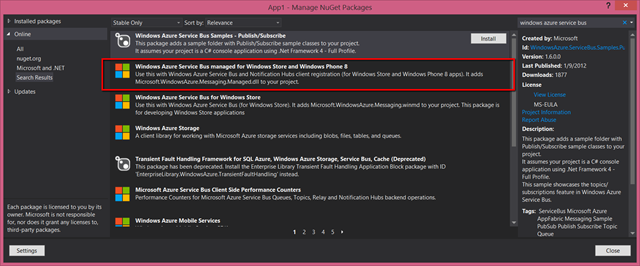
What is important is that we register this new “device” with the Notification Hub.  While this can be done through the REST API, there is a Nuget package which makes this process much easier.  Be careful however, there are two of the, and the one we want is indicated in the picture below:

image

The key thing here is to look for the word ‘managed’ in the title.  That is the one you will need.  To register the client, the follow code needs to be placed somewhere (could be in App.xaml or anywhere else).

_hub = new NotificationHub("<hubname>", "<connection string>");
var channel = await PushNotificationChannelManager.CreatePushNotificationChannelForApplicationAsync();
await _hub.RegisterNativeAsync(channel.Uri);

This code creates the record necessary for the Notification Hub to track the device, this includes knowing when the app is removed from the device.  The hubname in this case represents the literal name of the your Notification Hub has displayed in the Azure Portal:

image

The second parameter is the connection string for talking to the Hub.  By default Azure will provide two strings, one which allows for only listening and another gives full rights to your Hub.  Each of these strings can be found by accessing Connection Information from you Notification Hub Dashboard.

The final step is to configure the Notification Hub to access the WNS Push Service.  To do that we need two values: the Package SID and Client Secret values, we will input both values under the Configure tab.  These values are obtained from the Windows Developer Dashboard, though they are not easy to find.

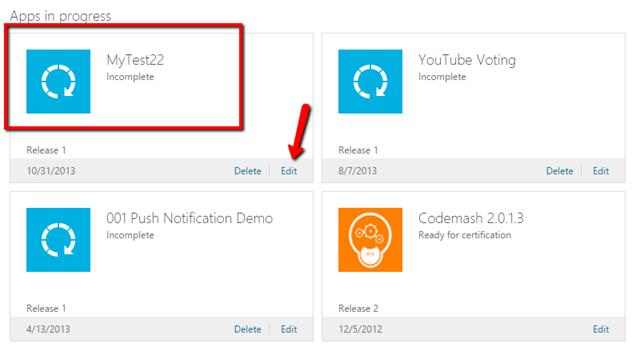
First, access your Windows Developer Dashboard (https://appdev.microsoft.com/StorePortals/en-us/Home/Index).  You should see your app listed in this grid

image

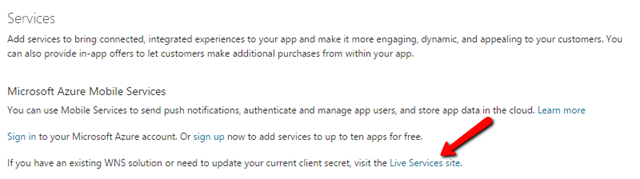
Select the option to Edit and then selected Services from the list.  Now if you are like most people you might think you have reached a dead end.  This is one of the more annoying parts of Windows Store development that I keep hoping Microsoft changes.  There is a link on this page that will take you were you want go.  I have pointed it out in the image below (Live Services site):

image

So, this will take you to a take where the Package SID and Client Secret are listed.  Copy and paste these values into the appropriate fields on the Configure table in you Azure Notification Hub.

Let’s Test and make sure nothing is broken

So, we could go through the motions of creating an app that sends notifications to make sure this all working but, there is an easier way.  It isnt a fully integrated tool yet but Microsoft provides a tool called Service Bus Explorer, currently version 2.5. (https://code.msdn.microsoft.com/windowsapps/Service-Bus-Explorer-f2abca5a).  The code downloads as source, but you can find a pre-built executable in the Debug folder.

Once you have opened the application select File –> Connect.  This will immediately prompt you for a connection string.  You might be tempted to put in the Full connection string listed with you Notification Hub, don’t, it wont work.  You need the root connection string which is listed somewhere else.

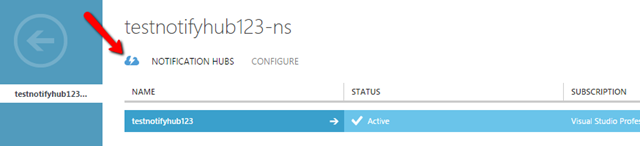
With your Notification Hub dashboard shown hit the back link in the Azure Portal (the giant back arrow inside a circle, not the browser back button).  This will take you to a new screen with the title akin to your Notification Hub name suffixed with a –ns.  Click on the thunderbolt icon:

image

From this screen click the Connection Information button from the bottom bar.  This will give you the Root key.  This is the value that needs to be used for Service Bus Explorer to connect.

Once connected the first thing to do is click the Registrations button.  If the registration process was successful you should see at least one entry in the final listing.  Finally, selecting the Notification Hub in the tree view menu will enable the Send button which allows you to send push notifications to register clients.  In addition, it provides great reporting on problems and is very useful for diagnosing problems with notifications.

Hopefully that is enough to get you started.  I do plan to release another entry to show how to make a client.  Otherwise, this is where I got started http://azure.microsoft.com/en-us/documentation/videos/notification-hubs-broadcasting-alerts/.  The big add with Notification hubs is tags which allow clients to register for certain notifications and the REST API which allows any application to send a notification.  I still want to look at their integration with Azure Mobile Services since that is where I intend to focus my efforts.

Speaking at Codestock 2015

Selected to speak at Codestock

Over the weekend I discovered that I was selected to speak at Codestock 2015.  I will be giving both of my “Why you should be using Xamarin…” talk and my Intro to Xamarin Forms talk.  While I do get the opportunity to speak at a variety of conferences I love being selected for Codestock.  The reason is Codestock asks the attendees what they want to hear and picks the candidates from that.  So, I feel very fortunate that BOTH of my sessions were selected by attendees.  Thank you all for your support I will do my best to not let you down.

Its been a few years since I have spoken at Codestock and I am very much looking forward to returning to the great city of Knoxville.

Tickets here: www.codestock.org

New Talk: Why you should be using Xamarin

Recently I have started making with a new Xamarin talk.  This one inspired by the many conversations I have had with people who seem so hesitant and skeptical of Xamarin, as well as those who are always asking me what it is is and whether it can truly do what it claims.

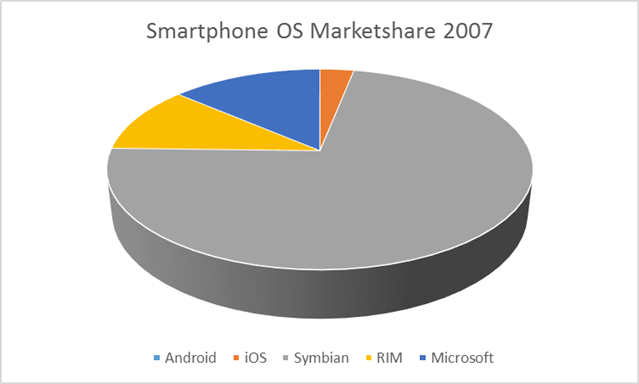
So the first thing that is important to understand is why tools like Xamarin exist, which requires us to understand why supporting multiple platforms is a must.  To start, look at how the global mobile marketshare went from this in 2007

image

To this in 2014 (numbers courtesy of Gartner)

image

While these numbers can be misleading it clearly shows the tremendous marketshare commanded by Android around the world. The reason I say they are misleading is they represent markets where the establishment of a premium market is either miniscule or not practical (developing countries).  However, in developed nations like the United States the marketshare is much closer.

image

But, marketshare has never been Apple’s goal with their device.  Its the same reason not everyone drives a Jaguar, the devices are not meant for everyone.  They want the people who are going to spend money and that is one area that Apple users (despite there being less than half by comparison) surpass Android, nearly 4:1 (Gartner).

image

So, what is clear from this information is that we have to support both platforms.  This is where it gets tricky because when you consider that 99% of apps will be used one time (Nielson) you realize that building a great app is even harder than you probably thought; even more so if you are talking something for general consumption.

So, as developers, we have to ask the question: “How can we build apps that are both usable and cost effective.

If we opt to consider only using the pure native approaches (Objective-C/Swift for iOS and Java for Android) we can certainly develop apps with a great experience that will seem familiar to end users on that platform.  However, that likely means hiring an external resource which could not only be costly monetarily, but also from a knowledge standpoint.  You would not want this mobile developer you helped learn your business so they could write the app to walk out the door and leave your developers to maintain.  Further, we have no ability to share code between Obj-C and Java – so it will either be two code bases or two network intensive applications.

If we go to the other end of the spectrum, and use hybrid web we will be sacrificing many aspects of the experience, including that snappy responsiveness users want in their apps (since we would be relying on the HTML rendering engine to support our apps).  However, HTML/JS/CSS is one of the most common skillsets available today and its likely most organizations have people who could leverage these technologies through tools like PhoneGap or Appcelerator to build apps.  But, too often I have seen organizations take this approach and then regret it later because the app just doesnt perform well in the hands of a user.

This is why my option of choice, is Xamarin.  As a developer who has done Android for three years and Objective-C for two, along with my 7yrs of .NET, I can tell you, the idea of sharing code between all of these outputs, as can be done in Visual Studio, is very appealing.  In fact, at West Monroe, where we use Xamarin for the vast majority of our mobile projects, we can usually attain around 75-80% code sharing using vanilla Xamarin; we have hit 90% when we involve tools like MVVMCross.

There are many who view Xamarin with a degree of skepticism because its hard to believe they can do what they say.  But having used it for the last 2yrs, I can tell you that while I can appreciate the skepticism its simply unfounded.  Xamarin goes to great lengths to ensure that their compiled assembles are not only similar in size and performance to native apps, but actually builds their final assemblies using the same compilers used by native developers.  Yes, you read that right, Xamarin’s final assembly is compiled through Xcode (LVVM).

At the core of this process is the idea of cross compilation through binding.  Xamarin is bound to Objective-C objects such that when the final product is produced, calls to Xamarin methods effectively translate to calling native Objective-C methods.  If you are still questioning the performance of this approach go ahead and download “Skulls of the Shogun”, which is written using MonoGame and uses a shared code base to support a version of the game for Windows Phone, iOS, and Android.  Yes, you can even use Xamarin to build games.

At West Monroe Partners, its a beautiful practice to tell our .NET clients that we can offer them iOS and Android apps in .NET, allowing their experience programmers to assist in the process without learning a new syntax.  Further, since West Monroe is a .NET show primarily ramping up new developers in Xamarin is relatively easy.  In fact, during my last project, we took two newer developers and within 5wks taught them iOS programming through Xamarin, despite them having never touched iOS development previously.  So not only do we get to reuse our existing technical assets and provide our client with a code base that then can help maintain, but we also are able to rapidly expand our team if need requires.

And I want to drive this point home. There is no waiting for new features with Xamarin.  They release their beta’s right in line with everyone else.  At West Monroe, we were beta testing 8.0 features months before it came out.  I would literally receive notice of a new Xamarin iOS beta the same day I received a notice that a new 8.0 beta was available.  And, for your users standpoint, they cannot tell the difference between a Xamarin app and a native Objective-C/Swift app.  In fact, as a Xamarin developer who works in iOS, I use Xcode in many cases to build my iOS interfaces, just as a native developer does.

To review, it is clear, to all, that the mobile landscape is constantly shifting.  Though certainly it has remained largely unchanged over the past couple of years.  But recent history has certainly shown us that nothing is set in stone; ask Symbian.  We need to be able to quickly pivot and create apps for all of the major platforms, but primarily iOS and Android.  And that is one of the things that Xamarin allwos for, create the core of your app share it and build the UI for the platform most desired.  Then turn around and create the UI for the secondary platform, hook into your shared code, and you are done; this is even easier with MVVM.

Our goals as developers are always the same.

  • We want apps that we can feel good about
  • We want apps that we can maintain and extend with reasonable effort
  • We want apps that look good and feel nice
  • We want to share code and not repeat ourselves

Xamarin gives us all of this and allow us to use ONE language for development.  And, while costly, offers a very good alternative to hiring Objective-C/Java developers/consultants that will likely walk out the door once the project is done.

If you are curious to hear the entire presentation, I am hopefully going to be presenting at CodeStock in June, if not other user groups before that.