Xamarin Forms: Optional Rendering

One of the most interesting aspects of Xamarin Forms is the ability to hook into the custom rendering engine and redefine how a control will appear on the screen.  As renderers are defined at the platform level, you have the ability to selectively choose what a control will render or even do.  I decided to make use of this feature in Score Predict because of a loading difference between Windows Phone with Android and iPhone.

Note: It is well understood at this point that making special considerations for Windows Phone is not advisable given its relevance within the global smartphone community.

ACR Dialogs

Within just about any app you are going to want to display dialogs to alert the user, gather information from the user, or ask the user to wait for an operation to complete.  Because we are working in a totally platform agnostic way in Forms we need a library which we can use to display a dialog without caring how it gets display.  This is the purpose behind the ACR User Dialogs library.

Problem

The ACR User Dialogs plugin provides some very nice dialogs for loading which I wanted to use on Windows Phone, iOS, and Android.  On Android and iOS this worked without issue.  However, on Windows Phone I ran into a problem because WP will always load the next view in a Panorama so the user may “swipe” to it.  This created a problem which caused ACR to become confused and then made for a confusing experience.  I decided to fix this by removing the ACR loading dialog from Windows Phone, but I wanted to leave it on for Android and iOS. However, I wanted to do this without changing my view models, they should not care about the views implementation.

High Level Solution

Xamarin forms offers a “rendering” concept, whereby we can control what the visual output of a control is.  To that end, we want to create a custom control that shows/hides itself based on a property from the View Model and shows a message when it is visible.  The effect this control has will be different depending on the platform.  Thus, we will need to define a “renderer” for each platform we are supporting.

The goal will be that when the control is visible on WP it fill the entire view with a progress indicator.  A message is display directly beneath the progress indicator.  On Android and iOS we will invoke the ACR User Dialogs, the control will have NO visual component.

Understanding Xaml Rendering

Xaml renders elements on a Z axis in the order in which they appear.  Elements which are defined later are on top of elements which appear earlier.  We can use this to easily have our content loader view “fill” the entire screen.  Here is a sample of the control defined on a Xaml page.  It is ALWAYS the last control defined.

<controls:ContentLoader Message="{Binding LoaderMessage}" HorizontalOptions="Fill" 
     VerticalOptions="Fill" Grid.RowSpan="7" IsVisible="{Binding IsBusy}" />

.csharpcode, .csharpcode pre
{
font-size: small;
color: black;
font-family: consolas, “Courier New”, courier, monospace;
background-color: #ffffff;
/*white-space: pre;*/
}
.csharpcode pre { margin: 0em; }
.csharpcode .rem { color: #008000; }
.csharpcode .kwrd { color: #0000ff; }
.csharpcode .str { color: #006080; }
.csharpcode .op { color: #0000c0; }
.csharpcode .preproc { color: #cc6633; }
.csharpcode .asp { background-color: #ffff00; }
.csharpcode .html { color: #800000; }
.csharpcode .attr { color: #ff0000; }
.csharpcode .alt
{
background-color: #f4f4f4;
width: 100%;
margin: 0em;
}
.csharpcode .lnum { color: #606060; }

This is nothing more than a simple class which inherits from ContentView, which is your generic run of the mill view that can be used for anything.  Here is out basic implementation

    public class ContentLoader : ContentView
    {

    }

.csharpcode, .csharpcode pre
{
font-size: small;
color: black;
font-family: consolas, “Courier New”, courier, monospace;
background-color: #ffffff;
/*white-space: pre;*/
}
.csharpcode pre { margin: 0em; }
.csharpcode .rem { color: #008000; }
.csharpcode .kwrd { color: #0000ff; }
.csharpcode .str { color: #006080; }
.csharpcode .op { color: #0000c0; }
.csharpcode .preproc { color: #cc6633; }
.csharpcode .asp { background-color: #ffff00; }
.csharpcode .html { color: #800000; }
.csharpcode .attr { color: #ff0000; }
.csharpcode .alt
{
background-color: #f4f4f4;
width: 100%;
margin: 0em;
}
.csharpcode .lnum { color: #606060; }

Loading the View

Xaml is built with reusability in mind, so we will be loading what our view looks like externally.  We are going to define this using Forms Xaml.  The reason for this is, when we drop this view on a page, it will invoke the native renderers associated with that platform; less work for us to do.  Here is the view Xaml

<?xml version="1.0" encoding="utf-8" ?>
<ContentView xmlns="http://xamarin.com/schemas/2014/forms"
             xmlns:x="http://schemas.microsoft.com/winfx/2009/xaml"
             x:Class="ScorePredict.Core.Controls.ContentLoaderView">

  <StackLayout HorizontalOptions="Fill" VerticalOptions="Fill"
          BackgroundColor="{StaticResource BackgroundColor}"
          Orientation="Vertical">
          <ActivityIndicator HorizontalOptions="Fill" VerticalOptions="Center" IsRunning="True" />
          <Label x:Name="messageLabel" TextColor="White" HorizontalOptions="CenterAndExpand"
               VerticalOptions="Center" />
     </StackLayout>
  
</ContentView>

.csharpcode, .csharpcode pre
{
font-size: small;
color: black;
font-family: consolas, “Courier New”, courier, monospace;
background-color: #ffffff;
/*white-space: pre;*/
}
.csharpcode pre { margin: 0em; }
.csharpcode .rem { color: #008000; }
.csharpcode .kwrd { color: #0000ff; }
.csharpcode .str { color: #006080; }
.csharpcode .op { color: #0000c0; }
.csharpcode .preproc { color: #cc6633; }
.csharpcode .asp { background-color: #ffff00; }
.csharpcode .html { color: #800000; }
.csharpcode .attr { color: #ff0000; }
.csharpcode .alt
{
background-color: #f4f4f4;
width: 100%;
margin: 0em;
}
.csharpcode .lnum { color: #606060; }

As you can see, its similar to something you might define in Forms Xaml normally.  Using this code will invoke the native renderers for StackLayout, ActivityIndicator, and Label.

We will get to the part where this View is actually loaded via the renderer a bit later.

Enable the Binding

Our next task is to add the custom bindable property for Message, which will enable us to populate the Label as well as display a message when the loading dialogs are visible in iOS and Android.  To do this we add the requisite code to enable the property binding and the subsequent holder property.

I explained this in a previous post which focus on Data Binding with Forms Xaml.  This is the updated (and final version) of ContentLoader.

    public class ContentLoader : ContentView
    {
        public static BindableProperty MessageProperty =
            BindableProperty.Create<ContentLoader, string>(x => x.Message, null);

        public string Message
        {
            get { return GetValue(MessageProperty) as string; }
            set { SetValue(MessageProperty, value); }
        }
    }

.csharpcode, .csharpcode pre
{
font-size: small;
color: black;
font-family: consolas, “Courier New”, courier, monospace;
background-color: #ffffff;
/*white-space: pre;*/
}
.csharpcode pre { margin: 0em; }
.csharpcode .rem { color: #008000; }
.csharpcode .kwrd { color: #0000ff; }
.csharpcode .str { color: #006080; }
.csharpcode .op { color: #0000c0; }
.csharpcode .preproc { color: #cc6633; }
.csharpcode .asp { background-color: #ffff00; }
.csharpcode .html { color: #800000; }
.csharpcode .attr { color: #ff0000; }
.csharpcode .alt
{
background-color: #f4f4f4;
width: 100%;
margin: 0em;
}
.csharpcode .lnum { color: #606060; }

As you can see, we are only defining the property here so that we can bind to it on our various Xaml pages (shown above).

The reason Message is defined as a bindable property is that it enables me to change the value depending on WHY the screen is busy (ie Load vs Refresh).  In order to support this we must take

Rendering the Custom Loader

So this is where the real fun begins.  We have to remember, that we will want to render this three different ways (two really).  Let’s start with Windows Phone, the only platform that this control will have a visual appearance.

The first thing is to understand how rendering on Xamarin.Forms works.  At a high level, the Element is rendered initially using OnElementChanged.  This method seems to create the initial control and is followed by subsequent invocations of OnElementPropertyChanged which is caused whenever a property on the control changes.

Windows Phone

Because Windows Phone will feature a visual component to the ContentLoader control we must use OnElementChanged to load our custom view when the control is initially created; when OldElement is null.  The following code performs this operation.

        protected override void OnElementChanged(ElementChangedEventArgs<View> e)
        {
            base.OnElementChanged(e);

            if (e.OldElement == null)
            {
                var view = (ContentLoader) e.NewElement;
                view.LoadFromXaml(typeof (ContentLoaderView));
            }
        }

.csharpcode, .csharpcode pre
{
font-size: small;
color: black;
font-family: consolas, “Courier New”, courier, monospace;
background-color: #ffffff;
/*white-space: pre;*/
}
.csharpcode pre { margin: 0em; }
.csharpcode .rem { color: #008000; }
.csharpcode .kwrd { color: #0000ff; }
.csharpcode .str { color: #006080; }
.csharpcode .op { color: #0000c0; }
.csharpcode .preproc { color: #cc6633; }
.csharpcode .asp { background-color: #ffff00; }
.csharpcode .html { color: #800000; }
.csharpcode .attr { color: #ff0000; }
.csharpcode .alt
{
background-color: #f4f4f4;
width: 100%;
margin: 0em;
}
.csharpcode .lnum { color: #606060; }

Calls to the base method are imperative here, do not leave it out.  Using this, when the control is visible, you will get a blank area with only a Progress Indicator, nothing else, no message.

Our next step is to have that message not only display, but change as the value of the Message property changes on the control.  To handle this, we must implement our logic in OnElementPropertyChanged.  The following accomplishes our goal:

        protected override void OnElementPropertyChanged(object sender, PropertyChangedEventArgs e)
        {
            var contentLoader = sender as ContentLoader;
            if (sender != null && e.PropertyName == "Message")
            {
                var view = contentLoader.Content;
                if (view != null && view.FindByName<Label>("messageLabel") != null
                    && !string.IsNullOrEmpty(contentLoader.Message))
                {
                    view.FindByName<Label>("messageLabel").Text = contentLoader.Message;
                }
            }
        }

.csharpcode, .csharpcode pre
{
font-size: small;
color: black;
font-family: consolas, “Courier New”, courier, monospace;
background-color: #ffffff;
/*white-space: pre;*/
}
.csharpcode pre { margin: 0em; }
.csharpcode .rem { color: #008000; }
.csharpcode .kwrd { color: #0000ff; }
.csharpcode .str { color: #006080; }
.csharpcode .op { color: #0000c0; }
.csharpcode .preproc { color: #cc6633; }
.csharpcode .asp { background-color: #ffff00; }
.csharpcode .html { color: #800000; }
.csharpcode .attr { color: #ff0000; }
.csharpcode .alt
{
background-color: #f4f4f4;
width: 100%;
margin: 0em;
}
.csharpcode .lnum { color: #606060; }

The code is very straightforward.  After ensuring that we have the right control and that the target control is available, we set the value.  You will remember messageLabel  was defined in our custom view Xaml.

So what will happen here is the visibility of the control is bound to the IsBusy property on our View Models and is already defined appropriately by ContentView.  We have added logic so that the value stored in our bindable Message property on ContentLoader is visible when the view is visible.

Android and iOS

With Android and iOS I did not want a visual component to be rendered, but instead when the IsVisible flag is changed to true I want to show a dialog via ACR.  However, how we do this is going to be similar to Windows Phone in that the emphasis of our code will use OnElementPropertyChanged.

        protected override void OnElementPropertyChanged(object sender, PropertyChangedEventArgs e)
        {
            base.OnElementPropertyChanged(sender, e);

            var loader = (ContentLoader)sender;
            if (e.PropertyName == "Message")
                _loaderMessage = loader.Message;

            if (e.PropertyName == "IsVisible" && !string.IsNullOrEmpty(_loaderMessage))
            {
                if (loader.IsVisible)
                {
                    _dialogService = new UserDialogService();
                    _dialogService.ShowLoading(_loaderMessage);
                }
                else
                {
                    _dialogService.HideLoading();
                }
            }
        }

.csharpcode, .csharpcode pre
{
font-size: small;
color: black;
font-family: consolas, “Courier New”, courier, monospace;
background-color: #ffffff;
/*white-space: pre;*/
}
.csharpcode pre { margin: 0em; }
.csharpcode .rem { color: #008000; }
.csharpcode .kwrd { color: #0000ff; }
.csharpcode .str { color: #006080; }
.csharpcode .op { color: #0000c0; }
.csharpcode .preproc { color: #cc6633; }
.csharpcode .asp { background-color: #ffff00; }
.csharpcode .html { color: #800000; }
.csharpcode .attr { color: #ff0000; }
.csharpcode .alt
{
background-color: #f4f4f4;
width: 100%;
margin: 0em;
}
.csharpcode .lnum { color: #606060; }

In this bit (iOS version) we are focusing on two specific property changes: Message and IsVisible.  Remember what we said earlier, this method gets fired whenever the value of a property on the element changes.  Both IsVisible and Message (custom) are bindable properties whose value will change based on the view model.

When Message changes we update a local private variable.  The value of this variable is checked when IsVisible changes.  Now, we talked about how Acr provides nice cross platform dialogs.  Using the Cross Platform features is great when you are working in a shared environment.  In this case, however, we are in a platform specific rendering, so we can safetly new up the native implementation of UserDialogService.

Much the same code can be found for Android as well

        protected override void OnElementPropertyChanged(object sender, PropertyChangedEventArgs e)
        {
            var loader = (ContentLoader) sender;
            if (e.PropertyName == "Message")
                _loaderMessage = loader.Message;

            if (e.PropertyName == "IsVisible" && !string.IsNullOrEmpty(_loaderMessage))
            {
                if (loader.IsVisible)
                {
                    _dialogService = new UserDialogService();
                    _dialogService.ShowLoading(_loaderMessage);
                }
                else
                {
                    _dialogService.HideLoading();
                }
            }
        }

.csharpcode, .csharpcode pre
{
font-size: small;
color: black;
font-family: consolas, “Courier New”, courier, monospace;
background-color: #ffffff;
/*white-space: pre;*/
}
.csharpcode pre { margin: 0em; }
.csharpcode .rem { color: #008000; }
.csharpcode .kwrd { color: #0000ff; }
.csharpcode .str { color: #006080; }
.csharpcode .op { color: #0000c0; }
.csharpcode .preproc { color: #cc6633; }
.csharpcode .asp { background-color: #ffff00; }
.csharpcode .html { color: #800000; }
.csharpcode .attr { color: #ff0000; }
.csharpcode .alt
{
background-color: #f4f4f4;
width: 100%;
margin: 0em;
}
.csharpcode .lnum { color: #606060; }

Result

The result of this approach is that, when Windows Phone runs, we get a visual progress indicator that does not carry the problems of multiple dialogs being presented at once (loading two tabs).  But we have enough control with Forms to render out a blank view that contains logic to show our dialogs.
CodeStock 2015

Next week I will be making my return to Knoxville, TN to speak at CodeStock for the 2nd time in 4 years.  The last time I went I focused on Android, this time my focus will be Xamarin.  I will be giving my “You aren’t using Xamarin? You really should be” Xamarin Intro talk on Saturday.  Previous to that, on Friday, I will be participating in Mobile Strategy Panel with Ed Charbeneau and Michael Crump and giving my Intro to Xamarin.Forms talk.

For the panel, I will be doing my best to represent the Xamarin side of mobile development while Ed represents Mobile Web + Hybrid and Michael focuses on Native.  It should be a great discussion, please be sure to attend.

New Talk: Why you should be using Xamarin

Recently I have started making with a new Xamarin talk.  This one inspired by the many conversations I have had with people who seem so hesitant and skeptical of Xamarin, as well as those who are always asking me what it is is and whether it can truly do what it claims.

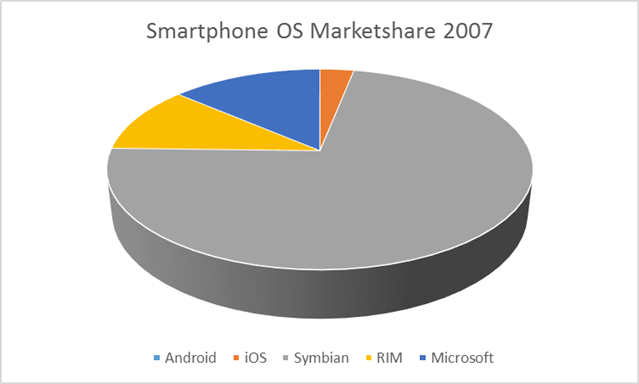
So the first thing that is important to understand is why tools like Xamarin exist, which requires us to understand why supporting multiple platforms is a must.  To start, look at how the global mobile marketshare went from this in 2007

image

To this in 2014 (numbers courtesy of Gartner)

image

While these numbers can be misleading it clearly shows the tremendous marketshare commanded by Android around the world. The reason I say they are misleading is they represent markets where the establishment of a premium market is either miniscule or not practical (developing countries).  However, in developed nations like the United States the marketshare is much closer.

image

But, marketshare has never been Apple’s goal with their device.  Its the same reason not everyone drives a Jaguar, the devices are not meant for everyone.  They want the people who are going to spend money and that is one area that Apple users (despite there being less than half by comparison) surpass Android, nearly 4:1 (Gartner).

image

So, what is clear from this information is that we have to support both platforms.  This is where it gets tricky because when you consider that 99% of apps will be used one time (Nielson) you realize that building a great app is even harder than you probably thought; even more so if you are talking something for general consumption.

So, as developers, we have to ask the question: “How can we build apps that are both usable and cost effective.

If we opt to consider only using the pure native approaches (Objective-C/Swift for iOS and Java for Android) we can certainly develop apps with a great experience that will seem familiar to end users on that platform.  However, that likely means hiring an external resource which could not only be costly monetarily, but also from a knowledge standpoint.  You would not want this mobile developer you helped learn your business so they could write the app to walk out the door and leave your developers to maintain.  Further, we have no ability to share code between Obj-C and Java – so it will either be two code bases or two network intensive applications.

If we go to the other end of the spectrum, and use hybrid web we will be sacrificing many aspects of the experience, including that snappy responsiveness users want in their apps (since we would be relying on the HTML rendering engine to support our apps).  However, HTML/JS/CSS is one of the most common skillsets available today and its likely most organizations have people who could leverage these technologies through tools like PhoneGap or Appcelerator to build apps.  But, too often I have seen organizations take this approach and then regret it later because the app just doesnt perform well in the hands of a user.

This is why my option of choice, is Xamarin.  As a developer who has done Android for three years and Objective-C for two, along with my 7yrs of .NET, I can tell you, the idea of sharing code between all of these outputs, as can be done in Visual Studio, is very appealing.  In fact, at West Monroe, where we use Xamarin for the vast majority of our mobile projects, we can usually attain around 75-80% code sharing using vanilla Xamarin; we have hit 90% when we involve tools like MVVMCross.

There are many who view Xamarin with a degree of skepticism because its hard to believe they can do what they say.  But having used it for the last 2yrs, I can tell you that while I can appreciate the skepticism its simply unfounded.  Xamarin goes to great lengths to ensure that their compiled assembles are not only similar in size and performance to native apps, but actually builds their final assemblies using the same compilers used by native developers.  Yes, you read that right, Xamarin’s final assembly is compiled through Xcode (LVVM).

At the core of this process is the idea of cross compilation through binding.  Xamarin is bound to Objective-C objects such that when the final product is produced, calls to Xamarin methods effectively translate to calling native Objective-C methods.  If you are still questioning the performance of this approach go ahead and download “Skulls of the Shogun”, which is written using MonoGame and uses a shared code base to support a version of the game for Windows Phone, iOS, and Android.  Yes, you can even use Xamarin to build games.

At West Monroe Partners, its a beautiful practice to tell our .NET clients that we can offer them iOS and Android apps in .NET, allowing their experience programmers to assist in the process without learning a new syntax.  Further, since West Monroe is a .NET show primarily ramping up new developers in Xamarin is relatively easy.  In fact, during my last project, we took two newer developers and within 5wks taught them iOS programming through Xamarin, despite them having never touched iOS development previously.  So not only do we get to reuse our existing technical assets and provide our client with a code base that then can help maintain, but we also are able to rapidly expand our team if need requires.

And I want to drive this point home. There is no waiting for new features with Xamarin.  They release their beta’s right in line with everyone else.  At West Monroe, we were beta testing 8.0 features months before it came out.  I would literally receive notice of a new Xamarin iOS beta the same day I received a notice that a new 8.0 beta was available.  And, for your users standpoint, they cannot tell the difference between a Xamarin app and a native Objective-C/Swift app.  In fact, as a Xamarin developer who works in iOS, I use Xcode in many cases to build my iOS interfaces, just as a native developer does.

To review, it is clear, to all, that the mobile landscape is constantly shifting.  Though certainly it has remained largely unchanged over the past couple of years.  But recent history has certainly shown us that nothing is set in stone; ask Symbian.  We need to be able to quickly pivot and create apps for all of the major platforms, but primarily iOS and Android.  And that is one of the things that Xamarin allwos for, create the core of your app share it and build the UI for the platform most desired.  Then turn around and create the UI for the secondary platform, hook into your shared code, and you are done; this is even easier with MVVM.

Our goals as developers are always the same.

  • We want apps that we can feel good about
  • We want apps that we can maintain and extend with reasonable effort
  • We want apps that look good and feel nice
  • We want to share code and not repeat ourselves

Xamarin gives us all of this and allow us to use ONE language for development.  And, while costly, offers a very good alternative to hiring Objective-C/Java developers/consultants that will likely walk out the door once the project is done.

If you are curious to hear the entire presentation, I am hopefully going to be presenting at CodeStock in June, if not other user groups before that.

Customizing the Tab Bar on iOS with Xamarin Forms

As part of developing Score Predict with Xamarin Forms it was necessary to customize the visual appearance to match the overarching theme being applied to the application.  The first step was to change the background color, simple enough using the BackgroundColor attribute of TabbedPage

Sadly, this is the extent of the customization that I can do with Xamarin.Forms.  To do any more we need to create a custom renderer and work with the underlying UITabBarController.

<?xml version="1.0" encoding="utf-8" ?>
<TabbedPage xmlns="http://xamarin.com/schemas/2014/forms"
      xmlns:x="http://schemas.microsoft.com/winfx/2009/xaml"
      xmlns:pages="clr-namespace:ScorePredict.Core.Pages;assembly=ScorePredict.Core"
      x:Class="ScorePredict.Core.Pages.MainPage"
      BackgroundColor="{StaticResource BackgroundColor}">

Step1_MainScreen        Step1_MoreScreen

Renderers serve an integral purpose with Xamarin.Forms.  It allows us to get at the native controls that are being used by the platform to actually build the interface.  Creating one is easy.  Below is the skeleton of a renderer which will handle our customizations.

[assembly: ExportRenderer(typeof(TabbedPage), typeof(TouchScorePredictTabbedRenderer))]
namespace ScorePredict.Touch.Rendering
{
    public class TouchScorePredictTabbedRenderer : TabbedRenderer
    {
        protected override void OnElementChanged(VisualElementChangedEventArgs e)
        {
            base.OnElementChanged(e);
            if (e.OldElement == null)
            {
                
            }
        }
    }
}

The OnElementChanged method is our primary hook into the rendering process.  It gets called quite a bit so we need to make sure the customizations are only ever applied the first time it is run.  So the first problem we want to address is the background color of the table cells.  This is an auto-generated UI class from iOS mapped to Xamarin as UIMoreListController.  It is completely hidden with the Xamarin assemblies are no access is given to external programs.  I only know the name cause you can see it in the debugger.

    public class TouchScorePredictTabbedRenderer : TabbedRenderer
    {
        protected override void OnElementChanged(VisualElementChangedEventArgs e)
        {
            base.OnElementChanged(e);
            if (e.OldElement == null)
            {
                var vc = MoreNavigationController.ViewControllers[0];
                var tableView = (UITableView)vc.View;
                tableView.TableFooterView = new UIView(CGRect.Empty);
                tableView.BackgroundColor = UIColor.FromRGB(119, 183, 57);
            }
        }
    }

Luckily, like all other Controllers it is an implementation of UIViewController and thus has all the properties you would expect including, most importantly View.  What the More List Controller effectively is, is a Navigation Controller with a TableView inside.  So, we can cast the root View to a TableView and work with it directly.

Step2_MoreScreen

Above, the TableFooterView is eliminated hiding empty cells.  We also set the background color of those empty cells, which basically gives the appearance of a background color.  However, as you can see, the cells with content are still white, as is the Navigation bar.  However, since at the point this code is called the View Controller has not yet been generated, we have no way to actually get at the non-empty cells or the title.  To do that we will need a delegate, so we will need to create a custom implementation using the IUINavigationControllerDelegate.

    public class TouchScorePredictTabbedRenderer : TabbedRenderer
    {
        protected override void OnElementChanged(VisualElementChangedEventArgs e)
        {
            base.OnElementChanged(e);
            if (e.OldElement == null)
            {
                MoreNavigationController.Delegate = new CustomNavigationControllerDelegate();

                var vc = MoreNavigationController.ViewControllers[0];
                var tableView = (UITableView)vc.View;
                tableView.TableFooterView = new UIView(CGRect.Empty);
                tableView.BackgroundColor = UIColor.FromRGB(119, 183, 57);
            }
        }
    }

    public class CustomNavigationControllerDelegate : UINavigationControllerDelegate
    {
        public override void WillShowViewController(UINavigationController navigationController,
            UIViewController viewController, bool animated)
        {
            
        }
    }

By defining the CustomNavigationControllerDelegate we gain access to the overridable WillShowViewController method.  It is within this method that we will perform the remainder of our visual customizations.  Its important to understand that WillShow* gets called whenever the More View Controller goes to show a new View Controller; this includes the More controller itself.  That being the case, we want to make sure we are looking at the right controller, so we attempt to cast the root view of the viewController parameter to a UITableView.  If it succeeds, we are looking at the More Table List.

    public class CustomNavigationControllerDelegate : UINavigationControllerDelegate
    {
        public override void WillShowViewController(UINavigationController navigationController, 
            UIViewController viewController, bool animated)
        {
            var tableView = viewController.View as UITableView;
            if (tableView != null)
            {
                viewController.NavigationController.NavigationBar.BarTintColor = UIColor.FromRGB(0x3C, 0x85, 0x13);
                viewController.NavigationItem.RightBarButtonItem = null;
                viewController.NavigationController.NavigationBar.TintColor = UIColor.FromRGB(0xFC, 0xD2, 0x3C);
            }
        }
    }

Once we are sure which view controller we are looking at, our first target will be the Navigation Bar.  We can adjust the BarTintColor (background color), remove the default Edit button on the right side of the menu.

One important thing to note is the TintColor.  This affects ALL INTERACTIVE items in the Navigation bar, so the coloring of buttons, NOT the color of the Title.  So if you run this code, you get something like this:

Step3_MoreScreen   Step3_AboutScreen 

It took me a bit to figure out how to change the text color of the title, turns its done through the Cocoa Appearance API.  While there are a number of appearance settings that can be applied, the code below shows how to use this API to change the text color.

navigationController.NavigationBar.TitleTextAttributes = new UIStringAttributes()
{
    ForegroundColor = UIColor.FromRGB(0xFC, 0xD2, 0x3C)
};

Not intuitive, I know, but it gets the job done.  If you run now, we get the appropriate text color, background, and interactive elements.  All that remains is the cells themselves.  To apply our styling to these, we need to iterate over the VisibleCells collection of the table view, below is the full Custom Navigation Controller Delegate class.

public class CustomNavigationControllerDelegate : UINavigationControllerDelegate
{
    public override void WillShowViewController(UINavigationController navigationController,
        UIViewController viewController, bool animated)
    {
        var tableView = viewController.View as UITableView;
        if (tableView != null)
        {
            viewController.NavigationController.NavigationBar.BarTintColor = UIColor.FromRGB(0x3C, 0x85, 0x13);
            viewController.NavigationItem.RightBarButtonItem = null;
            viewController.NavigationController.NavigationBar.TintColor = UIColor.FromRGB(0xFC, 0xD2, 0x3C);

            navigationController.NavigationBar.TitleTextAttributes = new UIStringAttributes()
            {
                ForegroundColor = UIColor.FromRGB(0xFC, 0xD2, 0x3C)
            };

            tableView.SeparatorInset = UIEdgeInsets.Zero;
            foreach (var cell in tableView.VisibleCells)
            {
                cell.BackgroundColor = UIColor.FromRGB(119, 183, 57);
                cell.TextLabel.TextColor = UIColor.White;
                cell.Accessory = UITableViewCellAccessory.None;
                cell.SeparatorInset = UIEdgeInsets.Zero;
            }
        }
    }
}

Step4_MoreScreen

As you can see, what this really amounts to is programming against Xamarin.iOS and knowing the iOS programming model.  In reality, once you start using Renderers on any of the platforms you are effectively beginning to work with the native controls provided through Xamarin; at this point knowing the native platform becomes exception helpful.

I have to thank Jason Smith, PM of the Xamarin.Forms team, for really spelling out the delegate approach.  Although, in hindsight, he basically told me to use my knowledge of Xamarin.iOS 🙂 Either way, still very helpful to have him in your corner.

As always, you can check out the project as it evolves at: https://github.com/xximjasonxx/ScorePredictForms

Cheers!!

Welcome to WordPress

As much as I have loved using BlogSpot for all of these years, it was time to make a change.  This was mainly driven by the ever drooping support for code posting in BlogSpot through Windows Live Writer.  Most of the newer plugins seem to forgo support for BlogSpot and push their support for WordPress.  I dont intend to stop blogging, so I need a blogging service that can adequately support my posts

Understanding Xamarin Forms Navigation

As I continue my exploration into Xamarin Forms, I continue to really take aim at the Navigation piece of the framework.  My previous post I talked about a proposed solution that involved reaching outside Forms and into native code (for Android specifically).  I really wanted to get beyond this.

The Methods

PushAsync – Pushes a new page onto the navigation stack, or replaces the current content with a new page if no Navigation stack is present (Windows Phone only).  Without a NavigationPage this method will not work (throws an exception) on Android and iOS.

PopAsync – Pops the most recent page off the Navigation stack.  Havent tested what this method does on Windows Phone without a Navigation Page.

PushModalAsync – Push a page into a modal context.  This will create a new, independent, Navigation context within the application.  The modal that is created can be dismissed with a hardware back button; there appears to no way to stop this functionality.  On Android and Windows Phone there really is no difference, to the user, between this method and PushAsync, on iOS however you will see the traditional cover vertical animation

PopModalAsync – Pops the most recent Model context and returns to the most recent Navigation context.

InsertPageBefore – allows manipulation of the navigation stack and the insert of a page before another.  Does not work on Windows Phone, complains about the new page being outside the navigation scope.  Following usage, you will have to write code to actually get to this page.

RemovePage – removes a page from the Navigation stack.  Does not work on Android

PopToRootAsync – pops to the first page in the Navigation stack.  Used very commonly with InsertPageBefore to change the root page for an application.

By no means can I say that this is comprehensive, but its clear that not all of the methods work across the platforms.  This leads to a need to injection “helpers” into the core from the platform specific to control the navigation.  Here is an example that I have created within Score Predict

image

This is the Windows Phone version which shows using RemovePage to create a new root.  This is because InsertPage does not appear to work on Windows Phone.  Here is the Android version:

image

The ability to use InsertToPage makes this much simpler.  Here you also see a very common pattern of using InsertPage to change the first page in the Navigation stack and then using PopToRootAsync to immediately go to that page.

You may find it weird that I am passing in INavigation to each of these methods.  The reason for this is, I am calling them from a View Model.  At present, I have not found a good way to inject the Navigation property into other classes.  I am hoping a future release of Forms will give us more accessibility into how components like this are resolved.

For giggles, here is the iPhone version

image

You can see that it almost directly parallels the Android version in how it manipulates the Navigation stack.

Conclusion

I am pleased that I have removed the need to call platform specific code and instead I have found a way to use the Forms components to suffice for Navigation.  However, I believe the aim of forms should be to support a single navigation flow that can be properly supported across all three platforms; that is not the case at the moment.

Xamarin.Forms: The App in 1.3

One of my goals for the New Year is to learn Xamarin.Forms well enough that I can begin doing some serious speaking on it.  To that end, I decided to rewrite my Score Predict personal project app using it; this would give me a sense as to maturity of the platform and its viability in future projects both personally and professionally.

My experience got off to a rocky start as I seemed to have caught Forms in the midst of upgrading to 1.3.  I had quite the struggle getting things to work.  With the help of Xamarin’s Jason Smith I was able to overcome my difficulties which really amounted to synching my NuGet package versions and updating the project file.

The biggest difference I have found so far in 1.3 is the way the App class is defined.  Before we saw things like this:

public class App
{
    public static Page GetMainPage()
    {
        return new ContentPage
        {
            Content = new Label
            {
                Text = "Hello, Forms !",
                VerticalOptions = LayoutOptions.CenterAndExpand,
                HorizontalOptions = LayoutOptions.CenterAndExpand,
            },
        };
    }
}

This would then be called by platform specific code to load in the page.  Here is an example:

    [Activity(Label = "Main Page", MainLauncher = true : AndroidActivity
    {
        protected override void OnCreate(Bundle bundle)
        {
            base.OnCreate(bundle);

            Xamarin.Forms.Forms.Init(this, bundle);

            SetPage(App.GetMainPage());
        }
    }

You can see here, the reference to a static method which really seems incorrect given the features of C# and what .NET allows us to do.  Additionally, this sort of approach requires the developer understand the existing infrastructure of the target platform; which may not be desirable.  All in all, while this works but it could be done a lot better, I feel. The Xamarin guys thought so as well.

The new way utilizes a Forms specific base class for the platform specific launcher.  This base class provides a method LoadApplication which takes an instance of the custom App class and understands what that means for starting the application.  Here is an example of what your App class looks like in 1.3:

	public class App : Application
    {
		public App()
		{
			MainPage = new SplashPage ();
		}

		protected override void OnStart ()
		{
			base.OnStart ();
		}
    }

You can see the App class inherits from Application which is a new Forms specific class.  This class now allows you to override methods pertaining to the app’s lifecycle for the various platforms, including access to the Properties property which is a property bag that will take care of serialization of values for state persistence.

The main goal of the Application class, in addition to handling lifecycle events, the Application class also specifies to the MainPage which is what each platform will look at when loading the first page in the application, in this case the first page is SplashPage.

In order to load this appropriately, you need to call Forms.Init() and LoadApplication() in each platform like so:

iOS (AppDelegate)
    [Register("AppDelegate")]
    public partial class AppDelegate : FormsApplicationDelegate
    {
        public override bool FinishedLaunching(UIApplication app, NSDictionary options)
        {
            Forms.Init();
            LoadApplication (new App ());

			return base.FinishedLaunching (app, options);
        }
    }

One thing I will point out is, I noticed that it helps of you call the base FinishedLaunching method otherwise iOS seems to get confused.  This might be something Xamarin will fix in the near future.

Android (MainActivity)
    [Activity(Label = "ScorePredict", MainLauncher = true]
	public class MainActivity : FormsApplicationActivity
    {
        protected override void OnCreate(Bundle bundle)
        {
            base.OnCreate(bundle);

            Xamarin.Forms.Forms.Init(this, bundle);
			LoadApplication(new App());
        }
    }

Windows Phone (MainPage)

    public partial class MainPage : FormsApplicationPage
    {
        public MainPage()
        {
            InitializeComponent();

            Forms.Init();
            LoadApplication(new ScorePredict.App());
        }
    }

Overall, the change using a base class and for each platforms launching mechanism hides a lot of code and enables developers to really focus on what their application does, not how it starts.  I love the new approach and I see a lot of potential with this platform for the majority of apps for platforms.  Already, as I write this, I am working on a new version of my Score Predict app and, because I am taking this approach, I am basically doing all three platforms at the same time.

Once we are able to add in IoC and MVVM this is going to be the preferred way, for me, to develop applications in Xamarin, pending a custom UI that can be generalized of course.

Cheers.

Efficient Script Loading with AngularJS

Lately I have been putting my efforts towards creating a web front end for my Anime Information API.  To sharpen my skills, I decided to use Angular and really try to push things to develop good practices for organizing large amounts of JavaScript.  Central to this is, separating code into different files to ease maintenance.  But this resulted in this:

image

Having to add a tag each time a new file was added is painful.  Not only that its horribly inefficient, this approach will load code that the user may never even execute, so its a waste.

Luckily, this problem exists outside of AngularJS and has been addressed in many different ways, the most common way is through the AMD style loading supporting through libraries like RequireJS.  RequireJS allows to define our modules in terms of their implementation and the dependencies of that implementation.  It then takes care of managing scripts, including downloading those which are not yet downloaded.

This does result in some additional code being added to our code files and a bit of a learning curve to understand how we must organize AngularJS to allow RequireJS to work.  Frankly, it is very surprising that this sort of functionality isnt already built into AngularJS.  If it is, I could not find evidence of this, and the presence of the AngularJS RequireJS seed project would indicate I am not the only one who could find no dynamic script loading in AngularJS.

Setting Up

So, the idea with RequireJS is we can define our scripts as an application.  So, with RequireJS all of the lines above should be reduced to:

image

Pretty neat eh? But getting here isn’t easy.  The seed project can help, but I already have an existing solution to try to integrate this in.  With this line RequireJS will look for the main.js file in the app folder, this file will define the definitions needed by RequireJS.  Here is the contents of that file.

require.config({
 paths: {
  bootstrap: '../scripts/bootstrap',
  angular: 'scripts/angular/angular.min',
  angularRoute: 'scripts/angular/angular-route.min',
  uiBootstrap: 'scripts/ui-bootstrap-tpls-0.11.2.min',
  text: '../scripts/requirejs/text',
  underscore: '../scripts/underscore-min'
 },
 shim: {
  'bootstrap': ['jquery'],
  'angular': { 'exports': 'angular' },
  'angularRoute': ['angular'],
  'uiBootstrap': ['angular', 'bootstrap'],
  'underscore': { 'exports': '_' }
 }
});

//http://code.angularjs.org/1.2.1/docs/guide/bootstrap#overview_deferred-bootstrap
window.name = "NG_DEFER_BOOTSTRAP!";

require(['angular', 'app', 'routes'], function(angular, app, routes) {
 var $html = angular.element(document.getElementsByTagName('html')[0]);

 angular.element().ready(function() {
  angular.resumeBootstrap([app['name']]);
 });
});

I removed some of the definitions to make this shorter.  What you need to know is the paths section defines the scripts to be used while the shim section allows you to define dependencies between those script files (example: bootstrap require jquery be loaded).  In addition, most scripts are not written to be AMD complaint, thus for those we can define what the script exports which can be used within RequireJS.  An example of this is the angular object used within AngularJS apps.

Once you understand this the top section above becomes fairly self explanatory.  The next section is a bit tricky as it defines your bootstrap for RequireJS, or what gets run first.  To understand this, look at the three values in the JS array fed to require.

  • angular – this matches the name from the shim section, so RequireJS will ensure the file indicated in the paths section is loaded
  • app – since there is no shim configuration for this, RequireJS will attempt to load app.js in the same folder as main.js.  You could use directories here if you like, such as ‘code/app’ would attempt to look, from the level of main.js for app.js in the directory ‘code’.
  • routes – same as above.  Looks for routes.js

So now, the code hands off control to the familiar app.js that we see so often with Angular apps.  Here is the full contents of the file:

define([
    'angular',
    'views/controllers',
    'repository',
    'services',
    'filter',
    'angularRoute',
    'uiBootstrap'
    ], function (angular, controllers, repos) {
        return angular.module('animeApp', [
            'ngRoute',
            'animeApp.controllers',
            'animeApp.repositories',
            'animeApp.services',
            'animeApp.filters',
            'ui.bootstrap'
        ]);
});

RequireJS will attempt to match the name of the dependencies to those listed in the shim configuration, in this case angular, angularRoute, and uiBootstrap.  The other dependencies will be looked up based on the path to the JS file.

The interesting part of this comes in the callback.  We setup the module configuration for Angular as normal.  This pattern will be pervasive throughout the remainder of this.  We use define to ensure the scripts containing the bits needed are loaded.  Within the function we roll our Angular as normal.  We will see more examples of this later.

Lets’s look at the filter.js file to see this in action:

define(['angular', 'angularSanitize', 'angularUnderscore', 'repository'], function(ng) {
 return ng.module('animeApp.filters', ['ngSanitize', 'underscore'])
  .filter('termHighlight', ['$sce', function($sce) {
      return function(input, term) {
          var regex = new RegExp("(" + term + ")", "ig");
          return $sce.trustAsHtml(input.replace(regex, "<b class='highlight'>$1"));
      }
  }])
  .filter('filterCategoriesBySettings', ['_', 'settings.repository', function(_, settingsRepo) {
      return function(categories) {
       if (categories === undefined || categories.length == 0)
        return [];

          var showHentai = settingsRepo.getShowAdult();
          return _.filter(categories, function(category) {
              return category.isHentai === showHentai;
          });
      }
  }]);
});

Now, if we look at the define call you can see references to the shim configuration (angularSanitize, angularUnderscore), we also references repository.js which ensures we can use settings.repository in the Angular code.

This strategy is applicable to your controllers, services, and other modules of the application.  Of course, the major problem with doing this is you end up with all of your controllers/services/filters/etc in the same file.  This, to me, deviates from the goal of Angular, which is to break apart files so you dont have these massive JS files.  Our goal needs to be to further this approach, but maintain the file separation that Angular makes so easy.  That will be in part 2.

Dependency Injection and the Web

Lately I have been tasked with fixing a couple projects for clients where they were experiencing sporadic and unexplainable errors.  In both cases, I was shocked that previous developers had not taken the time and care to properly manage critical objects within the web application.

The big reason why Dependency Injection has gained such prominence among web developers is that it allows us to easily manage these objects from a central configuration without convoluting our code or require overloads.  And as with most frameworks, we can take advantage of functionality that is difficult to implement on our own.

The biggest advantage is the support of “web scoping”, that is we can scope objects to work well on the web.  Often this means providing at least the following three scope levels:

  • Application
  • Session
  • Request

This is in addition to runtime scoping levels offered by most DI frameworks, usually:

  • Singleton
  • Transient
  • Thread

The difference is, while the runtime scoping is useful, we have to remember that web applications are inherently multi-threaded, so a singleton will get shared by all users, similar to using the “Application” type web scope.

Probably the most important web scope is “request” since its often the best choice for those critical objects whose usage and scope mean the most to us, i.e. the database context (EF) or Session (NHibernate).  I find that getting support for this web scope has been at the core of the last two projects I have worked on at West Monroe.  The essence of this scope, is the object is resolved only one time per request.  This is ideal for databases where keeping the connection open too long is not good as is opening a new connection each time we talk to the database; its a healthy middle.

I think Dependency Injection is a very important aspect of modern development, if only because it pushes you to build applications from smaller decoupled blocks of code that are easier to test and reuse.  The fact that we can tightly control the scope of objects, both in a runtime and web context sense, is extremely useful and saves me from having to write and test that code myself.

There are MANY frameworks available and depending on your circumstances you should choose the one that fits best.  For example, one client project is using Spring .NET which isnt even supported and considered archaic by most standards.  Another, newer, project didnt even have Dependency Injection was constantly throwing sporadic errors from different areas.  We wanted to use AutoFac (which is a newer framework) but due to the use of ASMX web services in the backend process (for which AutoFac support is questionable) we opted to use Ninject.  For most of my side projects, I use AutoFac because its newer and supports many of the concepts that have made DI much easier since its inception.

I have also used StructureMap, Unity, and Castle Windsor in the past, so I am fortunate to have a wide experience with DI.  I think developers should focus on understanding the strengths and weaknesses of each of these tools, it helps you to make the right decision.  A great example of this is, the client using Spring .NET, we debated replacing Spring with Autofac.  We ended up staying with Spring so as to not add an additional variable into an already tumultuous situation.  Good thing to because we would find out about the support for Autofac with regard to ASMX.

Fixing Azure Mobile Services

Recently Windows Azure had a nearly global problem with its Azure Storage system which resulted in real downtime for many services, see here.  This affected one of my personal projects that was in development, basically even after the fix was made I was not able to access any of my endpoints.

To correct this, I performed a fresh publish ensuring the option to remove files at the destination was checked.  This succeeded in restoring the service and I thought everything was fine.  However, over the next couple of weeks I noticed some issues with updating the service, however I lacked the time to fully dive into the problem.

I finally got time around Thanksgiving as I was grounded for the week from traveling.  The main problem was that any new changes to the code would not show up on the server, that is I would get 404s for my new endpoints.  At first, I thought this was a routing issues since I was using custom routes for the new endpoints.  However, when I updated an accessible endpoint to return “Hello World” I got the original result, which confirmed to me that it was not a routing issue (all of this code worked locally) but instead a problem updating the code.

Even after continued efforts to re-publish with the removal of destination files, no change was seen.  So, I downloaded the Publish profile from the website, imported it and extracted the FTP server, username, and password and plugged that in the FileZilla.  I then attempted to remove everything from my wwwroot and repository directories.  I figured this would bring the service down and allow me to forcibly push the right DLLs; it did not.

Even with all files removed, I was able to hit the endpoints I knew still worked.  Even when I published to those empty directories, I still got the old result.  Thus, the only path I had left for me was to delete my service and recreate it with the same name.

I had to be very careful doing this because I did not want A) to delete my database and B) I wanted the new service to utilize the same schema name in the SQL Azure Database.  Thankfully, this approach worked and the service is back online and I can confirm new changes are working properly.  This also had the side effect of fixing the problem with my connection string that I noticed a few months ago.

Speaking with MVPs and Azure team members, no one seems able to explain what exactly happened or why those DLLs would not update.  My guess is that the storage mechanism behind the scenes had to change in response to the outage so my old service was likely located in a bad area, but with recreation is now located in a good area.

Hopefully, I can get some clarity on what happened.  In the meantime, I hope this helps anyone who is having issues the same as me.  Though, I realize deleting the service and recreating it is not a fun option