Mounting Key Vault Secrets into AKS with CSI Driver

Secret values in Kubernetes has always been a challenge. Simply put, the notion of putting sensitive values into a Secret with nothing more than Base64 encoding, and hopefully RBAC roles has seemed like a good idea. Thus the goal was always find a better way to bring secrets into AKS (and Kubernetes) from HSM type services like Azure Key Vault.

When we build applications in Azure which access services like Key Vault we do so using Managed Service Identities. These can either be generated for the service proper or assigned as a User Assigned Managed Identity. In either case, the identity represents a managed principal, one that Azure controls and is only usable from within Azure itself, creating an effective means of securing access to services.

With a typical service, this type of access is straightforward and sensible:

The service determines which managed identity it will use and contacts the Azure Identity Provider (and internal service to Azure) and receives a token. It then uses this token to contact the necessary service. Upon receiving the request with the token, the API determines the identity (principal) and looks for relevant permissions assigned to the principal. It then uses this to determine whether the action should be allowed.

In this scenario, we can be certain that a request originating from Service A did in fact come from Service A. However, when we get into Kubernetes this is not as clear.

Kubernetes is comprised of a variety of components that are used to run workloads. For example:
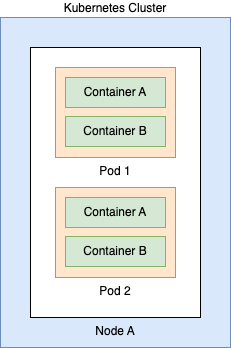
Here we can see the identity can exist at 4 different levels:

  • Cluster – the cluster itself can be given a Managed Identity in Azure
  • Node – the underlying VMs which comprise the data layer can be assigned a Managed Identity
  • Pod – the Pod can be granted an identity
  • Workload/Container – The container itself can be granted an identity

This distinction is very important because depending on your scenario you will need to decide what level of access makes the most sense. For most workloads, you will want the identity at the workload level to ensure minimal blast radius in the event of compromise.

Using Container Storage Interface (CSI)?

Container Storage Interface (CSI) is a standard for exposing storage mounts from different providers into Container Orchestration platforms like Kubernetes. Using it we can take a service like Key Vault and mount it into a Pod and use the values securely.

More information on this is available here: https://kubernetes-csi.github.io/docs/

AKS has the ability to leverage CSI to mount Key Vault, given the right permissions, and access these values through the CSI mount.

Information on enabling CSI with AKS (new and existing) is here: https://learn.microsoft.com/en-us/azure/aks/csi-storage-drivers

For the demo portion, I will assume CSI is enabled. Let’s begin.

Create a Key Vault and add Secret

Create an accessible Key Vault and create a single secret called MySecretPassword. For assistance with doing this, see these instructions: https://learn.microsoft.com/en-us/azure/key-vault/general/quick-create-portal and https://learn.microsoft.com/en-us/azure/key-vault/secrets/quick-create-portal#add-a-secret-to-key-vault

Create a User Managed Identity and assign rights to Key Vault

Next we need to create an Service Principal that will serve as our identity for our workload. This can be created in a variety of ways. For this demo, we will use a User assigned identity. Follow these instructions to create: https://learn.microsoft.com/en-us/azure/active-directory/managed-identities-azure-resources/how-manage-user-assigned-managed-identities?pivots=identity-mi-methods-azp#create-a-user-assigned-managed-identity

Once you have the identity, head back to the Key Vault and assign the Get and List permissions for Secrets to the identity. Shown here: https://learn.microsoft.com/en-us/azure/key-vault/general/assign-access-policy?tabs=azure-portal

That is it, now we shift our focus back to the cluster.

Enable OIDC for the AKS Cluster

OIDC (OpenID Connect) is a standard for creating federation between services. It enables the identity to register with the service and the token exchange occurring as part of the communication is entirely transparent. By default AKS will NOT enable this feature, you must enable it via the Azure Command line (or PowerShell).

More information here: https://learn.microsoft.com/en-us/azure/aks/use-oidc-issuer

Make sure to record this value as it comes back, you will need it later

Create a Service Account

Returning to your cluster, we need to create a Service Account resource. For this demo, I will be creating the account relative to a specific namespace. Here is the YAML:

apiVersion: v1
kind: Namespace
metadata:
name: blog-post
apiVersion: v1
kind: ServiceAccount
metadata:
name: kv-access-account
namespace: blog-post
view raw setup.yaml hosted with ❤ by GitHub

Make sure to record these values, you will need them later.

Federate the User Assigned Identity with the Cluster

Our next step will involve creating a federation between the User assigned identity we created and the OIDC provider we enabled within our cluster. The following command can be used WITH User Assigned Identities – I linked the documentation for an unmanaged identities below:

az identity federated-credential create
–name "kubernetes-federated-credential"
–identity-name $USER_ASSIGNED_IDENTITY_NAME
–resource-group $RESOURCE_GROUP
–issuer $AKS_OIDC_URL
–subject "system:serviceaccount:${SERVICE_ACCOUNT_NAMESPACE}:${SERVICE_ACCOUNT_NAME}"
view raw federate.sh hosted with ❤ by GitHub

As a quick note, the $RESOURCE_GROUP value here refers to the RG where the User Identity you created above is located. This will create a trusted relationship between AKS and the Identity, allow workloads (among others) to assume this identity and carry out operations on external services.

How to do the same using an Azure AD Application: https://azure.github.io/secrets-store-csi-driver-provider-azure/docs/configurations/identity-access-modes/workload-identity-mode/#using-azure-ad-application

Create the Secret Provider Class

One of the resource kinds that is added to Kubernetes when you enable CSI is the SecretProviderClass. We need this class to map our secrets into the volume we are going to mount into the Pod. Here is an example, an explanation follows:

apiVersion: secrets-store.csi.x-k8s.io/v1
kind: SecretProviderClass
metadata:
name: azure-kv-password-provider
namespace: blog-post
spec:
provider: azure
parameters:
keyvaultName: kv-blogpost-jx01
clientID: "client id of user assigned identity"
tenantId: "tenant id"
objects: |
array:
– |
objectName: MySecretPassword
objectType: secret

Mount the Volume in the Pod to access the Secret Value

The next step is to mount this CSI volume into a Pod so we can access the secret. Here is a sample of what the YAML for a Pod like this could look like. Notice I am leveraging an example from the Example site: https://azure.github.io/secrets-store-csi-driver-provider-azure/docs/getting-started/usage/#deploy-your-kubernetes-resources

kind: Pod
apiVersion: v1
metadata:
name: busybox-secrets-store-inline
namespace: blog-post
spec:
serviceAccountName: kv-access-account
containers:
– name: busybox
image: registry.k8s.io/e2e-test-images/busybox:1.29-4
command:
– "/bin/sleep"
– "10000"
volumeMounts:
– name: secrets-store-inline
mountPath: "/mnt/secrets-store"
readOnly: true
volumes:
– name: secrets-store-inline
csi:
driver: secrets-store.csi.k8s.io
readOnly: true
volumeAttributes:
secretProviderClass: "azure-kv-password-provider"
view raw pod.yaml hosted with ❤ by GitHub

This example uses a derivative of the busybox image that is provided via the example. The one change that I made was adding serviceAccountName. Recall that we created a Service Account above and defined it as part of the Federated Identity creation payload.

You do not actually have to do this. You can instead use default which is the default Service Account all pods run under within a namespace. However, I like to define the user more specifically to be 100% sure of what is running and what has access to what.

To verify things are working. Create this Pod and run the following command:

kubectl exec --namespace blog-post busybox-secrets-store-inline -- cat /mnt/secrets-store/MySecretPassword

If everything is working, you will see your secret value printed out in plaintext. Congrats, the mounting is working.

Using Secrets

At this point, we could run our application in a Pod and read the secret value as if it were a file. While this works, Kubernetes offers a way that is, in my view, much better. We can create Environment variables for the Pod from secrets (among other things). To do this, we need to add an additional section to our SecretProviderClass that will automatically create a Secret resource whenever the CSI volume is mounted. Below is the updated SecretProviderClass:

apiVersion: secrets-store.csi.x-k8s.io/v1
kind: SecretProviderClass
metadata:
name: azure-kv-password-provider
namespace: blog-post
spec:
provider: azure
secretObjects:
– secretName: secret-blog-post
type: Opaque
data:
– objectName: MySecretPassword
key: Password
parameters:
keyvaultName: kv-blogpost-jx01
clientID: be059d0e-ebc1-4b84-a71c-1f51fa21ac7b
tenantId: <tenantId>
objects: |
array:
– |
objectName: MySecretPassword
objectType: secret

Notice the new section we added. This will, at the time of the CSI being mounted create a secret in the blog-post namespace called secret-blog-post with a key in the data called Password.

Now, if you apply this definition and then attempt to get secret from the namespace, you will NOT get a secret. Again, its only created when we mount it. Here is the updated Pod definition with the Environment variable from the secret.

kind: Pod
apiVersion: v1
metadata:
name: busybox-secrets-store-inline
namespace: blog-post
spec:
serviceAccountName: kv-access-account
containers:
– name: busybox
image: registry.k8s.io/e2e-test-images/busybox:1.29-4
command:
– "/bin/sleep"
– "10000"
env:
– name: PASSWORD
valueFrom:
secretKeyRef:
name: secret-blog-post
key: Password
volumeMounts:
– name: secrets-store-inline
mountPath: "/mnt/secrets-store"
readOnly: true
volumes:
– name: secrets-store-inline
csi:
driver: secrets-store.csi.k8s.io
readOnly: true
volumeAttributes:
secretProviderClass: "azure-kv-password-provider"
view raw pod2.yaml hosted with ❤ by GitHub

After you apply this Pod spec, you can run a describe on the pod. Assuming it is run and running successfully you can then run a get secret command and you should see the secret-blog-post. To fully verify our change, using this container, run the following command:

kubectl exec --namespace blog-post busybox-secrets-store-inline -- env

This command will print out a list of the environment variables present in the container, among them should be Password with a value matching the value in the Key Vault. Congrats, you can now access this value from application code the same way you could access any environment value.

This conclude the demo.

Closing Remarks

Over the course of this post, we focused on how to bring sensitive values into Kubernetes (AKS specifically) using the CSI driver. We covered why workload identity really makes the most sense in terms of securing actions from within Kubernetes, since Pods can have many containers/workloads, nodes can have many disparate pods, and clusters can have applications running over many nodes.

One thing that should be clear: security with Kubernetes is not easy. It matters little for such a demonstration however, we can see a distinct problem with the exec strategy if we dont have the proper RBAC in place to prevent certain operations.

Nonetheless, I hope this post has given you some insight into a way to bring secure content into Kubernetes and. Ihope you will try CSI in your cuture projects.

FluxCD for AKS Continuous Deployment (Private Repo)

Writing this as a matter of record, this process was much harder than it should have been so remembering the steps is crucial.

Register the Extensions

Note, the quickest way to do most of this step is the activate the GitOps blade after AKS has been created. This does not activate everything however, as you still need to run

az provider register –namespace Microsoft.Kubernetes.Configuration

This command honestly took around an hour to complete, I think – I actually went to bed.

Install the Flux CLI

While AKS does offer an interface through which you can configure these operations, I have found it out of date and not a good option for getting the Private Repo case to work, at least not for me. Installation instructions are here: https://fluxcd.io/flux/installation/

On Mac I just ran: brew install fluxcd/tap/flux

You will need this command to create the necessary resources that support the flux process, keep in mind we will do everything from command line.

Install the Flux CRDs

Now you would think that activating the Flux extension through AKS would install the CRDs, and you would be correct. However, as of this writing (6/13/2023) the CRDs installed belong to the v1beta1 variant; the Flux CLI will output the v1 variant so, it will be a mismatch. Run this command to install the CRDs:

flux install –components-extra=”image-reflector-controller,image-automation-controller”

Create a secret for the GitRepo

There are many ways to manage the secure connection into the private repository. For this example, I will be using a GitHub Personal Access Token.

Go to GitHub and create a Personal Access Token – reference: https://docs.github.com/en/authentication/keeping-your-account-and-data-secure/managing-your-personal-access-tokens

For this example, I used classic, though there should not be a problem if you want use fine-grained. Once you have the token we need to create a secret.

Before you do anything, create a target namespace – I called mine fastapi-flux. You can use this command:

kubectl create ns fastapi-flux

Next, you need to run the following command to create the Secret:

flux create secret git <Name of the Secret> \

–password=<Raw Personal Access Token> \

–username=<GitHub Username> \

–url=<GitHub Repo Url> \

–namespace=fastapi-flux

Be sure to use your own namespace and fill in the rest of the values

Create the Repository

Flux operates by monitoring a repository for changes and then running YAML in a specific directory when a change occurs. We need to create a resource in Kubernetes to represent the repository it should listen to. Use this command:

flux create source git <Name of the Repo Resource> \

–branch main \

–secret-ref <Name of the Secret created previously> \

–url <URL to the GitHub Repository> \

–namespace fastapi-flux

–export > repository.yaml

This command will create the GitRepository resource in Kubernetes to represent our source. Notice here, we use the –export to indicate we only want the YAML from this command and we are directing the output to the file repository.yaml. This can be run without –export and it will create the resource without providing the YAML.

I tend to prefer the YAML so I can run it over and over and make modifications. Many tutorials online make reference to this as your flux infrastructure and will have a Flux process to apply changes to them automatically as well.

Here, I am doing it manually. Once you have the YAML file you can use kubectl apply to create the resource.

Create the Kustomization

Flux referes to its configuration for what build when a change happens as a kustomization. All this is, is a path in a repo to look for, and execute, YAML files. Similar to the above, we can create this directly using the Flux CLI or us the same CLI to generate the YAML; I prefer the later.

flux create kustomization <Name of Kustomization> \

    –source=GitRepository/<Repo name from last step>\

    –path=”./<Path to monitor – omit for root>” \

    –prune=true \

    –interval=10m \

    –namespace fastapi-flux –export > kustomization.yaml

Here is a complete reference to the command above: https://fluxcd.io/flux/components/kustomize/kustomization/

This will create a Kustomization resource that will immediately try to pull and create our resource.

Debugging

The simplest and most direct way to debug both resources (GitRepository and Kustomization) is to perform a get operation on the resources using kubectl. For both, the resource will list any relevant errors preventing it from working, The most common for me were errors were the authentication to GitHub failed.

If you see no errors, you can perform a get all against the fastapi-flux (or whatever namespace you used) to see if you items are present. Remember, in this example we placed everything in the fastapi-flux namespace – this may not be possible given you use case.

Use the reconcile command if you want to force a sync operation on a specific kustomization.

Final Thoughts

Having used this now I can see why ArgoCD (https://argoproj.github.io/cd/) has become so popular as. a means for implementing GitOps. I found Flux hard to understand due its less standard nomenclature and quirky design. Trying to do it using the provided interface from AKS did not help either as I did not find the flexibility that I needed. Not saying it isn’t there, just hard to access.

I would have to say if I was given the option, I would use ArgoCD over Flux every time.

Storage Class with Microsoft Azure

One of the things I have been focusing on lately is Kubernetes, its always been an interest to me but, I recently decided to pursue the Certified Kubernetes Application Developer (CKAD) and so diving into topics that I was not totally familiar with has been a great deal of fun.

One topic that is of particular interest is storage. In Kubernetes, though really in Containerized applications, state storage is an important topic since the entire design of these systems is aimed at being transient in nature. With this in mind, it is paramount that storage happen in a centralized and highly available way.

A common approach to this is to simply leverage the raw cloud APIs for things like Azure Storage, S3, etc as the providers will do a better job ensuring the data is stored securely and in a way that makes it hard for data loss to occur. However, Kubernetes enables the mounting of the cloud systems directly into Pods through Persistent Volumes and Storage Classes. In this post, I want to show how to use Storage Class with Azure so I wont be going to detail about the ins and out of Storage Classes or their use cases over Persistent Volumes, frankly I dont understand that super well myself, yet.

Creating the Storage Class

The advantage to Storage Class (SC) over something like Persistent Volume (PV) is the former can automatically create the later. That is, a Storage Class can received Claims for volume and will, under the hood, create PVs. This is why SC’s have become very popular with developers, less maintenance.

Here is a sample Storage Class I created for this demo:

kind: StorageClass
apiVersion: storage.k8s.io/v1
metadata:
name: file-storage
provisioner: kubernetes.io/azure-file
parameters:
skuName: Standard_LRS
view raw sc.yaml hosted with ❤ by GitHub

This step is actually optional – I only did it for practice. AKS will automatically create 4 default storage classes (they are useless without a Persistent Volume Claim (PVC)). You can see them by running the follow command:

kubectl get storageclass

Use kubectl create -f to create the storage class based on the above, or use one of the built in ones. Remember, by itself, the storage class wont do anything. We need to create a Volume Claim for the magic to actually start.

Create the Persistent Volume Claim

A persistent volume claim (PVC) is used to “claim” a storage mechanism. The PVC can be, depending on its access mode, attached to multiple nodes where its pods reside. Here is a sample PVC claim that I made to go with the SC above:

apiVersion: v1
kind: PersistentVolumeClaim
metadata:
name: fileupload-pvc
spec:
storageClassName: file-storage
accessModes:
– ReadWriteMany
resources:
requests:
storage: 5Gi
view raw pvc.yaml hosted with ❤ by GitHub

The way PVCs work (simplistically) is they seek out a Persistent Volume (PV) that can support the claim request (see access mode and resource requests). If nothing is found, the claim is not fulfulled. However, when used with a Storage Class its fulfillment is based on the specifications of the Storage Class provisioner field.

One of the barriers I ran into, for example, was that my original provisioner (azure-disk) does NOT support multi-node (that is it does not support ReadWriteMany used above). This means, the storage medium is ONLY ever attached to a single node which limits where pods using the PVC can be scheduled.

To alleviate this, I opted to use, as you can see, the azure-file provisioner, which allows multi node mounting. A good resource for reading more about this is here: Concepts – Storage in Azure Kubernetes Services (AKS) – Azure Kubernetes Service | Microsoft Docs

Run a kubectl create -f to create this PVC in your cluster. Then run kubectl get pvc – if all things are working your new PVC should have a state of Bound.

Let’s dig a bit deeper into this – run a kubectl describe pvc <pvc name>. If you look at the details there is a value with the name Volume. This is actually the name of the PV that the Storage Class carved out based on the PVC request.

Run kubectl describe pv <pv name>. This gives you some juicy details and you can find the share in Azure now under a common Storage Account that Kubernetes has created for you (look under Source).

This is important to understand, the claim creates the actual storage and Pods just use the claim. Speaking of Pods, let’s now deploy an application to use this volume to store data.

Using a Volume with a Deployment

Right now, AKS has created a storage account for us based on the request from the given PVC that we created. To use this, we have to tell each Pod about this volume.

I have created the following application as Docker image xximjasonxx/fileupload:2.1. Its a basic C# Web API with a single endpoint to support a file upload. Here is the deployment that is associated with this:

apiVersion: apps/v1
kind: Deployment
metadata:
name: fileupload-deployment
spec:
replicas: 1
selector:
matchLabels:
app: fileupload
template:
metadata:
name: fileupload-app
labels:
app: fileupload
spec:
containers:
– name: fileupload
image: xximjasonxx/fileupload:2.1
ports:
– containerPort: 80
env:
– name: SAVE_PATH
value: "/app/output"
volumeMounts:
– mountPath: /app/output
name: save-path
volumes:
– name: save-path
persistentVolumeClaim:
claimName: fileupload-pvc
view raw deploy.yaml hosted with ❤ by GitHub

The key piece of this the ENV and Volume Mounting specification. The web app looks to a hard coded path for storage if not overridden by the Environment Variable SAVE_PATH. In this spec, we specify a custom path within the container via this environment variable and then mount that directory externally using the Volume created by our PVC.

Run a kubectl create -f on this deployment spec and you will have the web app running in your cluster. To enable external access, create a Load Balancer Service (or Ingress), here is an example:

apiVersion: v1
kind: Service
metadata:
name: fileupload-service-lb
spec:
selector:
app: fileupload
ports:
– protocol: TCP
port: 80
targetPort: 80
type: LoadBalancer
view raw gistfile1.txt hosted with ❤ by GitHub

Run kubectl create -f on this spec file and then run kubectl get svc until you see an External IP for this service indicating it can be addressed from outside the cluster.

I ran the following via Postman to test the endpoint:

If all goes well, the response should be a Guid which indicates the name of the image as stored in our volume.

To see it, simply navigate to the Storage Account from before and select the newly created share under the Files service. If you see the file, congrats, you just used a PVC through a Storage Class to create a place to store data.

What about Blob Storage?

Unfortunately, near as I can tell so far, there is no support for saving these items to object storage, only file storage. To use the former, at least with Azure, you would still need to use the REST APIs.

This also means you wont get notifications when new files are created in the file share as you would with blob storage. Still, its useful and a good way to ensure that data provided and stored is securely and properly preserved as needed.

Kong JWT and Auth0

Continuing my experiments with Kong Gateway (https://konghq.com/) I decided to take on a more complex and more valuable challenge – create an API which used Auth0 (http://auth0.com) to drive JWT authentication. I have done this before in both Azure API Management and API Gateway so I figured it would, generally, be pretty straight forward: I was wrong.

What I have come to discover is, the Kong documentation is written very deliberately for their traditional approach leveraging the Admin API which has admins sending JSON payloads against the API to create objects or using their custom types in a YAML file that can be provided at startup to the Gateway. My aim was to approach this for a Cloud Native mindset and really leverage Kubernetes and appropriate CRDs to make this work.

To say the documentation does not cover this approach is a gross understatement. There are examples, trivial and over simplified ones, but nothing substantive. No spec examples, no literature on common scenarios. This made things impressively difficult. Were it not for the help of their team on Twitter and in the forums I cannot say for certain if I would have been able to figure this out. Thus, it is hard for me to recommend Kong to anyone who plans to run in Kubernetes since their existing methods hardly following the Cloud Native mindset.

But, without further adieu let’s talk about how I eventually got this to work.

Planning

Our aim will a simple API with one endpoint which will require a JWT token and the other will be anonymous. Kong operates as an Ingress controller (install: https://docs.konghq.com/2.0.x/kong-for-kubernetes/install/#helm-chart) and thus relies on the Ingress spec (https://kubernetes.io/docs/concepts/services-networking/ingress/) to route incoming requests to services which then routes to the underlying pods.

Along the way we will leverage a couple custom resources defined within Kong: KongConsumer and KongPlugin.

Authentication will be handled via Auth0 through my Farrellsoft tenant. This provides maximum security and flexibility and keeps any super sensitive details out of our definitions and therefore out of source control.

For this exercise I will make the following assumptions:

  • You have a working understanding of Auth0 and can navigate its portal
  • You have a Kubernetes cluster you have already installed Kong to (install link si above)
  • You have the ability to use Deployments and Services within Kubernetes

Let’s get started

Create a basic Ingress route

Ingress in Kubernetes is often the point that is publicly exposed by the cluster. It serves as the traffic cop, directing incoming requests to services based on matching criteria. Its presence negates the need to spin up greater numbers of load balancers and creating cost overruns. It is built as a plugable component and many vendors have created their own, Kong is such a vendor. Here is a basic route to our API:

apiVersion: networking.k8s.io/v1beta1
kind: Ingress
metadata:
name: weather-ingress
namespace: weather-api
annotations:
kubernetes.io/ingress.class: kong
spec:
backend:
serviceName: weather-service
servicePort: 80
view raw ingress1.yaml hosted with ❤ by GitHub

Here we use default backend notation (that is a spec with no routes defined) to direct ALL traffic to the weather-service. If we run the following kubectl command we can see our public IP address four the Ingress controller:

kubectl get ing -n weather-api

Here is a shot of what mine looks like (you may need to run it a few times):

ing-get

For this post we will use the IP address to query our controller. You could create a CNAME or A Record for this entry if you wanted something easier to read

If we call our API endpoint in Postman we get back our random weather forecast data as expected. Great, now let’s add authentication

My Url was http://52.154.abc.def/weatherforecast

Let’s require a JWT token

One of the things I like with Kong is the plugin model. Its very similar to how policies are used in Azure API Management. Effectively it can give you a wealth of functionality without having to write custom code and make the separation of responsibility that much cleaner.

For Kong, we must first define a KongPlugin to enable the plugin for use by our Ingress:

apiVersion: configuration.konghq.com/v1
kind: KongPlugin
metadata:
name: weather-jwt
namespace: weather-api
plugin: jwt
view raw plugin.yaml hosted with ❤ by GitHub

Yes, I know. Its weird. You would think that we would configure the plugin using this definition, and you would be wrong. We will get to that later. For now, this is basically just activating the plugin for use. To use  it, we need to update our Ingress as such:

apiVersion: networking.k8s.io/v1beta1
kind: Ingress
metadata:
name: weather-ingress
namespace: weather-api
annotations:
kubernetes.io/ingress.class: kong
plugins.konghq.com: weather-jwt
spec:
backend:
serviceName: weather-service
servicePort: 80
view raw ingress2.yaml hosted with ❤ by GitHub

We added the plugins.konghq.com and indicated the name of our JWT plugin which we defined in the previous example.

To test this, make a request to /weatherforecast (or whatever you endpoint address is) and you should now get Unauthorized. Great, this means the plugin is active and working.

Not working? I have a whole section on debugging at the end.

Setup Authentication

Won’t lie this was the trickiest part because it took piecing together examples from bug reports, guessing and, eventually, members of the Kong support team to figure it out. So here we go.

Make sure you have an Auth0 account (mine is https://farrellsoft.auth0.com) and that you grab the public key. This bit of the docs will explain this: https://docs.konghq.com/hub/kong-inc/jwt/#using-the-jwt-plugin-with-auth0/. Be careful only focus on the bit about getting the .pem file and the call to openssl.

Once you perform that you should end up with your tenant specific public key in a file. Dont worry, this is the public key and is thus designed to be shared – Auth0 takes good care of the private key.

Create a secret that looks something like this:

apiVersion: v1
kind: Secret
metadata:
name: apiuser-apikey
namespace: weather-api
type: Opaque
stringData:
kongCredType: jwt
key: https://farrellsoft.auth0.com/
algorithm: RS256
rsa_public_key: |-
—–BEGIN PUBLIC KEY—–
MIIBIjANBgkqhkiG9w0BAQEFAAOCAQ8AMIIBCgKCAQEA3PYgeiVyURLhqAkkUOfL
roY281upGVWgBTZKZu6rIMPCiyzuZU8Rnlc1k+cHkbov0uRZIVmwrhMLTr6E9ZwD
—–END PUBLIC KEY—–
view raw secret.yaml hosted with ❤ by GitHub

Kong performs the authentication using a KongConsumer which effectively represents the user of an incoming request – in our case we would want all users to be seen as the same (even though the underlying app logic will be different).

apiVersion: configuration.konghq.com/v1
kind: KongConsumer
metadata:
name: api-consumer
namespace: weather-api
username: apiUser
credentials:
– apiuser-apikey
view raw consumer.yaml hosted with ❤ by GitHub

Now, with this created all of the pieces should be in place to enable JWT verification. Let’s test it out.

The easiest way is to go to your Auth0 portal and select APIs. Select the API in the box (I believe one gets created if none exist). Once selected, you should see API Explorer as a tab option (follow Create and Authorize if prompted). With this selected you will see a JWT token presented. Copy it.

You will want to use this as a Bearer token. I recommend Postman’s Authorization tab

Selection_004

If everything works, you should get back data.

Debugging

There are a number of ways to debug and troubleshoot this approach. They range from token validation, entity checking, and log files. I used all three to get this working.

JWT Token Validation

JWT tokens are based on a known standard and they can be examined at jwt.io where you can paste a token and see all of the values therein. For our example, Kong JWT keys off the key in our Secret and attempts to match the iss value in the token to a known credential.

You can use jwt.io to inspect the token to ensure the iss is what you expect and what you defined as the key in the secret. BE CAREFUL, the trailing slashes count too.

As a side note, tools like jwt.io are why it can never be understated to be very careful what you put in a JWT token. The values can be seen, and rather easily. Always use values that would mean nothing to another use and only mean something to the consuming application.

Using the Admin API

When running in db-less mode (the default for Kubernetes and the recommended approach) you will not be able to use the API to create Kong resources, other then via the /config endpoint. You can however, perform GET calls against the API and validate that Kong is creating appropriate resources based on Kubernetes resources (I wont cover syncing and how resources get translated from K8s to Kong in this post).

I especially found it useful to query my consumers and their corresponding jwt credentials. I continuously got an error regarding No Creds for ISS which was due to the fact that for a long time I was simply not creating any jwt credentials. You can validate this by calling the Admin API at:

/consumers/<username>/jwt

This will show an empty list if things are not working properly.

For Kubernetes to get at the Kong Admin API the easiest way is port-forward. Given this is really only used for validating in db-less mode having it available to the world is not needed. Here is the kubectl command I used to port forward this:

kubectl port-forward service/kong-gateway-kong-admin -n kong-gate 8080:8444

Then you can do the following to get all consumers:

http://localhost:8080/consumers

Reading the Logs

I found out, much too late, that all syncing operations are logged in the Kong Ingress Controller Pod. This let me discover when I was missing kongCredType (its not mentioned anywhere in the docs) in my Secret.

Remember, when you create resources via kubectl Kong monitors this and creates the appropriate Kong types. This log file will give you a view of any syncing errors that might occur. Here is how I accessed mine:

kubectl logs pod/kong-gateway-kong-7f878d48-tglk2 -n kong-gate -c ingress-controller

Conclusion

So what is my final assessment of Kong. Honestly, I like it and it has some great ideas – I am not aware of any other Ingress providers leveraging a plugin model which undoubtedly gives Kong an incredible amount of potential.

That said, the docs for db-less Kubernetes need A LOT of work and are, by my estimation, incomplete. So, it would be hard to suggest a larger enterprise take this tool on expecting to lean on a support staff for help with an angle that is surely going to be very common.

So, what I would say is, if you are prepared to really have to think to get things to work or you are comfortable using the Kong YAML resources Kong is for you. If you are looking for an Ingress for you enterprise critical application, not yet I would say.

Playing with Kong Gateway

I recently took some time to play with Kong Gateway – which supports a Kubernetes compatible Ingress controller. I find that by playing with the various Ingress controllers I can get a better sense of their abilities and how they can relate to common use cases such as Strangler Pattern and Microservice management.

Setting Up

I am a big fan of Helm Package Manager and I used that to install Kong to my Kubernetes cluster. Kong lays the instructions out nicely: https://docs.konghq.com/2.0.x/kong-for-kubernetes/install/

Here is the sequence of commands I used – note I am using Helm 3

helm install kong-gateway kong/kong --namespace kong-gate
   --set ingressController.installCRDs=false

Running this command with the appropriate configurations will install the Kong components to your Kubernetes cluster in the kong-gate namespace.

Configuration

Kubernetes leverages components like Kong through Ingress resources that identify the path and what class of Ingress to use, this is where you indicate to use Kong. Here is the configuration for the Ingress I arrived at.

apiVersion: networking.k8s.io/v1beta1
kind: Ingress
metadata:
name: weather-api-ingress
namespace: weather-api
annotations:
kubernetes.io/ingress.class: kong
konghq.com/regex-priority: "GET"
konghq.com/path: /
plugins.konghq.com: weather-rate-limit
spec:
rules:
– http:
paths:
– path: /
backend:
serviceName: weather-service
servicePort: 80
view raw ingress.yaml hosted with ❤ by GitHub

Ingress components use annotations to not only define which Ingress type to use but also what configurations can be applied to that Ingress route (as defined by the CRD). In this case, you can see three custom annotations with the konghq identifier. This link lays out the various annotations that are supported: https://github.com/Kong/kubernetes-ingress-controller/blob/master/docs/references/annotations.md

In this case, weather-service is a Kubernetes Service that references the pods that contain the source code. Next, we want to leverage the Kong plugin system to apply rate limiting to this Ingress route.

Plugins

One of the aspects that makes Kong better than the standard Nginx Ingress controller is the bevy of plugins supported which can make common tasks much easier. There is a fully catalog of them here: https://docs.konghq.com/hub/

This part was more difficult because there does not seem to be a lot of documentation around how this works. I ended up stumbling upon a GitHub issue that showed some source that helped me see how this works – here is the plugin configuration code that I arrived at:

apiVersion: configuration.konghq.com/v1
kind: KongPlugin
metadata:
name: weather-rate-limit
namespace: weather-api
config:
minute: 5
policy: local
plugin: rate-limiting
view raw ratelimit.yaml hosted with ❤ by GitHub

For reference to this, here is the “home” screen for the plugin – https://docs.konghq.com/hub/kong-inc/rate-limiting/. From here you can get a sense of the configurations. Most of it is shown as sending CURL commands to the Kong Admin API. But it turns out you can follow the model pretty easily when defining your KongPlugin.

The key connector here is the name (weather-rate-limit) and its use in the annotations of the Ingress route (see above). This is how the Ingress knows which Plugin configuration to use. Also important is the plugin name value pair which defines the name of the plugin being configured. This is the same name as is listed in the Kong plugin catalog.

I used this with the default .NET Core Web API example that returns randomized Forecast data. I was able to successfully send 6 requests in sequence and get a Too Many Requests message on the sixth. My next challenge will be JWT token validation.

Thoughts

Ingress controllers like Kong, and Envoy, Traefik, and others are essential tools when dealing with Kubernetes. Not only can they make dealing with Microservices easier but they can also lend themselves to making the break up of a monolith through the Strangler Pattern easier.

Creating a File Upload with Kubernetes and Azure

Kubernetes makes managing services at scale very easy by creating abstractions around the common pain points of application management. One of the core values is to treat things as stateless since everything is designed in a way to be highly reliable and failure resistant.

This stateless nature can befuddle developers who want to create services that persist state, databases are the most common manifestation of this need. Putting aside the ongoing debate on whether databases should be located in a cluster when managed providers exist, I wanted to instead focus on the aspect of disk storage.

It is a well establish fact that storing user data within a container or within a Pod in Kubernetes is simply not acceptable and presents too many challenges even outside potential for data loss.  Thankfully, each of the managed providers enables a way to map volumes from their storage services into Kubernetes allowing the cluster to save data to a persistent, scalable, and resilient storage medium. In this post I will walk through how I accomplished this with Azure Kubernetes Service.

Part 1: The Application

I am going to deploy a simple Web API .NET Core application with a single endpoint to accept an arbitrary file uploaded. Here is what this endpoint looks like:


public class FileController : ControllerBase
{
private readonly IConfiguration _configuration;
private readonly ILogger<FileController> _logger;
public FileController(ILogger<FileController> logger, IConfiguration configuration)
{
_logger = logger;
_configuration = configuration;
}
[HttpPost]
public async Task<IActionResult> Post(IFormFile file)
{
var uploadStream = file.OpenReadStream();
using (var fileStream = System.IO.File.Create(Path.Join(_configuration.GetValue<string>("OutputDirectory"), Guid.NewGuid().ToString())))
{
await uploadStream.CopyToAsync(fileStream);
}
return Ok();
}
}

view raw

controller.cs

hosted with ❤ by GitHub

All we are doing here is reading in the stream from the request and then saving it to a directory as defined in our configuration. Locally, this will be driven by our appsettings.json file. DotNet Core will automatically ensure that Environment variables are also added as the program starts – these will overwrite values with the same name coming from the JSON files (this will be very important to us).

We can now create our mostly standard Dockerfile – below:


FROM mcr.microsoft.com/dotnet/core/sdk:3.1 as sdk
WORKDIR /code
COPY . .
RUN dotnet publish -c Release -o output
FROM mcr.microsoft.com/dotnet/core/aspnet:3.1 as runtime
WORKDIR /app
COPY –from=sdk /code/output .
RUN mkdir /image_write
ENV OutputDirectory /image_write
EXPOSE 80
ENTRYPOINT [ "dotnet", "FileUpload.dll" ]

view raw

Dockerfile

hosted with ❤ by GitHub

Do you see a slight difference? In the Dockerfile I created an environment variable to overwrite the value in appSettings.json (/image_write in this case). This now gives me a way to mount external resources to this location in the container, very important when we get into Kubernetes.

Build this image and push it to a registry your cluster has access to.

Part 2: Setup and mount the Azure File Share

Our next step involves creating an Azure file share and enabling our cluster to communicate with it thus allowing us to mount it when Pods are deployed/brought online.

Microsoft actually does a very good job explaining this here: https://docs.microsoft.com/en-us/azure/aks/azure-files-volume

By following these instructions you end up with a new Azure Storage Account that contains a file share. We store the connection string for this file share in an Kubernetes secret (in the same namespace our stuff is going to get deployed to (I call mine file-upload).

Here is the deployment spec I used to deploy these Pods with the appropriate mounting:


apiVersion: apps/v1
kind: Deployment
metadata:
name: file-upload-deployment
namespace: file-upload
labels:
app: file-upload
spec:
replicas: 1
selector:
matchLabels:
app: file-upload
template:
metadata:
name: file-upload-pod
labels:
app: file-upload
spec:
containers:
– name: file-upload-server
image: clusterkuberegistry.azurecr.io/file-upload:v2
ports:
– containerPort: 80
volumeMounts:
– name: savepath
mountPath: /image_write
volumes:
– name: savepath
azureFile:
secretName: azure-secret
shareName: clusterkubestorageshare
readOnly: false

So you can see in the container spec section, we mount our savepath volume to our defined path. We then define this volume as coming from Azure in our volumes section. The rest of the definition is as we would expect.

From here you would need to enable external access to the Pods, you have three options:

  • Service of type NodePort and then call the appropriate IP with /file using POST – refer to the endpoint definition for the parameter name.
  • Service of type LoadBalancer – instructions same as above
  • Use of Ingress controller to split the connection at the Kubernetes level

Lessons Learned

This was a pretty neat exercise and I was impressed at just how easy it was to set this up. Having our data be stored on a managed provider means we can apply Kubernetes to more scenarios and get more value – since the managed cloud providers just have more resources.


Setting up a Microservices Example on AKS

Kubernetes is a platform that abstracts the litany of operational tasks for applications into a more automative fashion and enables application needs declarations via YAML files. Its ideal for Microservice deployments. In this post, I will walk through creating a simple deployment using Azure AKS, Microsoft managed Kubernetes offering.

Create the Cluster

In your Azure Portal (you can do this from the az command line as well) search for kubernetes and select ‘Kubernetes Service’. Creating the cluster is very easy, just follow the steps.

  • Take all of the defaults (you can adjust the number of nodes, but I will show you how to cut cost for this)
  • You want to be using VM Scale Sets (this is a group of VMs that comprise the nodes in your cluster)
  • Make sure RBAC is enabled in the Authentication section of the setup
  • Change the HTTP application routing flag to Yes
  • It is up to you if you want to link your service into App Insights

Full tutorial here: https://docs.microsoft.com/en-us/azure/aks/kubernetes-walkthrough

Cluster creation takes time. Go grab a coffee or a pop tart.

Once complete you will notice several new Resource Groups have been created. The one you specified contains the Kubernetes services itself, I consider this the main resource group that I will deploy other services into – the others are for supporting the networking needed by the Kubernetes service.

I want to draw you attention to the resource group that starts with MC (or at least mine does, it will have the region you deployed to). Within this resource group you will find a VM scale set. Assuming you are using this cluster for development, you shut off the VMs within this scale set to save on cost. Just a word to the wise.

To see the Cluster in action, proxy the dashboard: https://docs.microsoft.com/en-us/azure/aks/kubernetes-dashboard

Install and Configure kubectl

This post is not an intro and setup of Kubernetes per se so I assume that you already have the kubectl tool installed locally if not: https://kubernetes.io/docs/tasks/tools/install-kubectl

Without going to deep into it, kubectl connects to a Kubernetes cluster via a context. You can actually see the current context with this command:

kubectl config current-context

This will show you which Kubernetes cluster your kubectl instance is currently configured to communicate with. You can use the command line to see all available contexts or read the ~/.kube/config file (Linux) to see everything.

For AKS, you will need to update kubectl to point at your new Kubernetes service as the context. This is very easy.

az aks get-credentials -n <your service name> -g <your resource group name>

Executing this command will create the context information locally and set your default context to your AKS cluster.

If you dont have the Azure Command Line tools, I highly recommend downloading them. (https://docs.microsoft.com/en-us/cli/azure/install-azure-cli?view=azure-cli-latest).

Deploy our Microservices

Our example will have three microservices – all of which are simple and contrived to be used to play with our use cases. The code is here: https://github.com/xximjasonxx/MicroserviceExample

Kubernetes runs everything as containers so, before we can start talking about our services we need a place to store the Docker images so Kubernetes can pull them. You can use Docker Hub, I will use Azure Container Registry, Azure’s Container Registry service, it has very nice integration with the Kubernetes service.

You can create the Registry by searching for container in the Azure search bar and selecting ‘Container Registry’. Follow the steps to create it, I recommend storing it in the same Resource Group that your Kubernetes service exists in, you will see why in a moment. Full tutorial: https://docs.microsoft.com/en-us/azure/container-registry/container-registry-get-started-portal

Once this is created we need to attach it to our Kubernetes service so images can be pulled when requested by our Kubernetes YAML spec files. This process is very easy, and documented here: https://docs.microsoft.com/en-us/azure/aks/cluster-container-registry-integration

We are now ready to actually deploy our microservices as Docker containers running on Kubernetes.

Names API and Movies API

Each of these APIs are structured the same and serve as the source of data for our main service (user-api) which we will talk about next. Assuming you are using the cloned source, you can run the following commands to push these APIs into the ACR:

docker build -t <acr url>/names-api:v1 .
az acr login –name <acr name>
docker push <acr yrl>/names-api:v1

The commands are the same for movies-api. Notice the call to az acr login which grants the command line access to the ACR for pushing – normally this would all be done by a CI process like Azure DevOps.

Once the images is in the ACR (you can check via Repositories under the Registry in the Azure Portal) you are ready to have Kubernetes call for it. This, again, takes an az aks command line call. Details are here: https://docs.microsoft.com/en-us/azure/aks/cluster-container-registry-integration

As a personal convention I store my Kubernetes related specs in a folder called k8s this enables me to run all of the files using the following command:

kubectl apply -f k8s/

For this example, I am only using a single spec file that defines the following:

  • A namespace for our resources
  • A deployment which ensures at least three pods are always active for each of the two APIs
  • A service that handles routing to the various pods being used by our service
  • An Ingress that enables cleaner pathing for the services via URL pattern matching

If you are not familiar with these resources and their uses, I would recommend reviewing the Kubernetes documentation here: https://kubernetes.io/docs/home/

If you head back to your Kubernetes dashboard the namespaces should appear in your dropdown list (left side). Selecting this will bring up the Overview for the namespace. Everything should be green or Creating (yellow).

Once complete, you can go back into Azure and access the same Resource Group that contains your VM scale set, look for the Public IP Address address.  Here are two URLs you  can use to see the data coming out of these services:

http://<your public IP>/movie – returns all source movies
http://<your public IP>name – returns all source people

The URL pathing here is defined by the Ingress resources – you can learn more about Ingress resources here: https://kubernetes.io/docs/concepts/services-networking/ingress. Ingress is one of the most important tools you have in your Kubernetes toolbox, especially when building microservice applications.

User API

The User API service is our main service and will call the other two services we just deployed. Because it will call them it needs to know the URL, but I do not want to hard code this, I want it to be something I can inject. Kubernetes offers ConfigMap for just this purpose.  Here is the YAML I defined for my ConfigMap:


apiVersion: v1
kind: ConfigMap
metadata:
name: server-hostnames
namespace: user-api
data:
names-api-hostname: http://names-api-svc.names-api
movies-api-hostname: http://movies-api-svc.movies-api

view raw

configmap.yaml

hosted with ❤ by GitHub

ConfigMaps are key value pairs under a common name, server-hostnames. Then, we can access our values via their respective keys.

How we get these values into our API happens via the Pods which are provisioned for our Deployment. Here is that YAML:


apiVersion: apps/v1
kind: Deployment
metadata:
name: user-api
namespace: user-api
spec:
replicas: 1
selector:
matchLabels:
name: user-api-pod
template:
metadata:
labels:
name: user-api-pod
spec:
containers:
– name: user-api
image: clusterkuberegistry.azurecr.io/user-api:v3.3
imagePullPolicy: Always
ports:
– containerPort: 80
env:
– name: NAMES_API_HOSTNAME
valueFrom:
configMapKeyRef:
name: server-hostnames
key: names-api-hostname
– name: MOVIES_API_HOSTNAME
valueFrom:
configMapKeyRef:
name: server-hostnames
key: movies-api-hostname

view raw

deployment.yaml

hosted with ❤ by GitHub

Note the env section of the YAML. We can load our ConfigMap values into environment variables which are then accessible from within the containers. Here is an example of reading it (C#):


public class MoviesApiProvider
{
public async Task<IList<Movie>> GetMovies()
{
var moviesApiUrl = System.Environment.GetEnvironmentVariable("MOVIES_API_HOSTNAME", EnvironmentVariableTarget.Process);
Console.WriteLine(moviesApiUrl);
using (var client = new HttpClient())
{
client.BaseAddress = new Uri(moviesApiUrl);
var response = await client.GetAsync("movie");
var responseContent = await response.Content.ReadAsStringAsync();
var list = JsonConvert.DeserializeObject<IList<Movie>>(responseContent);
return list;
}
}
}

view raw

provider.cs

hosted with ❤ by GitHub

As with the other two services you can run a kubectl apply command against the k8s directory to have all of this created for you. Of note though, if you change namespaces or service names you will need to update the ConfigMap values.

Once deployed you can access our main endpoint /user off the public Url as before. This will randomly build the Person list with a set of favorite movies.

Follow up

So, this was, as I said, a simple example of deploying microservices to Azure AKS. This is but the first step in this process and up next is handling concepts like retry, circuit breaking, and service isolation (where I define what services can talk to). Honestly, this is best handled through a tool like Isito.

I hope to not show more of that in the future.

Dynamic Routing with Nginx Ingress in Minikube

So, this is something I decided to set my mind to understanding how I can use Ingress as a sort of API Gateway in Kubernetes. Ingress is the main means of enabling applications to access a variety of services hosted within a Kubernestes cluster and its underpins many of the more sophisticated deployments you will come across.

For my exercise I am going to use minikube to avoid the $8,000 bill Amazon was gracious enough to forgive last year 🙂 In addition, for the underlying service, I am using a .NET Core WebAPI Hosted via OpenFaaS (howto).

Understanding OpenFaaS

Without going to deep into how to set this up (I provided the link above) I created a single Controller called calc that has actions for various mathematical operations (add, substract, multiple, and divide). Each of these actions can be called via the following URL structure:

<of-gateway url>:8080/function/openfaas-calc-api.openfaas-fn/calc/<op_name>

Note: open-faas-calc-api is the name of the API in OpenFaaS as I named it, yours will likely differ

The goal of our Ingress is, via the IP returned by minikube ip we want to simplify the URI structure to the following:

<minikube ip>/calc/<op_name>

Within our Ingress definition we will rewrite this request to match the URL structure shown above.

Create a basic Ingress

Let’s start with the basics first, here is the configuration that is a good starting point for doing this:


apiVersion: networking.k8s.io/v1beta1
kind: Ingress
metadata:
name: calc-ingress
namespace: openfaas
annotations:
kubernetes.io/ingress.class: nginx
spec:
rules:
– http:
paths:
– path: /
backend:
serviceName: gateway
servicePort: 8080

view raw

ingress1.yaml

hosted with ❤ by GitHub

You can find the schema for an Ingress definition in the Kubernetes documentation here. Ingress is a standard component in Kubernetes that is implemented by a vendor (minikube support Nginx out of the box, other vendors include Envoy, Kong, Treafik, and others).

If you run a kubectl apply on this file the following commands will work

<minikube ip>/function/openfaas-calc-api.openfaas-fn/calc/<op_name>

However, this is not what we want. To achieve the rewrite of our URL we need to use annotations to configure NGINX specifically – we actually used the ingress.class annotation above.

Annotate

NGINX Ingress Controller contains a large number of supported annotations, documented here. For our purposes we are interested in two of them:

  • rewrite-target
  • use-regex

Here is what our updated configuration file looks like:


apiVersion: networking.k8s.io/v1beta1
kind: Ingress
metadata:
name: calc-ingress
namespace: openfaas
annotations:
kubernetes.io/ingress.class: nginx
nginx.ingress.kubernetes.io/rewrite-target: "/function/openfaas-calc-api.openfaas-fn/calc/$1"
nginx.ingress.kubernetes.io/use-regex: "true"
spec:
rules:
– http:
paths:
– path: /calc/(.*)
backend:
serviceName: gateway
servicePort: 8080

view raw

ingress2.yaml

hosted with ❤ by GitHub

You can see the minusha we need to pass for OpenFaaS calls has been moved to our rewrite-target. The rewrite-target is the URL that will ultimately be passed to the backend service matched via path (and host if supposed).

What is interesting here is we have given a Regex pattern to the path value meaning, our rule will apply for ANY URL that has /calc/<anything> as a format. The (.*) is a Regex capture group enabling us to extract the value. We can have as many as we like and they get numbered $1, $2, $3, and so on.

In our case, we are only matching one thing – the operation name. When it is found, we use $1 to update our rewrite-target. The result is the correct underlying URL that our service is expecting.

We can now call our service with the following URL and have it respond:

<minikube ip>/calc/<op_name>

Thus we have achieved what we were after.

Additional Thoughts

Ingress is an extremely powerful concept within Kubernetes and it enables a wide array of functionality often seen with PaaS services such as API Gateway (Amazon) and API Management (Azure). Without a doubt it is a piece of the overall landscape developers will want to be well versed in to ensure they can create simple and consistent URL to enable REST, gRPC, and other style of services for external access.