Binding iOS Views with MVVMCross

When using MVVMCross with Xamarin.iOS one occasionally runs into a case where we want our bindings to update controls that are native to the system but are not readily configured to support such a thing.  In these cases I often see people do a variety of things to handle this including listening for the PropertyChanged event on a view model.  I would like to share a better way that I found.

Let’s take an ActionSheet in iOS that we want to communicate with our ViewModel.  We could certainly write this to use events to communicate back to our view model, but doing so breaks the MVVM concept.  There is a better way.  First thing I do is define a custom class that takes a title string and the view the action sheet will be associated with.

        public BindableActionSheet(string title, UIView parentView)
        {
            _parentView = parentView;
            _actionSheet = new UIActionSheet(title);
            _actionSheet.Opaque = true;
            _actionSheet.Clicked += ActionSheetClicked;
        }

In this example, we are wiring up the Clicked event so we know when the user has clicked an item.  Next we need a way to show our options:

        private IList<string> _buttons;
        public IList<string> Buttons
        {
            get { return _buttons; }
            set
            {
                if (value != null)
                {
                    _buttons = value;
                    foreach (var day in value)
                        _actionSheet.AddButton(day);
                }
            }
        }

As you can see, when the property Buttons is set, we all a button for each string option.  Obviously, you can pass whatever values you want in through the setter.  However, you MUST have a getter, despite the fact that you will never use it, the binding doesn’t seem to work if its not there.

As for how you set it.  Well you would need to create your iOS binding set and ensure that you bind to a property on your view model:

      public override void ViewDidLoad ()
      {
         base.ViewDidLoad ();
         _bindableActionSheet = new BindableActionSheet("Select Conference Day", View);
         
         var set = this.CreateBindingSet<AgendaView, AgendaViewModel>();
         set.Bind(_bindableActionSheet).For(b => b.Buttons).To(x => x.ConferenceDates).OneWay();
         set.Bind(_bindableActionSheet).For(b => b.Show).To(x => x.DatesPopupVisible).OneWay();
         set.Bind(_bindableActionSheet).For(b => b.ItemSelectedCommand).To(x => x.DateSelectedCommand).OneWay();
         
         set.Apply();
      }

In this case, we are binding the Buttons property to the property ConferenceDates on the viewmodel.  Only communication from the ViewModel to the View will be permitted.  Within the AgendaViewModel the ConferenceDates property looks like this:

        public IList<string> ConferenceDates
        {
            get
            {
                return Presentations
                    .Select(x => x.StartTime.AsLongDisplayFormat())
                    .Distinct()
                    .ToList();
            }
        }

Immediately, you will notice this property does not have a setter.  This is intentional.  One of the nice things about MVVM is the ability to indicate when a property changes, even if you never set that property.  MVVMCross provides view models with a RaisePropertyChanged method which raises the PropertyChanged event the view is watching for.  When we raise this for a particular property, its getter is called.  In this case, the getter works with a source variable (Presentations) to provide a specific projection of this data.

Looking back at the binding set you can also see that I specified a binding for a command as well, ItemSelectedCommand.  This is nothing more than a simple property within the wrapper class.

        public ICommand ItemSelectedCommand { get; set; }
        
        void ActionSheetClicked (object sender, UIButtonEventArgs e)
        {
            DateTime theDate = Buttons[(int)e.ButtonIndex].AsDateTime();
            if (ItemSelectedCommand != null && ItemSelectedCommand.CanExecute(theDate))
            {
                ItemSelectedCommand.Execute(theDate);
            }
        }

By allowing the View Model to specify the command, I can have the event itself Execute it.  Just make sure you also check CanExecute to support not firing the command in certain cases.

The basic principle here is that by using a wrapper class we can easily bind existing views into our view model, regardless of whether or not they have a predefined binding setup.  In fact, I do this with many of the control I use on pages, including Navigation Title, Progress Dialogs, WebViews, and more.  It really makes your code cleaner and enables that nice separation that MVVM is built on.

Here is an example of a wrapper that enables binding of your View Controller Page title

    public class BindablePageTitle
    {
        private readonly UIViewController _viewController;

        public BindablePageTitle(UIViewController viewController)
        {
            _viewController = viewController;
        }

        private string _title;
        public string Title
        {
            get { return _title; }
            set
            {
                _title = value;
                _viewController.Title = value;
            }
        }
    }
Customizing the Tab Bar on iOS with Xamarin Forms

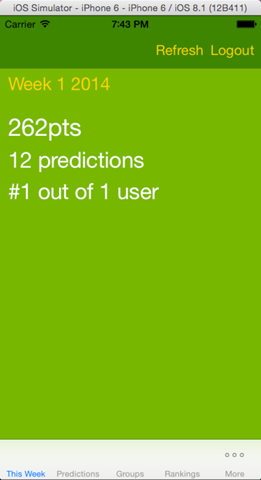
As part of developing Score Predict with Xamarin Forms it was necessary to customize the visual appearance to match the overarching theme being applied to the application.  The first step was to change the background color, simple enough using the BackgroundColor attribute of TabbedPage

Sadly, this is the extent of the customization that I can do with Xamarin.Forms.  To do any more we need to create a custom renderer and work with the underlying UITabBarController.

<?xml version="1.0" encoding="utf-8" ?>
<TabbedPage xmlns="http://xamarin.com/schemas/2014/forms"
      xmlns:x="http://schemas.microsoft.com/winfx/2009/xaml"
      xmlns:pages="clr-namespace:ScorePredict.Core.Pages;assembly=ScorePredict.Core"
      x:Class="ScorePredict.Core.Pages.MainPage"
      BackgroundColor="{StaticResource BackgroundColor}">

Step1_MainScreen        Step1_MoreScreen

Renderers serve an integral purpose with Xamarin.Forms.  It allows us to get at the native controls that are being used by the platform to actually build the interface.  Creating one is easy.  Below is the skeleton of a renderer which will handle our customizations.

[assembly: ExportRenderer(typeof(TabbedPage), typeof(TouchScorePredictTabbedRenderer))]
namespace ScorePredict.Touch.Rendering
{
    public class TouchScorePredictTabbedRenderer : TabbedRenderer
    {
        protected override void OnElementChanged(VisualElementChangedEventArgs e)
        {
            base.OnElementChanged(e);
            if (e.OldElement == null)
            {
                
            }
        }
    }
}

The OnElementChanged method is our primary hook into the rendering process.  It gets called quite a bit so we need to make sure the customizations are only ever applied the first time it is run.  So the first problem we want to address is the background color of the table cells.  This is an auto-generated UI class from iOS mapped to Xamarin as UIMoreListController.  It is completely hidden with the Xamarin assemblies are no access is given to external programs.  I only know the name cause you can see it in the debugger.

    public class TouchScorePredictTabbedRenderer : TabbedRenderer
    {
        protected override void OnElementChanged(VisualElementChangedEventArgs e)
        {
            base.OnElementChanged(e);
            if (e.OldElement == null)
            {
                var vc = MoreNavigationController.ViewControllers[0];
                var tableView = (UITableView)vc.View;
                tableView.TableFooterView = new UIView(CGRect.Empty);
                tableView.BackgroundColor = UIColor.FromRGB(119, 183, 57);
            }
        }
    }

Luckily, like all other Controllers it is an implementation of UIViewController and thus has all the properties you would expect including, most importantly View.  What the More List Controller effectively is, is a Navigation Controller with a TableView inside.  So, we can cast the root View to a TableView and work with it directly.

Step2_MoreScreen

Above, the TableFooterView is eliminated hiding empty cells.  We also set the background color of those empty cells, which basically gives the appearance of a background color.  However, as you can see, the cells with content are still white, as is the Navigation bar.  However, since at the point this code is called the View Controller has not yet been generated, we have no way to actually get at the non-empty cells or the title.  To do that we will need a delegate, so we will need to create a custom implementation using the IUINavigationControllerDelegate.

    public class TouchScorePredictTabbedRenderer : TabbedRenderer
    {
        protected override void OnElementChanged(VisualElementChangedEventArgs e)
        {
            base.OnElementChanged(e);
            if (e.OldElement == null)
            {
                MoreNavigationController.Delegate = new CustomNavigationControllerDelegate();

                var vc = MoreNavigationController.ViewControllers[0];
                var tableView = (UITableView)vc.View;
                tableView.TableFooterView = new UIView(CGRect.Empty);
                tableView.BackgroundColor = UIColor.FromRGB(119, 183, 57);
            }
        }
    }

    public class CustomNavigationControllerDelegate : UINavigationControllerDelegate
    {
        public override void WillShowViewController(UINavigationController navigationController,
            UIViewController viewController, bool animated)
        {
            
        }
    }

By defining the CustomNavigationControllerDelegate we gain access to the overridable WillShowViewController method.  It is within this method that we will perform the remainder of our visual customizations.  Its important to understand that WillShow* gets called whenever the More View Controller goes to show a new View Controller; this includes the More controller itself.  That being the case, we want to make sure we are looking at the right controller, so we attempt to cast the root view of the viewController parameter to a UITableView.  If it succeeds, we are looking at the More Table List.

    public class CustomNavigationControllerDelegate : UINavigationControllerDelegate
    {
        public override void WillShowViewController(UINavigationController navigationController, 
            UIViewController viewController, bool animated)
        {
            var tableView = viewController.View as UITableView;
            if (tableView != null)
            {
                viewController.NavigationController.NavigationBar.BarTintColor = UIColor.FromRGB(0x3C, 0x85, 0x13);
                viewController.NavigationItem.RightBarButtonItem = null;
                viewController.NavigationController.NavigationBar.TintColor = UIColor.FromRGB(0xFC, 0xD2, 0x3C);
            }
        }
    }

Once we are sure which view controller we are looking at, our first target will be the Navigation Bar.  We can adjust the BarTintColor (background color), remove the default Edit button on the right side of the menu.

One important thing to note is the TintColor.  This affects ALL INTERACTIVE items in the Navigation bar, so the coloring of buttons, NOT the color of the Title.  So if you run this code, you get something like this:

Step3_MoreScreen   Step3_AboutScreen 

It took me a bit to figure out how to change the text color of the title, turns its done through the Cocoa Appearance API.  While there are a number of appearance settings that can be applied, the code below shows how to use this API to change the text color.

navigationController.NavigationBar.TitleTextAttributes = new UIStringAttributes()
{
    ForegroundColor = UIColor.FromRGB(0xFC, 0xD2, 0x3C)
};

Not intuitive, I know, but it gets the job done.  If you run now, we get the appropriate text color, background, and interactive elements.  All that remains is the cells themselves.  To apply our styling to these, we need to iterate over the VisibleCells collection of the table view, below is the full Custom Navigation Controller Delegate class.

public class CustomNavigationControllerDelegate : UINavigationControllerDelegate
{
    public override void WillShowViewController(UINavigationController navigationController,
        UIViewController viewController, bool animated)
    {
        var tableView = viewController.View as UITableView;
        if (tableView != null)
        {
            viewController.NavigationController.NavigationBar.BarTintColor = UIColor.FromRGB(0x3C, 0x85, 0x13);
            viewController.NavigationItem.RightBarButtonItem = null;
            viewController.NavigationController.NavigationBar.TintColor = UIColor.FromRGB(0xFC, 0xD2, 0x3C);

            navigationController.NavigationBar.TitleTextAttributes = new UIStringAttributes()
            {
                ForegroundColor = UIColor.FromRGB(0xFC, 0xD2, 0x3C)
            };

            tableView.SeparatorInset = UIEdgeInsets.Zero;
            foreach (var cell in tableView.VisibleCells)
            {
                cell.BackgroundColor = UIColor.FromRGB(119, 183, 57);
                cell.TextLabel.TextColor = UIColor.White;
                cell.Accessory = UITableViewCellAccessory.None;
                cell.SeparatorInset = UIEdgeInsets.Zero;
            }
        }
    }
}

Step4_MoreScreen

As you can see, what this really amounts to is programming against Xamarin.iOS and knowing the iOS programming model.  In reality, once you start using Renderers on any of the platforms you are effectively beginning to work with the native controls provided through Xamarin; at this point knowing the native platform becomes exception helpful.

I have to thank Jason Smith, PM of the Xamarin.Forms team, for really spelling out the delegate approach.  Although, in hindsight, he basically told me to use my knowledge of Xamarin.iOS 🙂 Either way, still very helpful to have him in your corner.

As always, you can check out the project as it evolves at: https://github.com/xximjasonxx/ScorePredictForms

Cheers!!

Understanding Tabs with Xamarin.Forms

Recently, I decided to address a long standing issue with my Xamarin.Forms version of Score Predict: overflow.  As you may know, Xamarin.Forms allows  you to use the TabbedPage control to define a page that shows tabs for children, using the appropriate control on each platform.  On Windows Phone this is the Panorama control, Android shows the horizontal tabs across the top, and iOS goes to the typical TabBarController with the tabs running along the bottom.

Because I will expect the control to show 6 tabs I will be invoking the overflow scenario on both Android and iOS (Windows Phone doesnt have a concept of this).  With Android, I had no problems, and using my default approach things came out perfectly, with the tab bar supporting horizontal scrolling to see additional items.  Where I ran into problems was with iOS and its More Navigation Controller.  This controller is an auto-generated view that renders as a TableViewController within a NavigationController.  Unfortunately, with my default approach I ended up with this:

DoubleTab

Pretty ugly.  The problem here is that I had made the choice to use a NavigationPage as the wrapper for all pages.  I was doing this so I could more finely control the navigation, taking pages out as needed.  This will not work with Tab pages.  The solution is to embed the Navigation page wrappers into each child.  This can be done declaratively.

   <pages:ScorePredictNavigationPage Title="This Week">
      <x:Arguments>
        <pages:ThisWeekPage>
          <pages:ThisWeekPage.ToolbarItems>
            <ToolbarItem Name="Logout" Command="{Binding LogoutCommand}">
              <ToolbarItem.Order>
                <OnPlatform x:TypeArguments="ToolbarItemOrder"
                       WinPhone="Secondary"
                       Android="Secondary"
                       iOS="Primary" />
              </ToolbarItem.Order>
            </ToolbarItem>
          </pages:ThisWeekPage.ToolbarItems>
        </pages:ThisWeekPage>
      </x:Arguments>
    </pages:ScorePredictNavigationPage>

ScorePredictNavigationPage is just an empty class that I created which inherits from NavigationPage and specifies the various colors to keep the style consistent.  By doing this for each of your pages you will be able to use Navigation and Toolbar items for that tab; and yes the Toolbars will change as the user changes tabs depending on the items available.

This is where I encountered my first snafu.  It is the Navigation Bar, on Android, which also provides the action bar.  Therefore, if your page is not within a NavigationPage you do not get the Action bar, and thus the options in it.  However, on iOS, the overflow will inherently provide a Navigation page, further if you wrap these options in Navigation pages the sizing and handling by the More is quirky.  The solution that I found was I needed to ensure that I provided pages which had the Navigation chrome on Android, but did not have it on Windows Phone and iOS.

My first attempt, was store each version of the page in the local Resource Dictionary and reference it as a StaticResource.  This did not as <OnPlatform> does not seem to work as a child of TabbedPage; it became clear I was going to have to do this in code.  So, I used the Device.OS enumeration to determine which platform I was on and add the appropriate page to end of Children.  While this worked on Windows Phone and Android, I found that it caused some quirky behavior and overwrote my visual customizations for the More Navigation Controller (future blog post).  I then dialed down my approach and specified the NavigationPageless About and History pages in Children.  In code, I removed these pages and added the NavigationPage wrapped versions when the OS is Android.

        protected override void OnAppearing()
        {
            if (Device.OS == TargetPlatform.Android)
            {
                Children.Remove(Children.Last());       // remove about
                Children.Remove(Children.Last());       // remove history

                Children.Add((Page)Resources["ChromedHistoryPage"]);        // add history
                Children.Add((Page)Resources["ChromedAboutPage"]);  // add about
            }
        }

As you can see, we remove the last two pages from Children and then reference the pages by their Resource Key, I show the About page definition below:

<TabbedPage.Resources>
    <ResourceDictionary>
      <pages:ScorePredictNavigationPage Title="About" x:Key="ChromedAboutPage">
        <x:Arguments>
          <pages:AboutPage Title="About">
            <pages:AboutPage.ToolbarItems>
              <ToolbarItem Name="Logout" Command="{Binding LogoutCommand}">
                <ToolbarItem.Order>
                  <OnPlatform x:TypeArguments="ToolbarItemOrder"
                    WinPhone="Secondary"
                    Android="Secondary"
                    iOS="Primary" />
                </ToolbarItem.Order>
              </ToolbarItem>
            </pages:AboutPage.ToolbarItems>
          </pages:AboutPage>
        </x:Arguments>
      </pages:ScorePredictNavigationPage>
    </ResourceDictionary>
  </TabbedPage.Resources>

You really have to love the flexibility that Xaml gives you, and the fact I can use it for iOS makes me beyond happy.  Now you might be wondering if the user will see a flash before the two final tabs are added.  Not so far in my experiments, however, with the way Android renders tabs, its unlikely the user could get to the end before they loaded; maybe on a wider screen.  Either way, I do not recommend this approach for large amounts of tabs.  Hopefully the Forms team will make this approach irrelevant in the future.

With our chromeless pages iOS works great and Windows Phone remains ambivalent as ever, Android removes these pages and uses its own.

The Login Process

I mentioned previously that I was forced to alter my logon process because I could not contain the TabbedPage in the same Navigation Page as the Logon flow pages, something I did previously which allowed me to alter the navigation stack; this was a subject of past blog posts.  The rule in Forms is you cannot have two Navigation Pages in the same navigation context.  Since there was no question the Logon process was going to need a NavigationPage and I needed Navigation Pages within each tab to provide the toolbar it was clear I needed to show a modal.

Originally, I did not show a modal because I am still at a loss on how to properly use the hardware back button on Android and Windows Phone with Forms.  Figuring out how to get the app to exit from the Logon modal would be essential; its an integral part of the UI experience for Windows Phone and   According to this forum thread (http://forums.xamarin.com/discussion/29934/xamarin-forms-1-3-0-released/p1) Jason Smith (PM for the Forms team) implies that if you return “false” from OnBackButtonPressed it will exit the app.  I was not able to confirm this.

In lieu of getting this supposed functionality to work, I decided that I would simply have the app just straight terminate.  This is not allowed on iOS, however, since it will only ever be triggered by a hardware back button, it is irrelevant for Apple users.  To accomplish on Android and Windows Phone requires diving into the platform itself, so we use the “bridge pattern”.  I created interface called IKillApplication with a single method KillApp.  I then had MainPage (Windows Phone) and MainActivity (Android) implement this interface and pass a reference to themselves to the constructor for Score Predict.

// Android
public class MainActivity : FormsApplicationActivity, IKillApplication
{
   protected override void OnCreate(Bundle bundle)
   {
      base.OnCreate(bundle);
      Forms.Init(this, bundle);

      LoadApplication(new ScorePredictApplication(new DroidNavigator(), this,
         new ServiceInjectionModule(), new DroidInjectionModule()));
   }

   public void KillApp()
   {
      Process.KillProcess(Android.OS.Process.MyPid());
   }
}

// Windows Phone
public partial class MainPage : IKillApplication
{
   public MainPage()
   {
      InitializeComponent();
      Forms.Init();

      var app = new ScorePredictApplication(new PhoneNavigator(), this,
         new ServiceInjectionModule(), new PhoneInjectionModule());
      LoadApplication(app);
   }

   public void KillApp()
   {
      App.Current.Terminate();
   }
}

In my final version, I will likely isolate this to its own class and pass an instance of that class rather than using the Page or Activity, this this suffices for explanation.  I wire this up so that each ViewModel can override the BackButtonPressed method.  They can then call the KillApp to terminate the application.  By supporting this, I am able to terminate the application from the Login modal and thus prevent the user from returning to the application without authentication.

Unfortunately this introduced a new problem.  Before, since Main page would never be visible until the user logged in, I could safely assume my custom lifecycle events would not fire when the user was not authorized; this is now no longer the case.  In fact, for both Android and iOS the This Week page (the first page in the tab set) will “appear” despite being covered immediately by the modal; on Windows Phone the first two pages in the tab set “appear” this so the Panorama can show a bit of the second page (this is the common effect in Windows Phone to indicate where more content exists so the user goes there).

Since the “appear” event would only get fired once, I needed a way to communicate to these view models that they should attempt to load their data.  Solution: a quick and dirty message bus, based on Caliburn.Micro.  Here is a sample of its usage:

        public ThisWeekPageViewModel(IThisWeekService thisWeekService, IBus messageBus,
            IReadUserSecurityService readUserSecurityService)
        {
            ThisWeekService = thisWeekService;
            MessageBus = messageBus;
            ReadUserSecurityService = readUserSecurityService;
        }

        protected override async void Refresh()
        {
            await LoadWeekDataAsync();
        }

        public override async void OnShow()
        {
            MessageBus.ListenFor<LoginCompleteMessage>(LoadWeekData);
            if (ReadUserSecurityService.ReadUser() != null)
            {
                await LoadWeekDataAsync();
            }
        }

        private async void LoadWeekData()
        {
            await LoadWeekDataAsync();
        }

And now, the publish:

        private async void Login()
        {
            try
            {
                MessageBus.Publish<LoginCompleteMessage>();
                await Navigation.PopModalAsync(true);
            }
            catch (Exception ex)
            {
                DialogService.Alert("Login did not succeed. Please try again");
            }
        }

I kept it dirt simple.  The basic mechanism is the Bus stores a Dictionary with a List of Actions keyed by a Type.  When that type is published each Action is invoked.  This enables me to send these events from anywhere in the application; although I do not intend to do that very often, and kept it simple for this simple case.

Its important to remember that only the first tab in Android and iOS will need to be reloaded following a login, and the first two in Windows Phone.

I definitely learned some very important lessons from this experimentation and I think Score Predict is better for it.  I think the team has some ends to shore up to make this more pleasant to program against.  I find myself really diving into custom renderers for quite a few things, especially on iOS where it seems things are just not as far along as the other two platforms.

If you are curious to see the full source, you can always check out the full Score Predict source here (https://github.com/xximjasonxx/ScorePredictForms) – @jfarrell if you have any questions.

Cheers

Promises with Azure Mobile Services

Recently I decided to see if I could use JavaScript Promises in my Azure Mobile Services; doing so would allow me to clean up the services and reduce occurrences of the “Pyramid of Doom” anti-pattern.

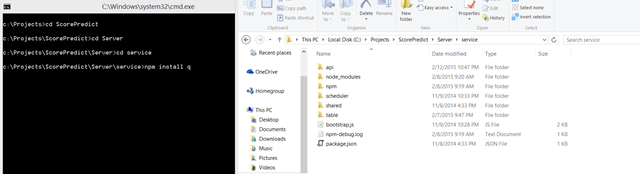
In order to achieve this goal, I decided to bring the tried and true “Q” library (https://github.com/kriskowal/q) into my Azure Mobile Service.  This is accomplished by taking advantage of the Git repository Microsoft provides to every mobile service and running npm install Q from the command line within that repository (assuming you have node.js installed).

image

Doing this creates the node_modules directory which will contain the source JavaScript for external modules.  Now to actually use Q in your script add a require call to the top of your script.

var Q = require("q");

In reality, you can name the return variable whatever you like, however, I have found that most often you will see it referenced as a capital Q.

Without getting too much into the mechanism of how Promises work under the hood, the best way to approach using them in Mobile Service is to use the “deferred” approach.  This is a similar concept to jQuery, but slight different.  Consider the following method written without promises:

exports.get = function(request, response) {
    var userId = request.user.userId;
    var sql = "";

   request.service.mssql.queryRaw(sql, [userId], {
      success: function(result) {
         request.respond(200, []);
      }
   });
};

The problem here is that when you rely on callbacks you create a stack whereby each call must finish before the next one can execute.  Its not efficient and it gets messy.  Callbacks are fine for single level, but quickly spiral out of control.

For example, lets say the above code returned an identifier that three subsequent queries would use.  We would end up with 4 levels of this, hence the pyramid of doom.  This is not what we want.  We want to be able to execute our first query get the data and then execute the next three concurrently, returning once all complete.  Here is what this looks like with Promises:

var Q = require("q");

exports.get = function(request, response) {
   var userId = request.user.userId;
    var weekOf = request.query.weekForDate;
    
    // make a query to get the total points for the user for the week
    var weekDataPromise = getWeekFor(weekOf);

    weekDataPromise.then(function(weekInfo) {
      var pointsPromise = getTotalPoints(userId, weekInfo.weekId);
       var totalPredictionsPromise = getTotalPredictions(userId, weekInfo.weekId);
       var rankingPromise = getRanking(userId, weekInfo.weekId);
      var weekInfoPromise = Q(weekInfo);
        
      return Q.all([pointsPromise, totalPredictionsPromise, weekInfoPromise, rankingPromise])
         .then(function(results) {
            request.respond(200, results);
         });
    });
};

Pretty slick right?  Once we get the information for the week passed, we are able to pass it to our other three queries.  Each function houses the query and returns a promise.  These promises are then passed into all indicating the code should wait for all to complete before invoking the response handler.

Here is an example of two of these methods:

   function getWeekFor(weekOf) {
      var defer = Q.defer();
      var sql = "";

      request.service.mssql.queryRaw(sql, [weekOf], {
         success: function(result) {
            if (result.rows.length == 0) {
               defer.reject(new Error("No Week for WeekFor"));
            }
            else {
               defer.resolve({
                  weekNumber: result.rows[0][0],
                  year: result.rows[0][1], 
                  weekId: result.rows[0][2]
               });
            }
         }
      });

      return defer.promise;
   }

   function getTotalPoints(userId, weekId) {
      var defer = Q.defer();
      var sql = "";

      request.service.mssql.queryRaw(sql, [weekId, userId], {
         success: function(result) {
            if (result.rows.length == 0) {
               defer.resolve({
                  totalPoints: 0,
                  userId: userId,
                  weekId: weekId
               });
            }
            else {
               defer.resolve({
                  totalPoints: result.rows[0][0],
                  userId: userId,
                  weekId: weekId
               });
            }
         }
      });

      return defer.promise;
   }

The important concept here is the “deferred”.  This object allows us to manually complete the promise in the matter we see fit.  There are two calls here: resolve (success), and reject (failure).  You see the calls above to resolve which allow me to pass data back; we will cover how to access this data.  Reject rejects the promises and, in this case, would invoke the “fail” handle for all, since “all” did not resolve.

As for accessing the data, you will pull it out of the “results” variable in “all” calls then function.  In this case, since we have 4 promises being returned, results will be array of length 4.  0 = result of pointsPromise, 1 = result of totalPredictionsPromise, 2 = result of rankingPromise, and 3 = result of weekInfoPromise, which is the value that was returned from the initial promise that set up the other three.

So that’s it.  Using Promises is definitely an approach all developers should be looking at.  They give JavaScript some great syntactical features for handling asynchronous conditions and clean up code tremendously.

Platform Specific Styling with Xamarin Forms

When creating Xamarin Forms applications most of the styling and sizing will be handled for you, however, there are often times you have to do something specific to a certain platform; especially when it comes to sizing fonts appropriately, since pixel densities vary widely across the platforms.

To support this case, Xamarin Forms provides the <OnPlatform> tag for Xaml.  This tag can be used in a variety of very useful ways, one of which is to support the Styling component added in version 1.3.  In fact, we can reference instances of <OnPlatform> as Static Resources within our XAML, like this:

<OnPlatform x:TypeArguments="Color" Android="Green" iOS="White" WinPhone="White"
            x:Key="PrimaryTextColor" />
<OnPlatform x:TypeArguments="Font" Android="30" iOS="40" WinPhone="20" x:Key="LargeFontSize" />

<Style x:Key="LargeLabel" TargetType="Label">
    <Setter Property="TextColor" Value="{StaticResource PrimaryTextColor}" />
    <Setter Property="Font" Value="{StaticResource LargeFontSize}" />
</Style>

<Label Text="{Binding Path=PointsAwardedDisplay, Mode=OneWay}" HorizontalOptions="StartAndExpand"
       Grid.Row="2" Grid.ColumnSpan="2" Style="{StaticResource LargeLabel}" />

In this example, we are defining a style for a Label called LargeLabel.  This Label will use a TextColor of White for all platforms except Android where it will be Green.  For the font size, Android will use 30, iOS will use 40, and Windows Phone will use 20.  I find this is the most common use for this tag with regard to styling, as the font sizing algorithms for the platform are different; be sure to run on simulators and actual devices to get the font that you want.

One of the other areas <OnPlatform> finds usage is in selective display.  I use this a lot for Navigation pages within Windows Phone.  As Windows Phone does not have the concept of a Navigation bar setting the Title will NOT show up anywhere on the page.  So what I tend to do is add the following bit of Xaml to each page

<Label Grid.Row="0" Style="{StaticResource HeaderLabel}">
    <Label.Text>
        <OnPlatform x:TypeArguments="x:String">
            <OnPlatform.WinPhone>
                Create User
            </OnPlatform.WinPhone>
        </OnPlatform>
    </Label.Text>
</Label>

In Xaml, you have the option of setting a value in either the attribute of the notation I used above, this allows for more complex values to be assigned to a property; very common with ListView as its how templates are set for list items.

In the case above, we are setting the Text to a value ONLY when the platform is determined to be Windows Phone.  This same approach can be applied throughout Xaml and is part of what gives it is amazing flexibility when designing UIs.

And beyond font sizing and selective UI you can do so much more once you understand this.  For example, I recently found out that the row height for the group header in my listview differed between Android and Windows Phone because of how the styling was translated.  I ended up having to do this:

<ListView.GroupHeaderTemplate>
    <DataTemplate>
      <ViewCell Height="{StaticResource PredictionsHeaderRowHeight}">
         <Grid BackgroundColor="{StaticResource DarkGreenColor}"
               HorizontalOptions="Fill" VerticalOptions="Fill">
            <StackLayout HorizontalOptions="Fill" VerticalOptions="Fill"
                         Padding="7,0,0,0">
               <Label Style="{StaticResource HeaderLabel}"
                      Text="{Binding Path=Key, Mode=OneWay}"
                      HorizontalOptions="Fill"
                      VerticalOptions="CenterAndExpand" />
               </StackLayout>
            </Grid>
        </ViewCell>
    </DataTemplate>
</ListView.GroupHeaderTemplate>

You can see that I provide a Static Resource as the value for the ViewCell Height property.  It is defined below

<OnPlatform x:TypeArguments="x:Double" Android="30" iOS="30" WinPhone="50" x:Key="PredictionsHeaderRowHeight" />

I hope that helps get you started styling your Xamarin Forms apps.  Check out my previous post which talks about how to centralize these styles into a central file.

Centralize Your Styles with Xamarin Forms

Looking around the Internet before the Super Bowl I was trying to find a way to centrally declare styles for my Score Predict app.  I did not want to use code, I instead wanted to go with what I am more familiar with: XAML.  In most WPF and WinPhone apps we do this definition in the App.xaml using MergedDictionaries.  MergedDictionaries are very useful and provide for easy way to segregate styles and maintain organization, I wanted something similar in Forms.

After much search I stumped upon this code sample (http://tinyurl.com/SharedStyles) by Peter Major.  In it, he shows a rather interesting way to achieve this.

Normally, when a Forms app is created you are given an App.cs class and this ends up being the bootstrapper for your application.  What Peter did was remove that App.cs class and replace it with a Forms XAML page named App.xaml, in Score Predict I called this ScorePredictApplication.

The trick here is to have the Xaml page use <Application> as its start, instead of the default <ContentPage> (below):

<Application xmlns="http://xamarin.com/schemas/2014/forms"
             xmlns:x="http://schemas.microsoft.com/winfx/2009/xaml"
             x:Class="ScorePredict.Core.ScorePredictApplication">

Doing this now creates the familiar .xaml file which WPF and WinPhoners are so familiar with.  To add styles, you simple use the Resources extended property

<?xml version="1.0" encoding="utf-8" ?>
<Application xmlns="http://xamarin.com/schemas/2014/forms"
             xmlns:x="http://schemas.microsoft.com/winfx/2009/xaml"
             x:Class="ScorePredict.Core.ScorePredictApplication">
  
  <Application.Resources>
    <ResourceDictionary>
      <OnPlatform x:TypeArguments="Font" Android="Large" iOS="Large" WinPhone="Large" x:Key="HeaderFont" />
      <OnPlatform x:TypeArguments="Color" Android="White" iOS="White" WinPhone="White" x:Key="PrimaryTextColor" />
      <OnPlatform x:TypeArguments="Font" Android="40" iOS="60" WinPhone="60" x:Key="LargeFontSize" />
      <OnPlatform x:TypeArguments="Font" Android="30" iOS="60" WinPhone="60" x:Key="MediumFontSize" />
  
  </Application.Resources>
</Application>

Notice, that we can also use the <OnPlatform> tag to customize our styles for each platform.  This is important because while Forms does a reasonable job of rendering, it is nice to be able to take finer control and tweak things.

As for the remainder of your bootstrap process, move it to the .cs codebehind, that will correct any issues.  The important thing is to remember to keep the call to InitializeComponent, if you drop it your styles will not be loaded.

public partial class ScorePredictApplication
{
    public ScorePredictApplication(INavigator navigator, params Module[] modules)
    {
       InitializeComponent();
    }
}

A small side note, previously in Score Predict I used a custom ContentPage based generic class to allow for automatic instantiation and implementation of the associated ViewModel.  For some reason, using a Generic class plays hell with styles and will cause the main XAML page for your application to crash when being generated.  I had to revert to a non-generic class to correct this.  Not sure how these two are linked at this time.

Welcome to WordPress

As much as I have loved using BlogSpot for all of these years, it was time to make a change.  This was mainly driven by the ever drooping support for code posting in BlogSpot through Windows Live Writer.  Most of the newer plugins seem to forgo support for BlogSpot and push their support for WordPress.  I dont intend to stop blogging, so I need a blogging service that can adequately support my posts

Getting started with WatchKit with Xamarin.iOS (Preview)

So, after completing my Xamarin Certification I wanted to try out something new so I choose WatchKit.  This is still in the very early stages with actual Apple Watches not due out till sometime in April, so now was a good time to get started.

The Setup

The WatchKit Preview for Xamarin is ONLY available with Xamarin.iOS 8.7 (current release is 8.6) and Xcode 6.2 with 8.2 Beta 4.  For Xamarin Studio you will need to first download the 5.7 beta (I am using build 661 for this) and ensure that is using the 8.2 Beta 4 code.  I am listing the links below which is also to imply their install order.

Important: Once you attempt to install Xcode and Xamarin Studio the instructions will tell you to place the .app in your Applications folder.  I recommend not doing this, especially if you have a pre-existing development environment (I do).  My recommendation is to drag both to your Desktop and open them manually so you can ensure the correct environment comes up.

Important: Shortly after I had my environment setup Xamarin released update to Xamarin.iOS 8.6.  Allowing these updates on my other environment overwrote my beta Xamarin Install.  I easily fixed it by rerunning the 8.7 update; advice: keep the .pkg file handle.

The only other remain step is to point the Xamarin Studio installation at the 8.2 Beta 4 SDK path.  This is easy enough as you just point it at the Xcode 6.2 .app file (on the Desktop if you are like me).  This option can be found under the Preferences –> SDK Locations –> Apple option.  Screen shot below

image

Full Xamarin Article: http://developer.xamarin.com/guides/ios/watch/installation/

Getting Started

So, the first part of the setup is creating the projects and you will need three of them.  Coincidentally, this is also the point you will realize, yes or no, if your installation worked or is broken.

First create the iOS app using the Unified templates, I recommend a Single View app for simplicity.image

Next we need to add a Watch Extension project

image

Finally, the Watch app project

image

Once you call the projects you will embark on what is perhaps the MOST critical and flakey step in this process: specifying the Bundle identifiers.

What Apple is going for with the current incarnation of Watch is the package the Watch App inside the actual App.  To do this, we need to add special suffixes to the bundle identifier for the Extension and the Watch App projects.

Assuming the bundle identifier is something like: com.farrellsoft.testapp for the iPhone app, this is what the bundle identifier’s will need to be for the Extension and WatchApp respectively:

  • Extension: com.farrellsoft.testapp.watchkitextension
  • Phone App: com.farrellsoft.testapp.watchkitapp

At present, you can only set these values by opening the project info.plist file.  Also, when setting the identifier for the Extension you will also need to indicate the identifier for the Watch App for the field WK App Bundle ID.  In the case of this sample, the value of that field would be com.farrellsoft.testapp.watchkitapp

Before you can run the app, you will need to set the Extension as the Startup Project.

Note: this is where making sure you are running the correct version of Xamarin Studio is critical.  If you dont not see the correct templates, as shown above, close XS and verify that you have the right version running.

Run and Pray

If you follow Xamarin’s instructions they make this all sound very easy, but honestly, for me, this part was very trying.  Some tips:

  • Hardware –> External Display – there is a chance than when you start the simulator you wont see the Watch simulator.  If this occurs, you can open the Watch Kit simulator from Hardware –> External Display with the simulator selected as the active application
  • Reset Content and Settings – I found that I had to reset my simulators content and settings frequently as I was debugging the application.  A sign that this needs to be done is usually manifested in the application taking forever to deploy to the debugger not connecting.
  • Restart the simulator – the old shutdown and restart technique has not lost its value

I wont sugercoat, this whole process seems very flakey, but it does work.  But I cannot tell you how much time I spent wondering why my application would not show up in the simulator.  The biggest tip is, be VERY careful with those Bundle Identifiers and look at them first before you start diving deep.

The Interface

Before you can really start coding, you will need to link some files into the WatchApp to support the user interface.  For this post, we are just going to focus on the normal interface, not Glance or Notification (neither of which is supported without the command line right now).

Right client the WatchApp project and select Add Files.  From the presented dialog, navigate to the Extension project.  You will want to select the InterfaceController.cs and the IntefaceController.designer.cs

Important: When you are presented the dialog regarding HOW to bring the files into the project, be sure to select the Link option (screenshot).

image

Once this is done, you can double click the storyboard and start building your interface.  More details here: http://developer.xamarin.com/guides/ios/watch/getting-started/

Communicating with the Phone

After I got things working, I started to explore a couple scenarios around Watch to Phone communication.  Apple has said that, for now, the Watch will not support standalone apps and will require the phone to do most things.

Communicating with the phone involves overriding the HandleWatchKitExtensionRequest in the AppDelegate of your iOS app.  The main thing to focus on here is the method will be passed an NSDictionary from the Watch app (more on that in a second) and can then reply to the phone using the “reply” delegate which allows the method to send its own NSDictionary back to the Watch.  This appears to be the primary mechanism, in this version, for data access facilitation.  I should point out that, even if the app has NEVER been run on the phone, it can still call this method.  In fact, updating the UI is pretty easy (code sample):

image

To invoke this method from the Watch you need only call the OpenParentApplication method from the WKInterfaceController base class that your WatchKit interface View Controllers will inherit from (code sample)

image

Data Access Strategies

So with this model in mind, I began to explore possible ways to access data.  While it will definitely be a topic in a future blog entry, I can already provide some detail.

Basically, the WatchKit delegate method in AppDelegate is permitted to access the storage of the app itself, we think.  This being the case, it stands to reason that the Watch can make a data request through this delegate method and receive it back, as you see in the example above.

At West Monroe, our thoughts, right now, are to store data in either a flat file or Sqlite database and see if (and how) we can display this data to the user via the watch.  Certainly, we see the UI and usability challenges being presented, but we also see the value we could provide our clients.

Final Thoughts

Honestly, I am not a super huge fan of Wearables mainly because its bad enough to have to change the phone every two years, now we might have to buy new watches.  That said, when I was at Evolve last year, I saw some immense benefits, especially with schedule keeping.  It really is going to be interesting to see how we can use these limited interfaces and what value we can bring.  The Wearable is not a new idea, Google has been at it for years, but something different when Apple gets their hands on it.  Right now, still way too early to fully evaluate WatchKit but I do like the direction.

Understanding Xamarin Forms Navigation

As I continue my exploration into Xamarin Forms, I continue to really take aim at the Navigation piece of the framework.  My previous post I talked about a proposed solution that involved reaching outside Forms and into native code (for Android specifically).  I really wanted to get beyond this.

The Methods

PushAsync – Pushes a new page onto the navigation stack, or replaces the current content with a new page if no Navigation stack is present (Windows Phone only).  Without a NavigationPage this method will not work (throws an exception) on Android and iOS.

PopAsync – Pops the most recent page off the Navigation stack.  Havent tested what this method does on Windows Phone without a Navigation Page.

PushModalAsync – Push a page into a modal context.  This will create a new, independent, Navigation context within the application.  The modal that is created can be dismissed with a hardware back button; there appears to no way to stop this functionality.  On Android and Windows Phone there really is no difference, to the user, between this method and PushAsync, on iOS however you will see the traditional cover vertical animation

PopModalAsync – Pops the most recent Model context and returns to the most recent Navigation context.

InsertPageBefore – allows manipulation of the navigation stack and the insert of a page before another.  Does not work on Windows Phone, complains about the new page being outside the navigation scope.  Following usage, you will have to write code to actually get to this page.

RemovePage – removes a page from the Navigation stack.  Does not work on Android

PopToRootAsync – pops to the first page in the Navigation stack.  Used very commonly with InsertPageBefore to change the root page for an application.

By no means can I say that this is comprehensive, but its clear that not all of the methods work across the platforms.  This leads to a need to injection “helpers” into the core from the platform specific to control the navigation.  Here is an example that I have created within Score Predict

image

This is the Windows Phone version which shows using RemovePage to create a new root.  This is because InsertPage does not appear to work on Windows Phone.  Here is the Android version:

image

The ability to use InsertToPage makes this much simpler.  Here you also see a very common pattern of using InsertPage to change the first page in the Navigation stack and then using PopToRootAsync to immediately go to that page.

You may find it weird that I am passing in INavigation to each of these methods.  The reason for this is, I am calling them from a View Model.  At present, I have not found a good way to inject the Navigation property into other classes.  I am hoping a future release of Forms will give us more accessibility into how components like this are resolved.

For giggles, here is the iPhone version

image

You can see that it almost directly parallels the Android version in how it manipulates the Navigation stack.

Conclusion

I am pleased that I have removed the need to call platform specific code and instead I have found a way to use the Forms components to suffice for Navigation.  However, I believe the aim of forms should be to support a single navigation flow that can be properly supported across all three platforms; that is not the case at the moment.

Xamarin Forms Navigation: The Current State

My most recent blog post centered around my discoveries within Forms, relating primarily to Appearance and Navigation.  Truthfully, I felt the Navigation system had to be improved beyond what 1.3 provided for the platform to be viable.

After speaking with members of the Forms team, I decided to dig deeper into Navigation to try and get a better sense of where the team was.  Here are some of my findings:

Do I Push or PushModal?

Understanding the difference between these two methods is core to creating efficient navigation systems with Forms. Separating the conversation from the visual notion (which WinPhone and Android have no concept of), we have to ask the question, what does it mean for something to be modal?

In terms of Forms its all about the NavigationStack.  When we Push a new page onto our stack, it is considered part of the primary flow of the application.  This means, Push a page will give you soft back functionality in Android and iPhone (Windows Phone has no concept of us, so its irrelevant).  However, when we Push a Modal, it is considered a new root page, thus a new Navigation context.

However, while this is without a “gotcha” on iOS, both Windows Phone and Android must contend with a hardware back button which can dismiss the modal.  This is important if your modal is going to hide a main page until login is accepted, a common paradigm on all platforms.

In general, if you intend to navigate to one page from another in a non-modal fashion you will want to wrap your page in a NavigationPage.  If you only intend to show one page, you can dispense with this, although on iOS it may cause the screen to look funny due to being too close to the status bar.

What does it mean to be a root page?

The simple answer is, the first page in the stack is the root.  It is a page that the user either cannot go back from or doing so closes the application (Windows Phone, Android).  In Forms, the method PopToRootAsync will remove all pages except for the first page in the Navigation stack.  Remember, if you are within a Modal, it has a separate Navigation context than your main app.

Sometimes, you may need to alter the root page of your application.  This is a common practice on both Windows Phone and Android to support backing out of an application. To support this, the InsertPageBefore method exists.  This allows you to insert a new page before another page.

Navigation.InsertPageBefore(new FourthPage(), Navigation.NavigationStack.First());
Navigation.PopToRootAsync(true);

In this case, we are inserting FourthPage as the first page in the application (root), and then doing a PopToRoot call which will land us on this new page and alter our root.

Note: At the time of this writing this line was no universally supported as I will explain later

Can I remove a Page?

Yes, but there are some restrictions.  Oddly, this is one area of the Navigation that is very odd.  You would think you should be able to do something like this:

Navigation.PushAsync(new ThirdPage());
var page = Navigation.NavigationStack.OfType().FirstOrDefault();
Navigation.RemovePage(page);

But this causes an unexplained crash on Android, though it does work on iOS and Windows Phone.  The way that I have found around it is to perform the removal on the actual action, like so:

Page page = Navigation.NavigationStack.OfType().First();
Navigation.RemovePage(page);


Navigation.PopAsync();

But, it perplexes me why Android seems unable to do this.  The obvious problem this creates is removal logic is now on a page which could be used elsewhere when the page in question would not be in the stack.

The role of NavigationPage

The NavigationPage is what provides the soft navigation at the top that is essential to iOS apps and complimentary in Android apps.  In general, you will see many applications start off like this:

public App()
{

     MainPage = new NavigationPage(new FirstPage());
}

This is quite necessary on both iOS and Android since it will allow to push additional pages onto the Navigation stack; otherwise you get an exception.  Windows Phone is the only one capable of operating without it.

Oddly, using NavigationPage at all renders InsertPageBefore completely useless on Windows Phone, as it will throw an exception whenever invoked; as of this writing I have yet to make this call work cross platform as a means redefine my root page.

Thinking about Navigation with Forms

When it comes to writing applications with Forms, Navigation is going to have to be something you consider.  In my opinion, you need to first understand how NavigationContext changes between simply pushing a new page onto the stack versus opening that same page in a modal view.

While calling PushModal does work well it fails to disallow the back button to be used to dismiss these modals on Android and Windows Phone; rendering it unfit to show a Login screen.  At this point in time, it may be wise to consider approaches which change the root view of your application; but this has cross platform implications as it may not work on Android/iOS or may not work on WinPhone.

Remember, Forms is always about generalization, and that needs to be considered in deciding whether Forms is appropriate for your app, as well as how its various features will be affected.

Missing Features

I really think some additional methods need to be defined to aid developers in manipulating the NavigationStack in common ways.  For example, changing the root page in a NavigationConext.  Or marking a page as closed after leaving (similar to NoHistory) in Android.

Another feature which would be helpful is chaining.  My colleague Greg came up with a great example:

Page A –> Page B –> open Page C modally –> Page D –> Page E –> Page A

While this can be done in the existing infrastructure, it requires a solid understanding of what Forms is doing under the hood. The code below, when executed from Page E will return us to Page A.

private void ButtonClick(object sender, EventArgs ev)
{
    var modalStack = Navigation.ModalStack;
    var parentNavigation = modalStack.First().Navigation;

    parentNavigation.PopToRootAsync(true);
	Navigation.PopModalAsync();
}

The thing, again, to understand is this idea of context that the Forms team has created.  Think of each Modal as a navigation context; this means that each application will always have at least one Modal, and it does.

The Navigation property associated with a ContentPage is associated with the navigation context the page resides within, so, if we can get access to this property within that context we can affect the navigation inside that context; hence the code above first removes all Pages from our parent navigation stack until only the root remains, then we we pop off the child modal.

While this is workable it is not 100% clear.  I think it would be better if we were allowed to do some sort of chaining with these calls; I think the code would be a lot cleaner this way.

Continuing Problems

My problems continue to be focused around organizing navigation so that it makes sense on the various platforms being targeted.  The simple truth is, the way the user interacts with the device and navigates through the app may not be something that can be completely generalized, but with these methods it does appear that we neednt worry about dropping into the platform specific code, as my previous post suggested.

I am looking forward to the next major release to see what additional enhancements the team has made in this area.